

 Vietnamese
Derivatives trading guide
Derivatives trading guide at Shinhan Securities Vietnam
Derivative securities are financial instruments in the form of contracts—including options, futures, and forward contracts—that establish the rights and obligations of the involved parties regarding cash settlement or the transfer of underlying assets at a predetermined price at a specific point in the future.
There are four main types of derivatives:
-
Forward Contracts: An agreement between two parties to buy and sell an underlying asset at a fixed price at a specific future date.
-
Futures Contracts: Standardized forward contracts that are listed and traded on a Stock Exchange.
-
Options Contracts: An agreement or commitment to buy (or sell) an underlying asset at a fixed price in the future, where the buyer has the right, but not the obligation, to execute the transaction.
-
Swap Contracts: A contract between two parties to exchange future cash flows based on a predetermined formula.
Currently, Vietnam has deployed Index Futures (specifically for the VN30 index, with the addition of VN100 index contracts from late 2024) available for both individual and institutional investors, as well as Government Bond Futures reserved for institutional investors. These two types of contracts are officially listed and traded on the Hanoi Stock Exchange (HNX).
At the Counter
Please bring your valid original ID Card / Citizen ID Card / Passport (for foreign investors) / Business License to receive support for account opening at:
- Head Office: 18th Floor, The Mett Building, 15 Tran Bach Dang, An Khanh Ward, Ho Chi Minh City.
- Hanoi Branch: 2nd Floor, Leadvisors Building, 41A Ly Thai To, Hoan Kiem Ward, Hanoi.
Via Account Manager
Please contact your Account Manager for guidance and assistance with the application dossier.
Valid Derivatives Account Opening Document
- 02 copies of the Derivatives Trading Account Opening Agreement.
- Certified copy of ID Card / Citizen ID Card / Passport (for foreign investors) / Business License.
- Power of Attorney (if applicable).
For detailed trading derivatives guidance, please click here.
1. LOGIN AND SETTINGS
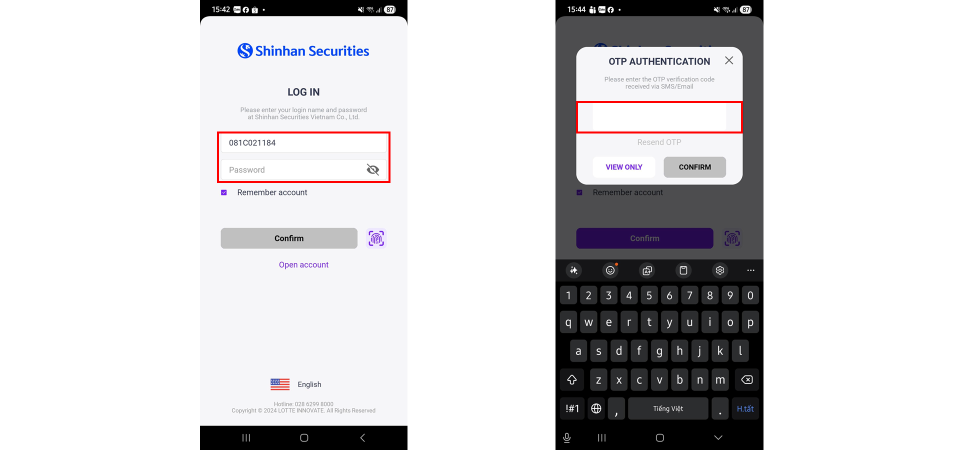
1. Login
- Step 1: Enter the account number and password, then press the “Confirm” button
- Step 2: Enter the OTP and press the “Confirm” button to log in to the application
2. Get the iOTP code
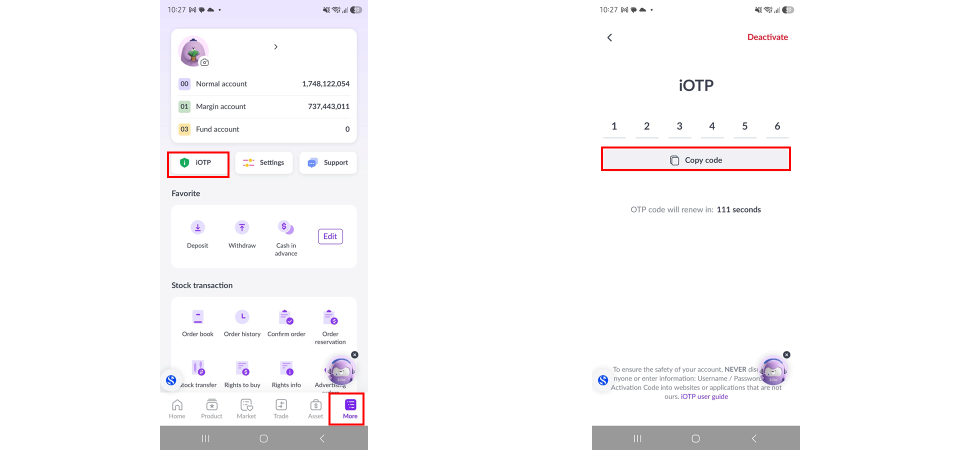
For customers who have registered for iOTP, the OTP verification code is obtained from SSV’s SXH application as follows:
- Step 1: On the “More” screen of the SXH application, select the “iOTP” button
- Step 2: Press the “Copy code” button or make a note of the iOTP code shown on the screen
- Step 3: Enter the iOTP code into the application to log in and perform transactions
Note:
- The iOTP code is renewed every 120 seconds.
- If you have not registered for iOTP on the SXH application, the OTP code will be sent to your registered SMS / Email by default.
3. Settings
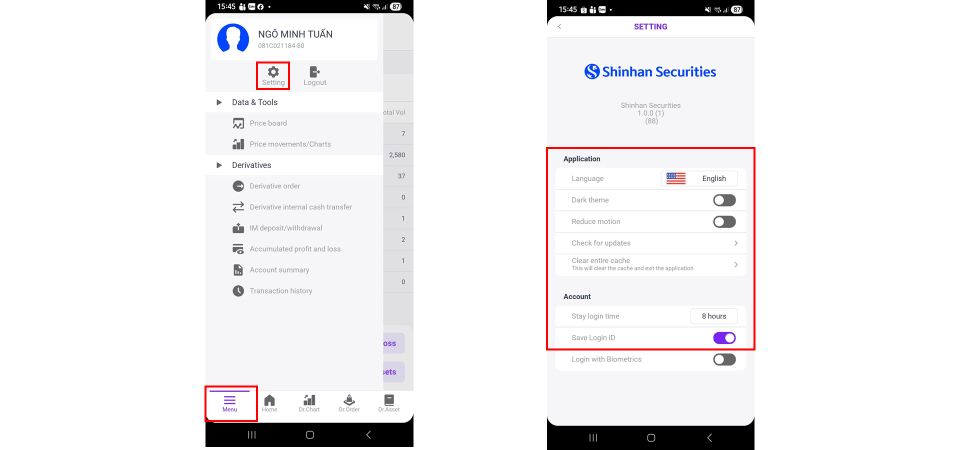
a. General settings
- Step 1: On the “Home” screen, select the “Menu” button
- Step 2: Select the “Setting” button to configure the interface
+ Language settings
+ Light/Dark interface mode
+ Login session duration
+ Save ID
b. Biometric settings
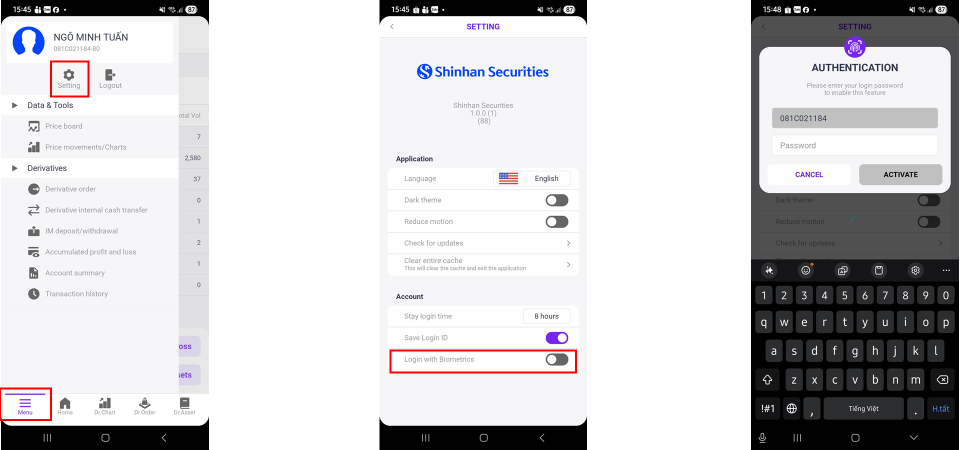
- Step 1: On the “Home” screen, select the “Menu” button
- Step 2: Select the “Setting” button to proceed
- Step 3: Enable “Login with Biometrics” mode
- Step 4: Enter the login password and perform fingerprint scanning
2. ORDER PLACEMENT AND TRANSACTION HISTORY
1. Order placement
To place a derivatives order, follow the steps below:
- Step 1: Log in to the account
- Step 2: Enter OTP via SMS / Email
- Step 3: On the toolbar, select “Derivative Order” or select “Menu” → “Derivative Order”
Note:
- For trading regulations and available order types, please refer to the Derivatives Trading Regulations via the provided link.
- For information on trading fees/taxes, please refer to the provided link.
a. Regular order
A regular order is executed after the investor confirms the order, and the order is then sent to the exchange.
- Step 1: Select “Order”
- Step 2: Select the contract code to trade
- Step 3: Select “Trading”
- Step 4: Enter order details including “Ord type”, “Price”, and “Vol”
- Step 5: Confirm the order to execute the trade
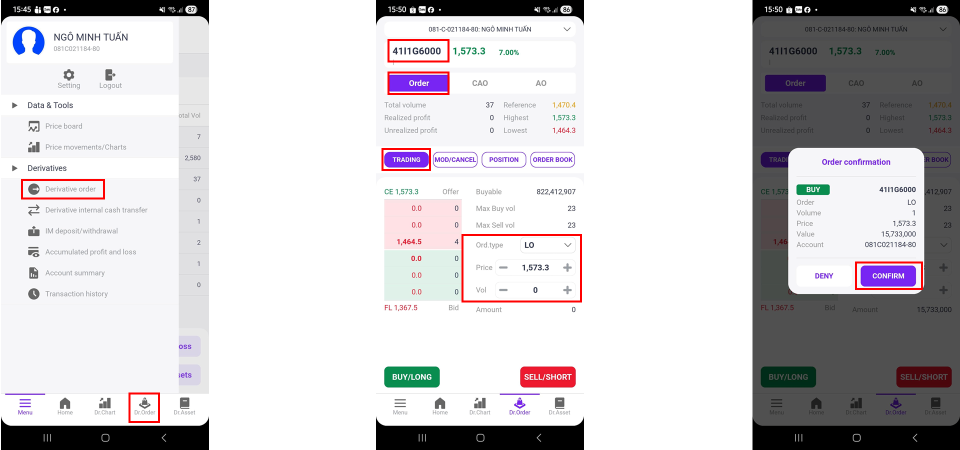
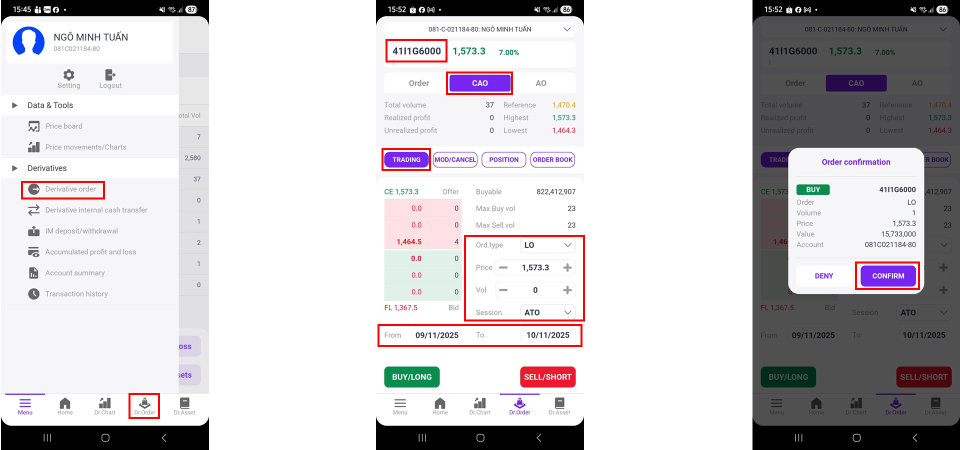
b. Pre-order with validity period
Similar to a regular order, but investors can specify a validity period for the order. Select “From time to time” and “Session” to determine the trading session and the duration the order remains active.
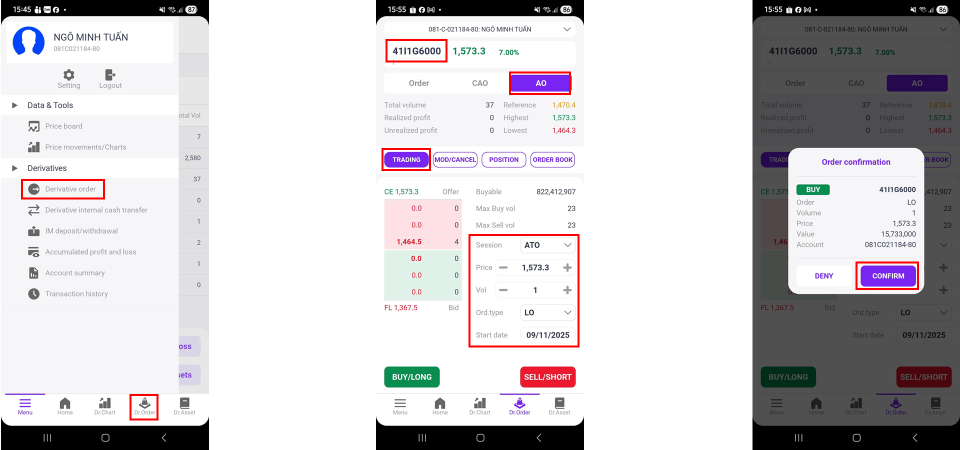
c. Pre-order at specific time
Similar to a regular order, but investors can specify a specific execution date. Select “Start date”, “Session”.
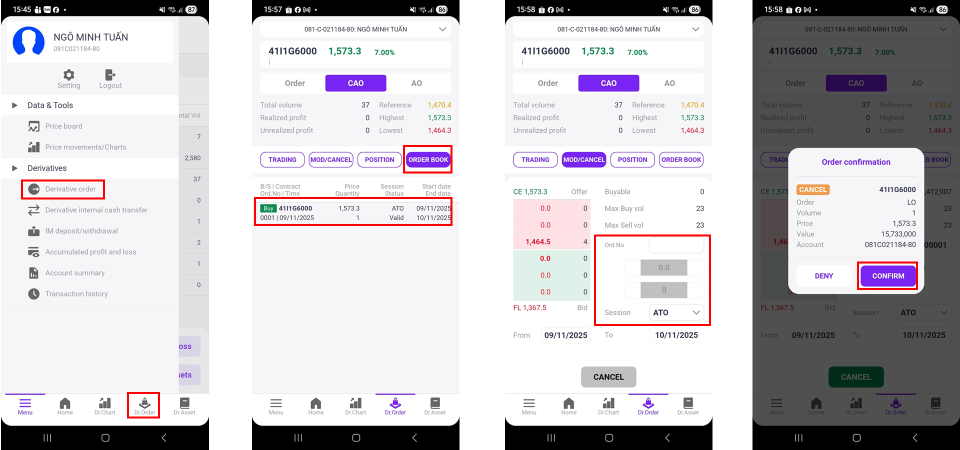
2. Order cancel/amend and Order Book
Investors can manage active orders via the “Order Book” and select orders to cancel or amend if required.
- Step 1: Log in to the account
- Step 2: Enter OTP
- Step 3: Select “Derivative Order” via toolbar or menu
- Step 4: Select “Order Book” and choose the order to “Mod/Cancel”
- Step 5: Adjust “Price” or “Vol” or press “Cancel”
- Step 6: Press “Confirm” to execute the cancel/amend request
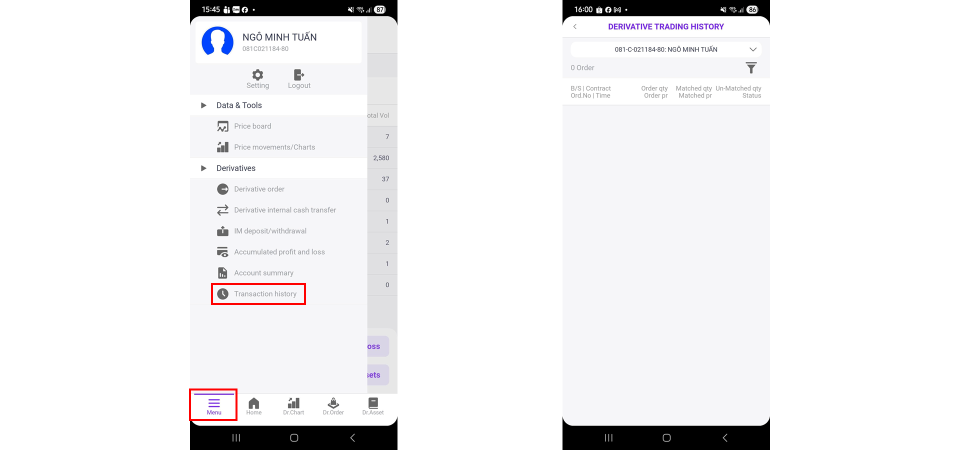
3. Order history
- Step 1: Log in to the account
- Step 2: Enter OTP
- Step 3: Select “Menu” → “Transaction History”
4. Open positions
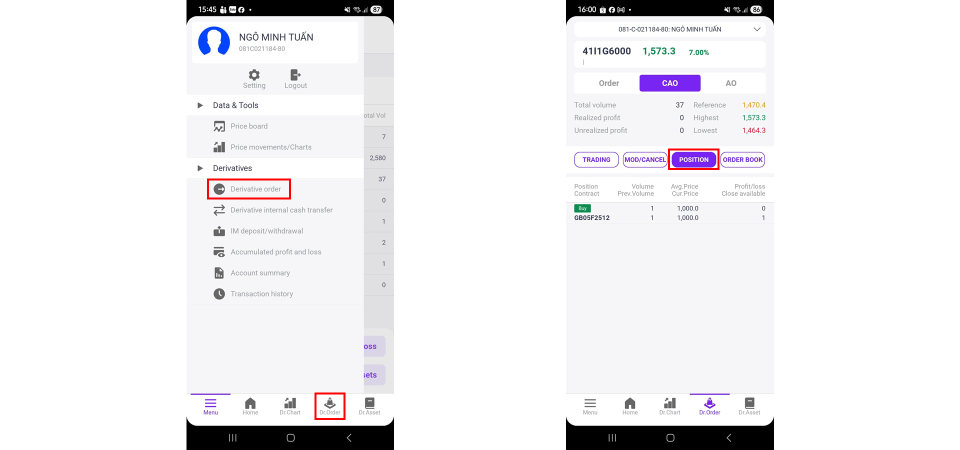
- Step 1: Log in to the account
- Step 2: Enter OTP
- Step 3: Select “Derivative Order”
- Step 4: Select “Position” to view existing derivatives positions
3. ASSET INFORMATION INQUIRY
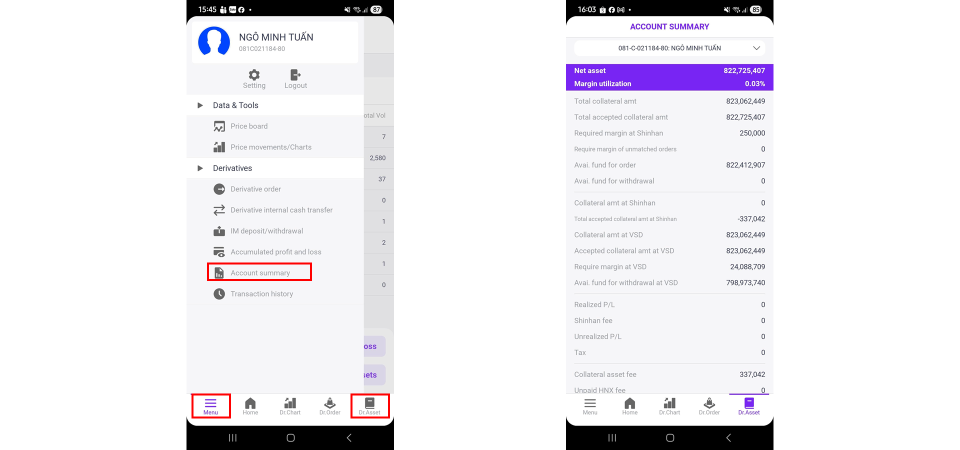
1. Asset information
- Step 1: Log in
- Step 2: Enter OTP
- Step 3: Select “Dr Asset” or “Menu” → “Account summary”
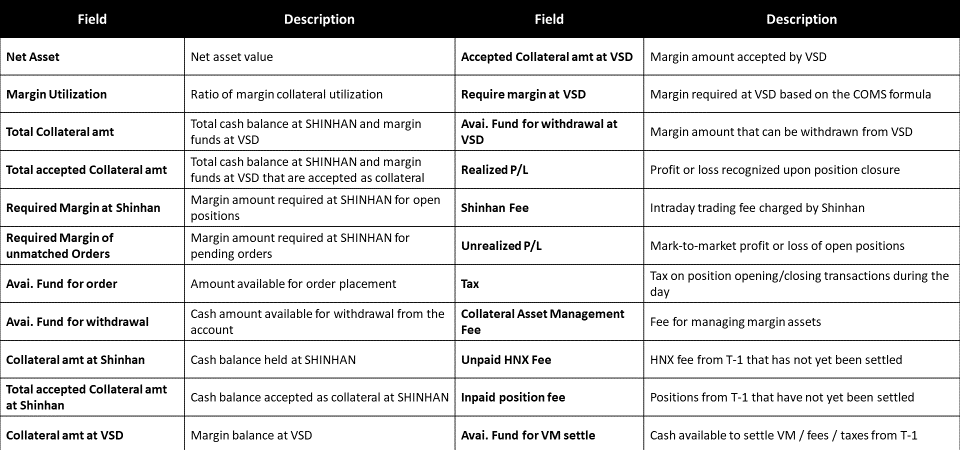
Appendix explaining asset information can be referenced in the illustration below.
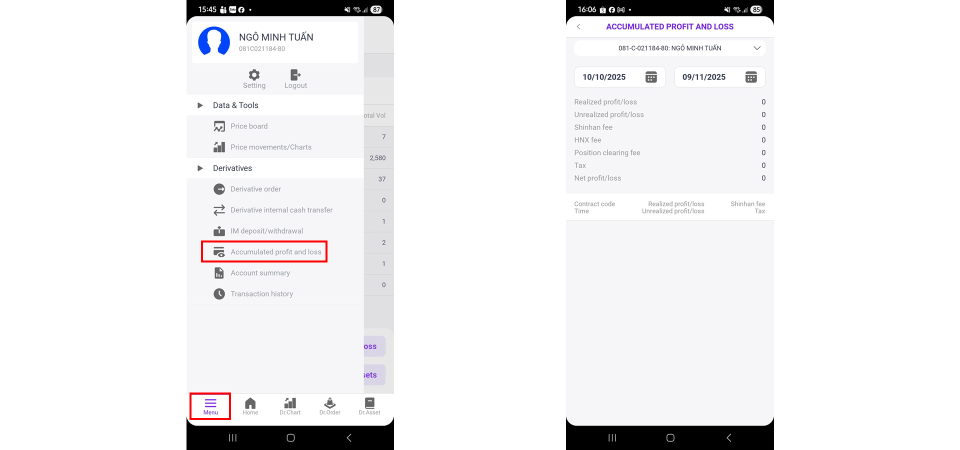
2. Profit/Loss information
- Step 1: Log in
- Step 2: Enter OTP
- Step 3: Select “Menu” → “Accumulated profit and loss”
4. INTERNAL CASH TRANSFER
Internal cash transfer is used to transfer money from the investor’s underlying securities account to the derivatives trading account.
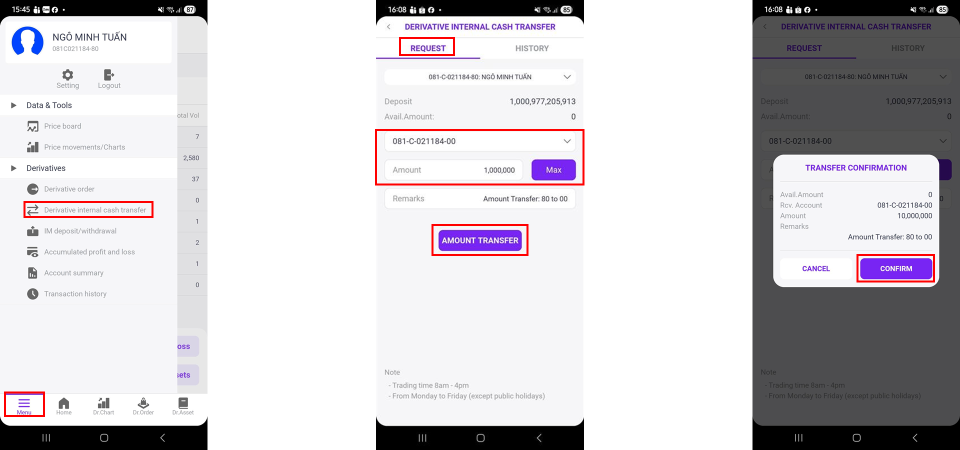
1. Cash transfer
- Step 1: Log in
- Step 2: Enter OTP
- Step 3: Select “Menu” → “Derivatives Internal Cash Transfer”
- Step 4: Select “Request”
- Step 5: Select receiving sub-account (Derivatives account: sub-account 80; Underlying account: sub-account 00)
- Step 6: Enter transfer amount
- Step 7: Press “Confirm” to execute transfer
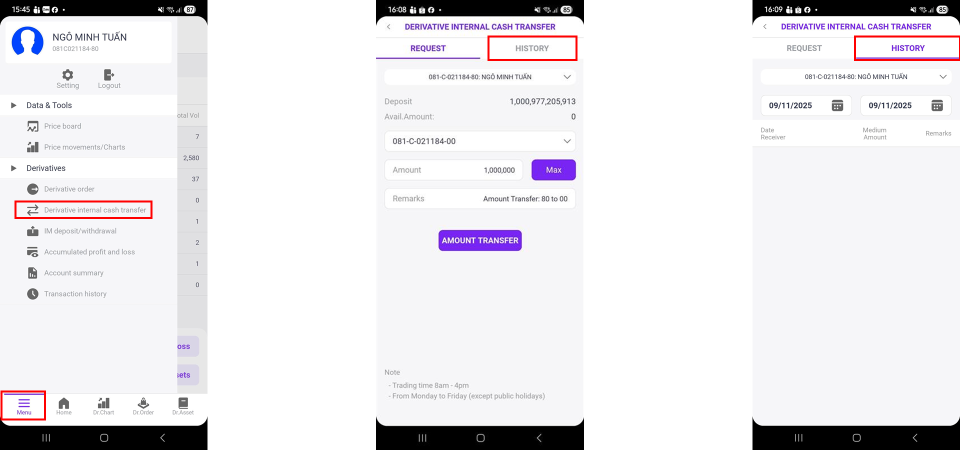
2. Transfer history
- Step 1: Log in
- Step 2: Enter OTP
- Step 3: Select “Menu” → “Derivatives Internal Cash Transfer”
- Step 4: Select “History”
5. MARGIN DEPOSIT AND WITHDRAWAL
Margin deposit/withdrawal allows investors to perform margin transactions for derivatives trading.
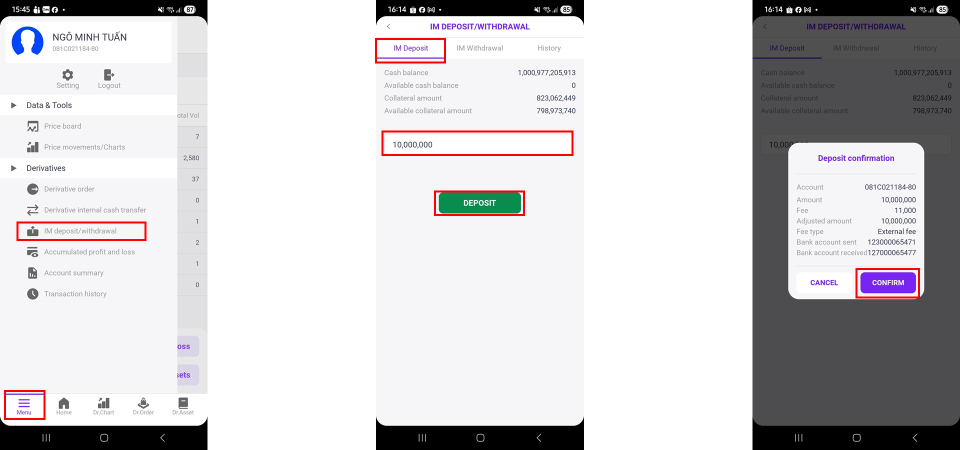
1. Margin deposit
- Step 1: Log in
- Step 2: Enter OTP
- Step 3: Select “Menu” → “IM Deposit/Withdrawal”
- Step 4: Select “IM Deposit”
- Step 5: Enter deposit amount and press “Deposit”
- Step 6: Press “Confirm” to complete margin deposit
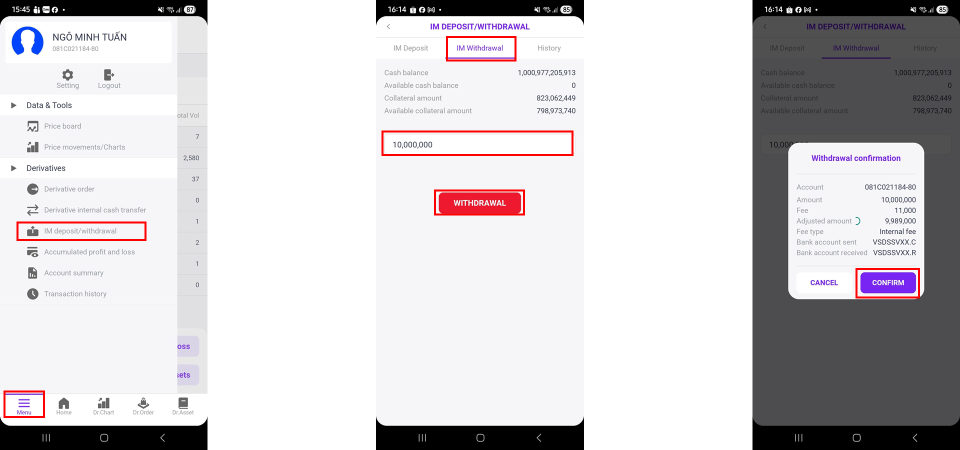
2. Margin withdrawal
- Step 1: Log in
- Step 2: Enter OTP
- Step 3: Select “Menu” → “IM Deposit/Withdrawal”
- Step 4: Select “IM Withdrawal”
- Step 5: Enter withdrawal amount and press “Withdrawal”
- Step 6: Press “Confirm” to complete margin withdrawal
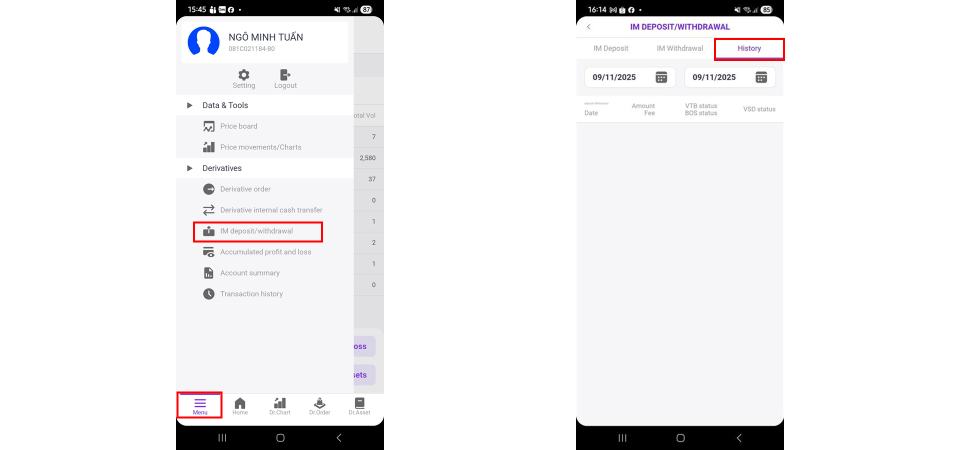
3. Margin transaction history
- Step 1: Log in
- Step 2: Enter OTP
- Step 3: Select “Menu” → “IM Deposit/Withdrawal”
- Step 4: Select “History” to check margin transaction history
6. MARKET INFORMATION MONITORING
1. Market overview monitoring screen
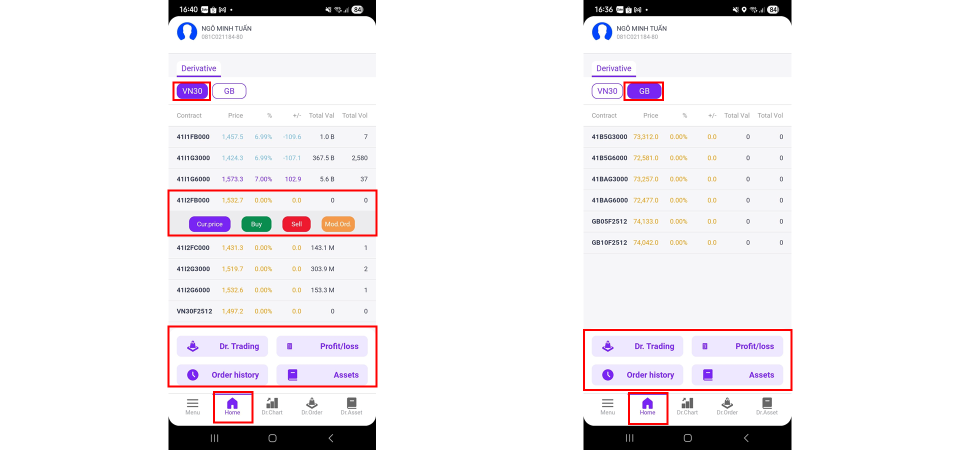
The overview screen is used to monitor all derivatives contracts based on VN30 or Government Bonds. Investors can also interact and trade directly from the overview screen.
- Step 1: Log in
- Step 2: Enter OTP
- Step 3: On the “Home” screen, view all derivatives contract codes
- Step 4: Select “VN30” or “GB” as required
- Step 5: Select a contract to trade or view details
Investors can also perform trading actions, check information, or deposit/withdraw funds directly from the “Home” screen.
2. Detailed derivatives contract monitoring screen
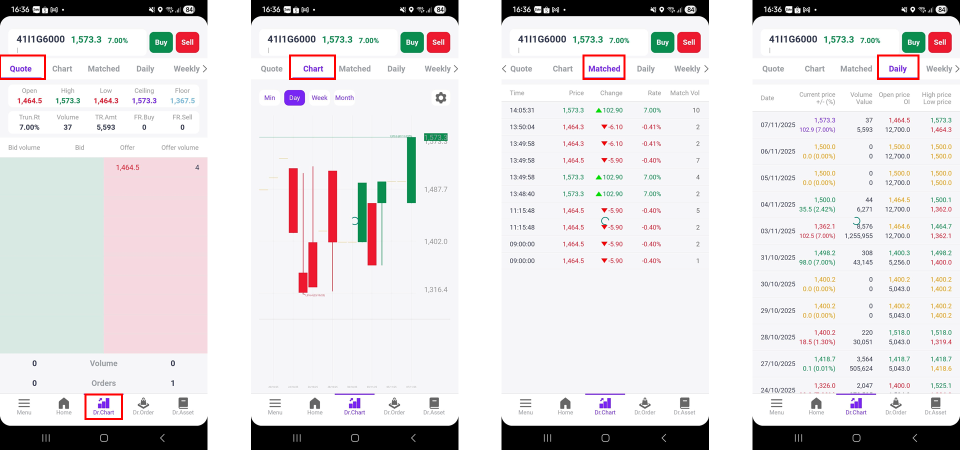
- Step 1: Log in
- Step 2: Enter OTP
- Step 3: On the “Dr Chart” screen, investors can view detailed information of derivatives contracts
+ “Quote” tab: used to monitor buy/sell volumes
+ “Dr Chart” tab: used to view candlestick charts across different timeframes
+ "Matched" tab: used to monitor aggressive buy/sell executions during the current session
+ "Day / Week / Month" tab: used to monitor trading volume trends over selected periods
For detailed trading derivatives guidance, please click here.
|
No. |
Content |
Specified parameters |
Note |
|
1 |
Initial Margin (IM) ratio for equity index futures |
17% |
|
|
2 |
Initial Margin (IM) ratio for equity index futures at SSV |
17% |
|
|
3 |
Initial Margin (IM) ratio for government bond futures |
2.50% |
|
|
4 |
Initial Margin (IM) ratio for government bond futures at SSV |
8.00% |
|
|
5 |
Margin ratio for ensuring the performance of government bond futures contracts |
5.00% |
|
|
6 |
Trading limit ratio on total value of the valid margin (Level 1) |
80% |
|
|
7 |
Ratio for use of maintained margin (Level 2) |
85% |
When the Margin Use Ratio is more than Level 2 and less than Level 3, the Client will receive a notification recommending to deposit money or close part of derivatives position. |
|
8 |
Ratio for use of settlement margin (Level 3) |
90% |
Right after the Margin Use Ratio is more than or equal to Level 3, SSV will automatically transfer deposit from Derivatives trading account to VSDC or from VSDC to Derivatives trading account and/or force to close positions to maintain the Margin Use Ratio at Level 1. |
|
9 |
Settlement of variation margin (VM) losses (T day: the trading day when the VM loss obligation arises) |
8:30:00 AM 1T+1 |
|
1. FOR HTS VERSION (HOME TRADING SYSTEM)
1.1. Internal Transfer:
- Step 1: Deposit funds into the investor's underlying account (TKCS) according to the deposit instructions here.
- Step 2: Log into the HTS Derivatives account.
- Step 3: On the toolbar, select "Derivatives" and choose "Derivatives Transfer" => "9430 Internal Derivatives Transfer" (or search for "9430" in the search bar).
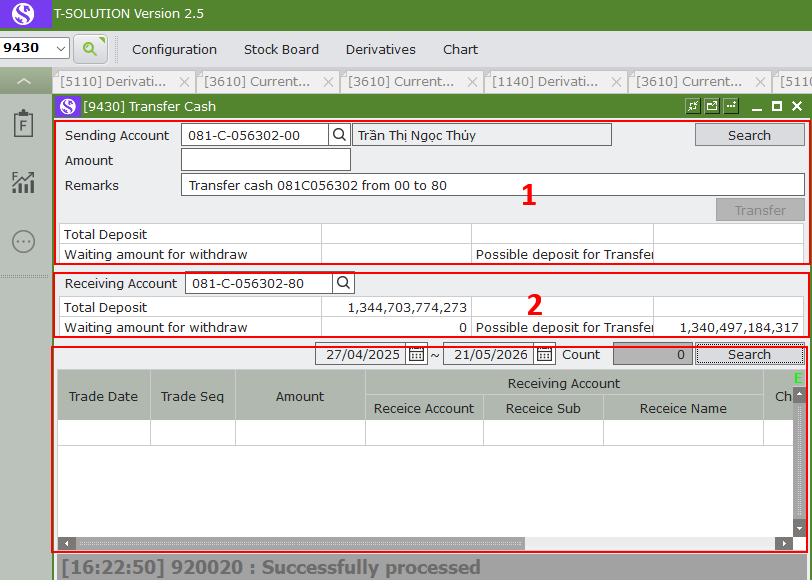
This screen is used to transfer funds internally between the Equity Account and the Derivatives Account, and vice versa.
Notes:
- Indicator 1: Sending sub-account information.
- Indicator 2: Receiving sub-account information.
1.2. Margin Deposit & Withdrawal:
1.2.1. Margin Deposit (Depositing margin to VSDC)
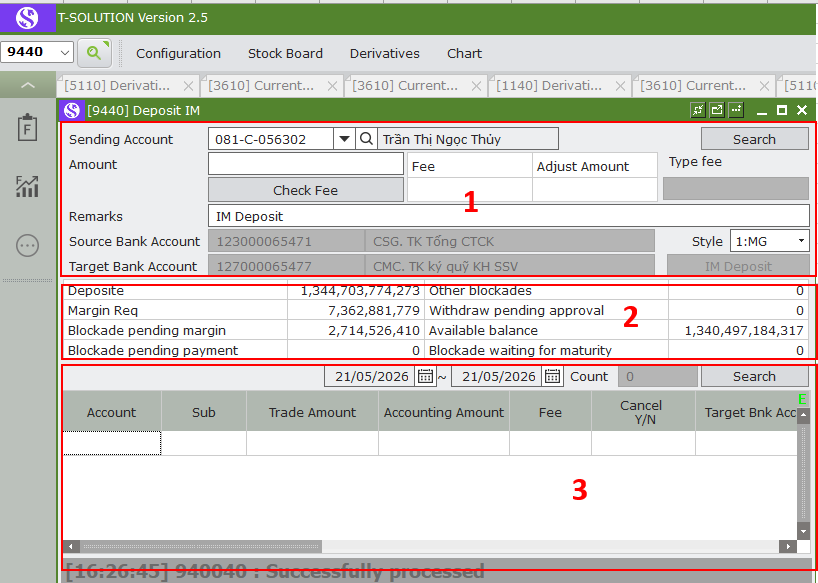
Notes:
- Indicator 1: Information of the depositing derivatives account.
- Indicator 2: Cash balance information of the derivatives account.
- Indicator 3: Daily margin deposit history of the account within the selected inquiry period.
1.2.2. Margin Withdrawal (Withdrawing margin from VSDC)
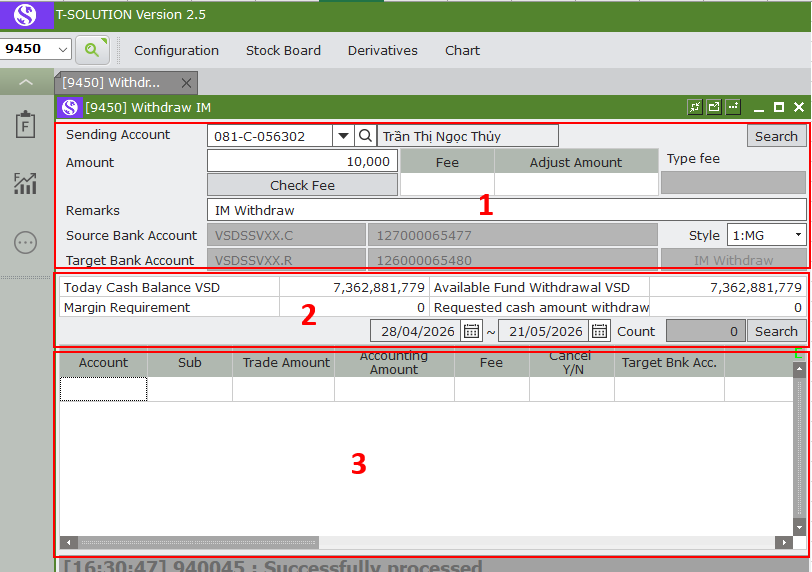
Notes:
- Indicator 1: Account information and the amount deposited for derivatives margin.
- Indicator 2: Cash balance information of the derivatives account.
- Indicator 3: Daily margin deposit history of the account within the selected inquiry period.
2. FOR MOBILE VERSION:
2.1. Internal Transfer
Internal fund transfers are used to deposit funds for derivative transactions from an investor's underlying account.
- Step 1: Log into the application.
- Step 2: Enter the SMS OTP or Email OTP.
- Step 3: On the toolbar, select "Menu" and choose "Internal Derivatives Transfer".
- Step 4: Select the "Request" tab.
- Step 5: Select the receiving sub-account. (to deposit into the Derivatives Account, select Sub-account 80; to withdraw to the underlying account, select Sub-account 00.)
- Step 6: Enter the desired transfer amount.
- Step 7: Tap "Confirm" to complete the transfer.
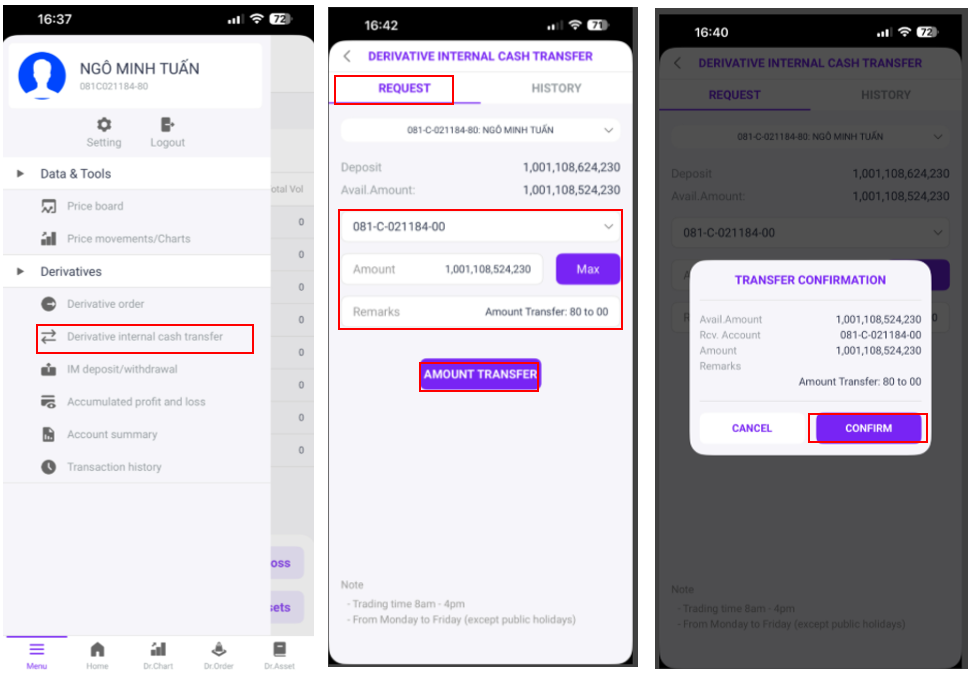
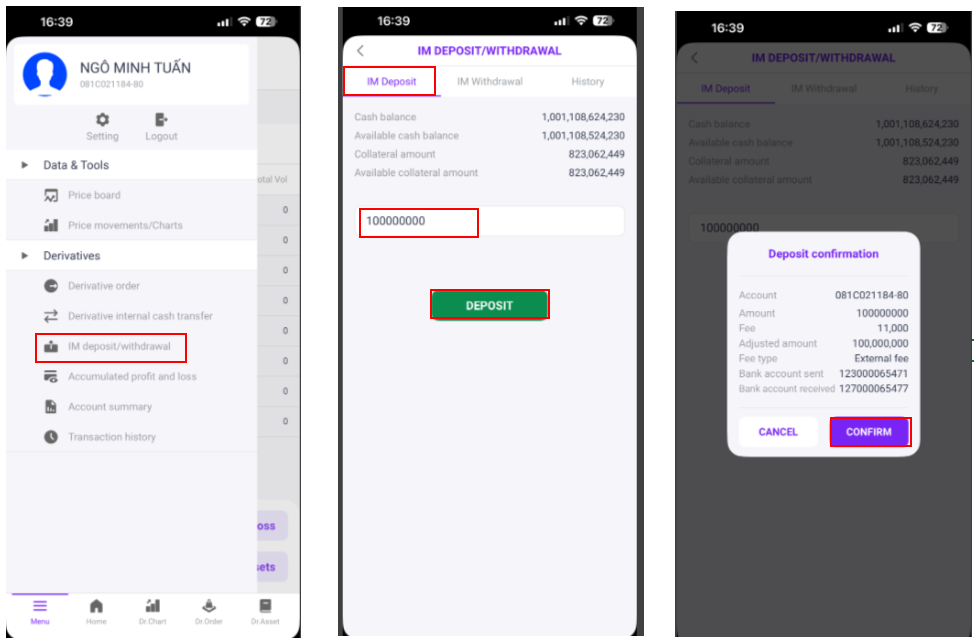
2.2. Margin Deposit & Withdrawal:
2.2.1. Margin Deposit
- Step 1: Log into the application.
- Step 2: Enter the SMS OTP or Email OTP.
- Step 3: On the toolbar, select "Menu" and choose "VSD Margin Deposit / Withdrawal".
- Step 4: Select the "Margin Deposit" tab.
- Step 5: Enter the amount to deposit and tap the "Margin Deposit" button.
- Step 6: Tap "Confirm" to finalize the margin deposit.
2.2.2. Margin Withdrawal
- Step 1: Log into the application.
- Step 2: Enter the SMS OTP or Email OTP.
- Step 3: On the toolbar, select "Menu" and choose "VSD Margin Deposit / Withdrawal".
- Step 4: Select the "Margin Withdrawal" tab.
- Step 5: Enter the amount to withdraw and tap the "Margin Withdrawal" button.
- Step 6: Tap "Confirm" to finalize the margin withdrawal.
1. What are Derivative Securities?
Derivative securities are financial instruments in the form of contracts whose value is derived from the value of an underlying asset (such as commodities or financial instruments). The transaction price is determined at the present time, while the contract is executed on a specific date in the future.
There are four main types of derivatives: Options contracts, Futures contracts, Forward contracts, Swaps.
In the Vietnamese market, currently only futures contracts are permitted for trading, including: Stock index futures, with the VN30 Index as the underlying asset; and Government bond futures, with 5‑year and 10‑year Vietnamese Government Bonds as the underlying assets.
2. Will derivatives contract codes change after the KRX system is implemented?
When the new trading system (KRX) is put into operation, the existing futures contract codes in the derivatives market will remain unchanged until their maturity. After maturity, newly listed futures contracts will be named in accordance with the new regulations.
Under the new regulation, the contract code consists of 9 characters, providing five groups of information, including: Security type, Security group, Underlying asset, Maturity, Identification code
Example: Under the previous regulation, the VN30 Index Futures contract expiring in September 2025 is coded as VN30F2509. Under the new regulation, the contract code is constructed based on the following components:
Security type: Derivative securities = 4
Security group: Futures contract = 1
Underlying asset: VN30 Index = I1
Year of maturity: 2025 = F
Month of maturity: September = 9
Identification code: Futures contract = 000
=>New contract code: 41I1F9000
3.How to open derivartive trading account at SSV?
Customers can open a derivatives account through the following methods:
- At the transaction counter:
Customer can visit SSV’s transaction offices directly for assistance with account opening.
Please bring the original valid documents (ID Card/Citizen Identification Card/Passport/Business Registration Certificate) to complete the account opening procedure at:
Head Office:
18th Floor, The Mett Building, 15 Tran Bach Dang, An Khanh Ward, Ho Chi Minh City.
Hanoi Branch:
2nd Floor, Leadvisors Building, 41A Ly Thai To Street, Hoan Kiem Ward, Hanoi.
- Through Account Manager:
Please contact your Account Manager for guidance and assistance in completing the required documentation.
4.Which trading platforms can I use to trade Derivatives Securities at SSV?
SSV Application – A dedicated application for derivatives securities trading at SSV:
Download and access the application via the link or by scanning the QR code below.
For detailed instructions on how to trade on the application, please kindly refer here.
5. Why are customers required to post margin before trading?
In order to open a long or short position in a futures contract, customers are required to deposit a certain amount of cash (or securities) as margin before trading.
This amount is referred to as the Initial Margin (IM) and is considered a collateral deposit to cover potential losses that may arise from the customer’s open positions during a trading day.
6. Are customers required to deposit funds with VSDC in order to place an order to open a new derivatives position?
No, this is not mandatory.
Customers are only required to:
-
Deposit funds into their derivatives trading account at SSV;
-
At the end of the trading day, SSV will automatically fulfill the margin obligation with VSDC in accordance with VSDC’s notification.
If a customer has a margin deficiency, the deadline for a margin call deposit is 8:30 AM on the next trading day.
7. What does opening and closing a position mean?
Opening a position refers to when customers buy or sell a certain number of futures contracts at a specified price.
Closing a position refers to when customers place an offsetting order against an existing open position.
Customers may:
-
Open and close positions within the same trading day; or
-
Hold positions until the contract’s maturity date.
Example: A customer buys a VN30 Index Futures contract (opens a long position) with the expectation that the VN30 Index will rise.
To close the position, the customer must sell the futures contract or hold the position until maturity.
8. How much capital is required to trade one derivatives contract?
The amount of capital required to trade one derivatives contract depends on the current price of the corresponding contract.
Contract value = Index price × Contract multiplier
Contract multiplier of VN30 Index Futures: VND 100.000
Example:
Current VN30 Index level: 1.200 points
Contract value = 1.200 × 100.000 = VND 120.000.000
If the initial margin ratio stipulated by SSV is 21.5%:
=>Required margin for one contract= 1.200 × 100.000 × 21.5% = VND 25.800.000
9. How are profits and losses from derivatives trading calculated?
Profits and losses are settled on a daily basis (daily mark-to-market settlement).
Specifically, customers who trade and hold positions in derivatives contracts are required to settle all profits and losses arising from their positions on a daily basis:
-
In case of a net loss:
Customers are required to fully settle the incurred loss before 8:00 a.m. on the next trading day (T+1). -
In case of a net profit:
SSV will credit the full amount of profit on the next trading day (T+1).
Profit or loss for each position is calculated based on the closing price of the respective futures contract.
For index futures contracts on the maturity date, profit or loss is calculated based on the closing value of the underlying index on the contract’s maturity date.
10. What is the last trading day?
For VN30 Index Futures Contracts: The last trading day is the third Thursday of the expiration month. If this day falls on a public holiday, it will be adjusted to the preceding trading day.
For 5-year Government Bond Futures Contracts: The last trading day is the 15th day of the expiration month, or the preceding trading day if the 15th falls on a public holiday.
For 10-year Government Bond Futures Contracts: The last trading day is the 25th day of the expiration month, or the preceding trading day if the 25th falls on a public holiday.
11. What is the final settlement day and what is the settlement method?
- For VN30 Index Futures contracts:
The final settlement day is the first working day following the last trading day. The settlement method is cash settlement.
- For 5-year and 10-year Government Bond Futures contracts:
The final settlement day is the third working day from the last trading day. The settlement method is physical delivery of the underlying asset.
12. In which cases will customers positions be forcibly closed?
The Customer’s open positions will be closed if the account breaches the margin utilization ratio or violates the limit on the number of open positions.
13. How can customers look up derivatives contract maturity dates?
Customers are kindly requested to follow the two steps below:
Step 1: Access the information page of VSD at: https://www.vsd.vn/en/thong-tin-san-pham
Step 2: Enter the derivatives contract maturity date to search (e.g. for VN30 Index Futures, enter the third Thursday of the month).
14. If customers receive a margin call notice, can they close their positions the next morning without posting additional margin?
No, this is not allowed.
Closing positions on T+1 does not change the required margin amount notified by VSDC at the end of day T.
Customers are required to fully post the requested margin in accordance with VSDC regulations.
By 8:30 a.m. on T+1, if the account does not meet the required margin level, the account will be suspended from trading in accordance with applicable regulations.
15. How is the clearing service fee calculated?
For each matched position contract, you are required to pay a derivatives clearing service fee to VSDC of VND 2,550 per position contract.
(If you open and close a position within the same day, the derivatives clearing fee will be VND 5,100.)
16. If a customer’s derivatives trading account is suspended due to a margin obligation violation, what should be done to rectify the violation on the same day?
Methods to handle a margin violation within the same day:
-
Add more funds to the derivatives account:
Transfer cash into the derivatives account to increase the margin ratio to ≥ the required margin level.
-
Close part or all of the open positions:
Action: Place orders to close (long/short) the futures contracts currently held.
Purpose: Reduce margin obligations ⇒ bring the margin ratio back to a safe level.
After closing positions: The system will recheck the margin status; if requirements are met, the account may be allowed to trade again.
Note: In periods of strong market volatility, the securities company may proactively force-close positions if the client does not take timely action.
-
Combine both methods: adding funds + closing positions:
Applicable when: The margin shortfall is significant, and adding funds alone is insufficient.
This is the most reliable way to restore normal account status within the day.
Notes:
If the client closes positions, the account will only return to normal trading status at the end of T+1 day.
The account status is not updated immediately after the client adds margin; it will only change upon notification from VSDC at 14:00 on T+1 day.
17. Can customers place orders while their derivatives trading accounts are suspended due to a margin obligation violation?
When a customer’s derivatives trading account is suspended on T+1, the customer is allowed to place offsetting orders to close existing positions only.
Customers are not permitted to place orders to open new positions while the account is under trading suspension.
Any offsetting order placed to close positions during the suspension period must have a quantity less than or equal to the number of existing open positions.
If customers close their positions, the account status will only be restored to normal trading at the end of day T+1.
18. When must customers post the required margin to avoid trading suspension?
Customers are required to post the required margin before 8:30 a.m. on T+1 in order to avoid trading suspension, in accordance with VSDC regulations.
19. What are the trading hours for derivative securities?
The derivatives market opens for futures contract trading 15 minutes earlier than the underlying (spot) market and closes at the same time as the underlying market. The detailed trading schedule is as follows:
-
Morning Session:
Opening Call Auction: 8:45 a.m. – 9:00 a.m.
Continuous Trading: 9:00 a.m. – 11:30 a.m.
Put-through Transactions: 8:45 a.m. – 11:30 a.m.
Lunch Break: 11:30 a.m. – 1:00 p.m.
-
Afternoon Session:
Continuous Trading: 1:00 p.m. – 2:30 p.m.
Closing Call Auction: 2:30 p.m. – 2:45 p.m.
Put-through Transactions: 1:00 p.m. – 2:45 p.m.
20. What costs do I need to pay when trading derivatives securities?
When trading derivatives securities, investors are required to pay the following fees:
- Transaction fees charged by SSV for opening, closing, and settlement of contracts (Index Futures Contracts, Government Bond Futures Contracts).
- Transaction fees paid to the Stock Exchange (HNX).
- Fees paid to the Vietnam Securities Depository (VSD).
- Margin deposit/withdrawal fees (paid to VietinBank).
- Personal income tax.
For detailed information on derivatives trading service fees, please kindly refer here.
21. Are futures trading fees charged one-way or two-way?
Futures Contract (HĐTL) trading fees are calculated on a round-turn basis (two-way).
22. Is the position management fee charged on non-trading days?
Yes. If customers hold open positions over non-trading days, the position management fee will continue to be charged for each non-trading day.
Example: After the close of the trading session on Friday, if customers have 10 open positions, the position management fee will be calculated as follows:
-
Friday fee: 10 × VND 2,550 = VND 25,500
-
Saturday fee: 10 × VND 2,550 = VND 25,500
-
Sunday fee: 10 × VND 2,550 = VND 25,500
-
Total position management fee payable on the following Monday: VND 76,500
23. Where is the margin requirement for one derivatives contract specified?
Currently, the margin amount required for one derivatives contract is announced by the Clearing Member (SSV) and published on the SSV’s website, and it may vary from time to time depending on prevailing regulations and market conditions.
24. I have closed all positions—why am I still unable to withdraw funds?
VSDC reviews and finalizes margin obligations at the end of each trading day (around 16:30).
If you close your positions during the day, VSDC will only update and reduce the margin obligation at the end of that day.
However, since 16:30 is already past the withdrawal cut‑off time at VSDC, you can only withdraw funds from VSDC to your derivatives account at the Clearing Member (SSV) on the next working day.
25.If I deposit funds into my derivatives account at the Clearing Member (SSV), not to VSDC, open new positions and close them all within the same day, can I withdraw the funds from my derivatives account at the SSV on the same day?
You can withdraw funds from your derivatives account at the SSV within the same day if you open and close all positions during that day.
However, if your account incurs any trading losses or fees payable, the SSV will retain an amount sufficient to settle the client’s obligations, and only the remaining balance (if any) can be withdrawn.
26. VSDC applies post‑margining. Does that mean I can trade first and deposit money later?
You must deposit funds into your derivatives account at the Clearing Member (SSV) before you are able to trade.
At the end of the trading day, VSDC will notify the margin obligation, and the SSV will automatically transfer the required margin amount to VSDC on behalf of the client.
27. What types of margin are applied in derivatives trading?
- Initial Margin (IM)
Initial Margin (IM) is the minimum amount of money that must be deposited before participating in derivatives trading.
The Vietnam Securities Depository and Clearing Corporation (VSDC) stipulates and publishes the initial margin ratio on its website. On a periodic basis—specifically on the 1st, 10th, and 20th of each month—VSDC reviews and considers adjustments to this margin ratio based on price volatility, time to maturity, and other factors deemed necessary by VSD.
Formula:
Initial Margin (IM) = Transaction Price × Contract Multiplier × Number of Buy/Sell Contracts × Required Margin Ratio
-
Delivery Margin (DM) – for Government Bond Futures Contracts
Delivery Margin (DM) is the margin value that both the seller and the buyer must deposit with VSDC to ensure performance of the contract.
The margin may be posted in cash or in bonds (the use of bonds as margin is applicable only to the seller).
-
Variation Margin (VM)
Variation Margin (VM) is calculated based on the profit or loss of positions during the trading session. This value is included in the required maintenance margin if the investor’s position incurs a loss.
Formula:
Variation Margin (VM) = Price Difference × Contract Multiplier × Number of Buy/Sell Contracts
-
Margin Requirement (MR)
The required maintenance margin (MR) is the total margin value that must be maintained to keep open positions during the trading session. The required margin includes Initial Margin, Delivery Margin (for government bond futures contracts), and Variation Margin.
Formula:
Margin Requirement (MR) = IM + VM + DM
Where:
IM: Initial Margin
VM: Variation Margin
DM: Delivery Margin (applicable to government bond futures contracts)
Updated regulations on the margin asset utilization ratio for derivatives trading at SSV can be found here.
