
1. Stock Alerts
The stock alerts function is used to set notifications when a target stock meets certain conditions.
Step 1: On the [Home] screen, select the [Stock Transaction] section.
Step 2: Choose [Stock Alerts].
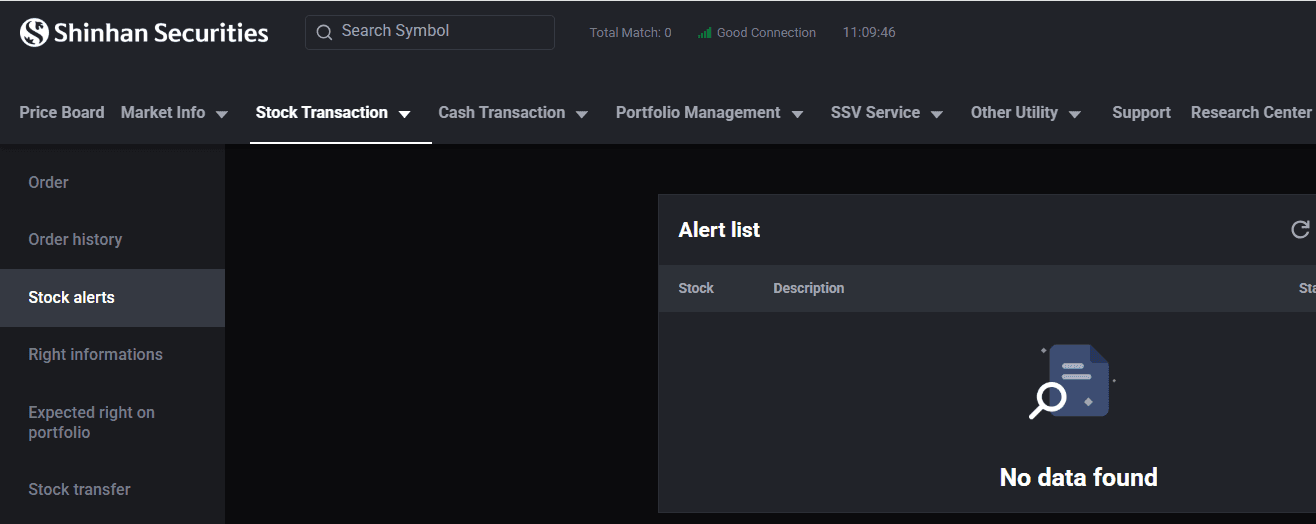
Step 3: Click [Create New Alert].
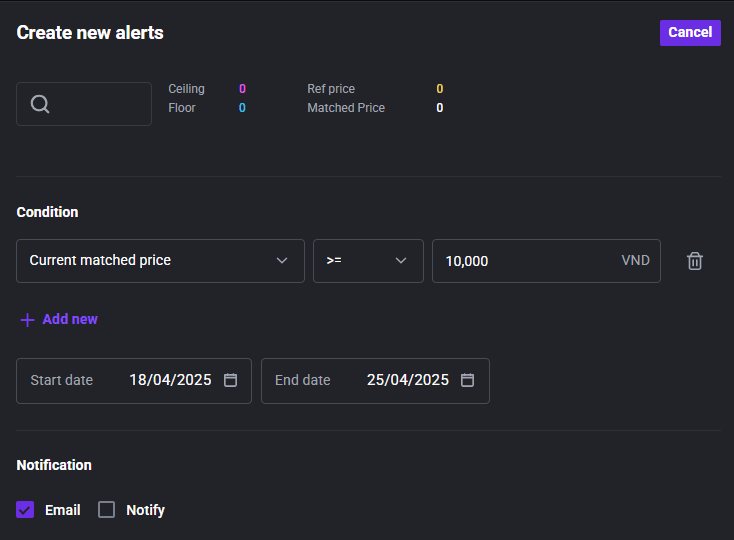
Step 4: Choose the stock symbol to monitor, then set the alert conditions. Click [Add New] to apply more conditions.
Step 5: Under the Notification section, select [Email] or [Notify] to enable the alert delivery channel.
2. Right Informations
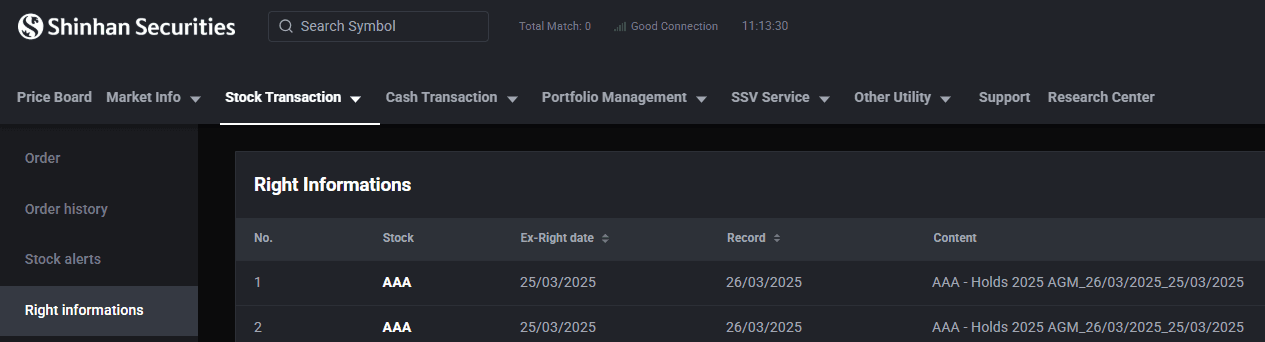
Step 1: On the [Home] screen, select the [Stock Transaction] section.
Step 2: Choose [Right Informations].
Step 3: Enter the stock symbol to proceed with the lookup.
3. Expected Right On Portfolio
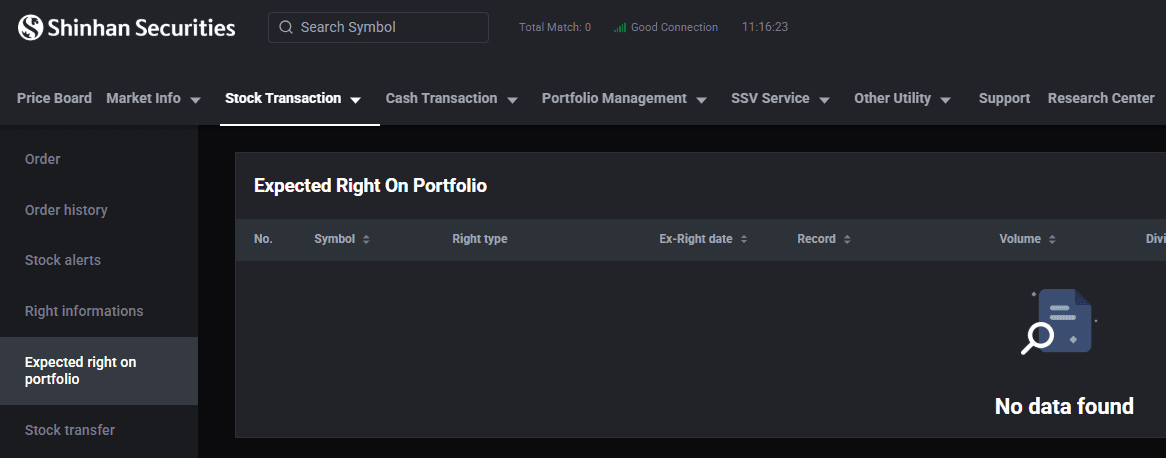
Step 1: On the [Home] screen, select the [Stock Transaction] section.
Step 2: Choose [Expected Right On Portfolio] tab.
Step 3: Select the sub-account to view related information.
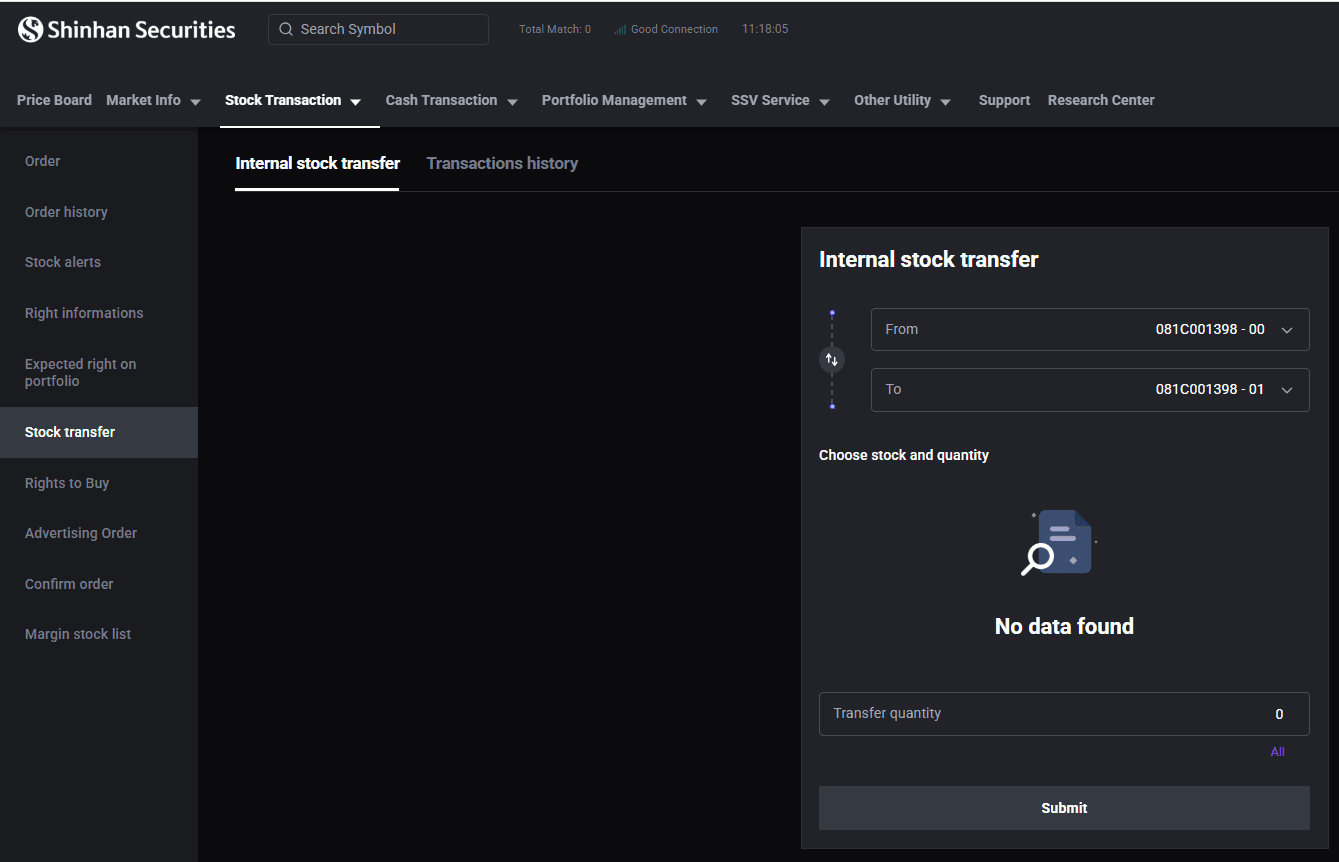
4. Internal Stock Transfer
Step 1: On the [Home] screen, select the [Stock Transaction] section.
Step 2: Choose [Stock Transfer] tab.
Step 3: Select the source and receiving sub-accounts for the transfer.
Step 4: Choose the stock symbol you wish to transfer.
Step 5: Enter the number of stocks to transfer or click [All] to transfer the entire available quantity.
Step 6: Enter the OTP code to confirm the transfer.
Step 7: Go to [Transaction History] to review your internal transfer history.
Note:
In case of transferring from sub-account 01 to sub-account 00, the transfer is only allowed if sub-account 01 has no existing debt.
5. Rights to Buy
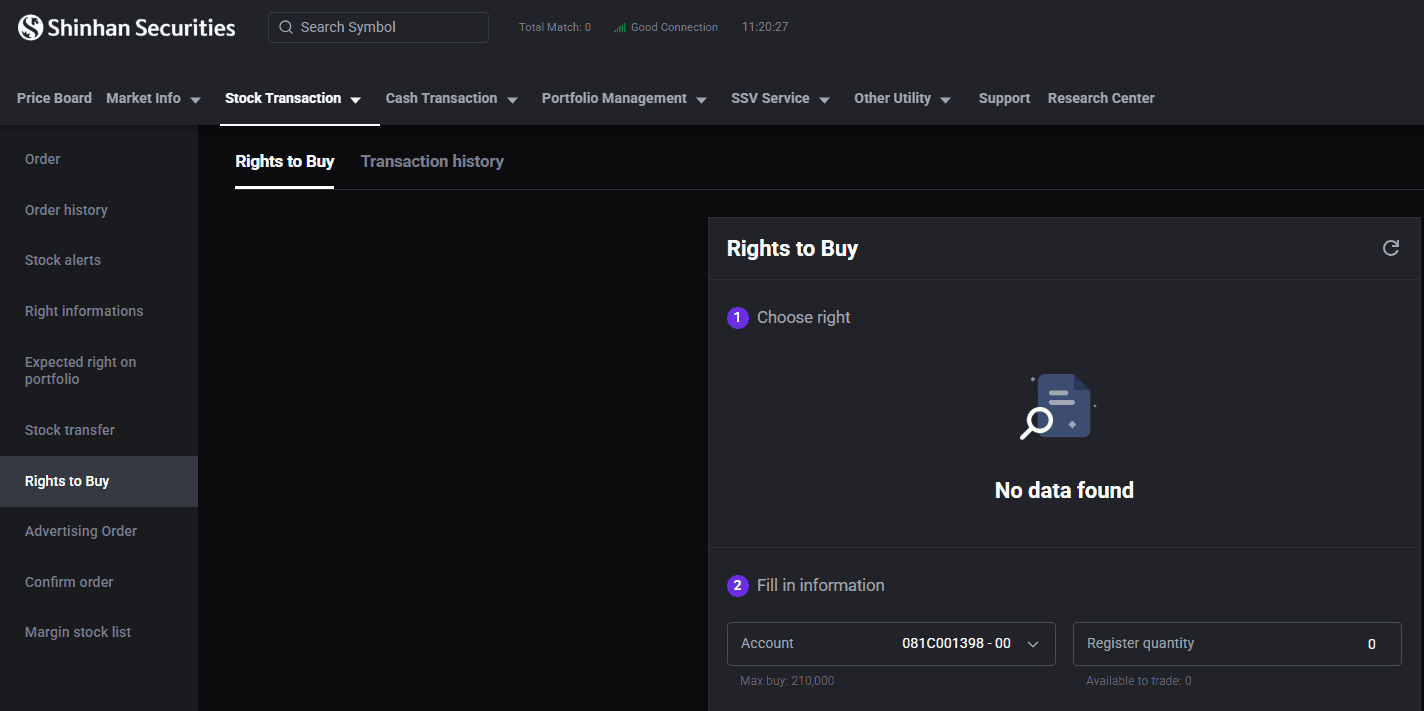
The [Rights to Buy] screen is used when investors wish to exercise their rights to purchase shares.
Step 1: On the [Home] screen, select the [Stock Transaction] section.
Step 2: Choose [Rights to Buy] tab.
Step 3: Select the share rights you wish to exercise.
Step 4: Select the sub-account and the number of rights to register for purchase.
Step 5: Tap [Buy Right] and enter the OTP code as required to proceed.
6. Margin Stock List
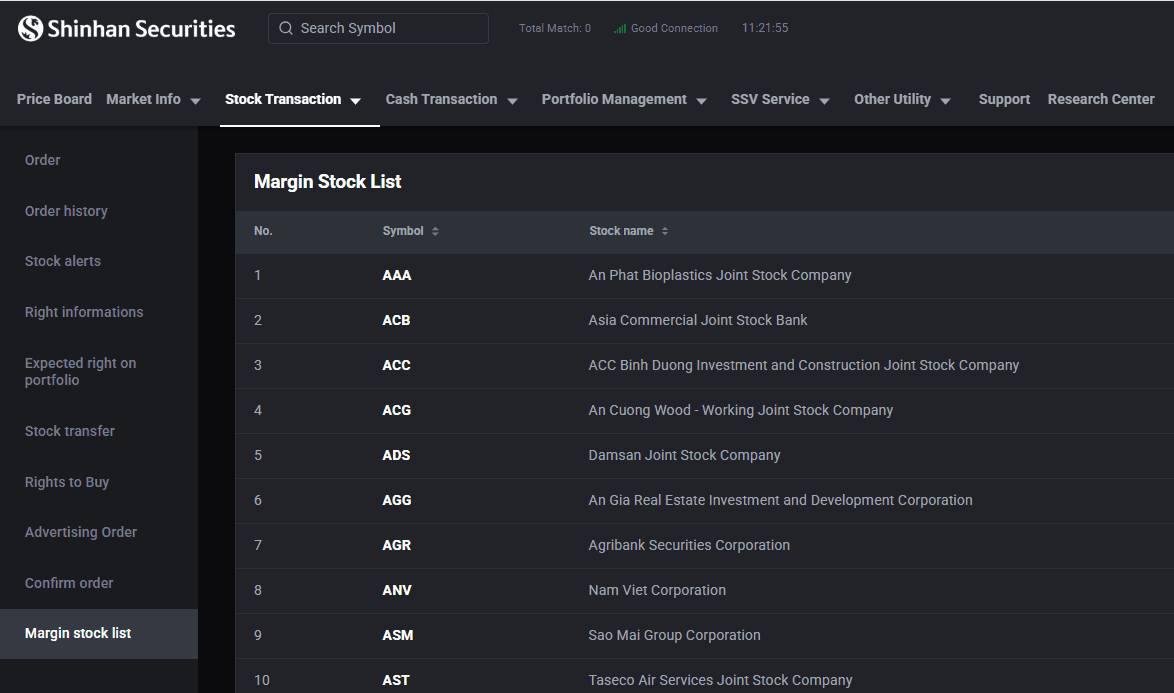
The [Margin Stock List] allows investors to check which stocks are eligible for margin trading.
Step 1: On the [Home] screen, select the [Stock Transaction] section.
Step 2: Choose [Margin Stock List] tab.
Step 3: View the eligible stocks and their corresponding margin loan ratios.
7. Executing an IPO Covered Warrant Transaction
Step 1: On the [Home] screen, select [Stock transaction].
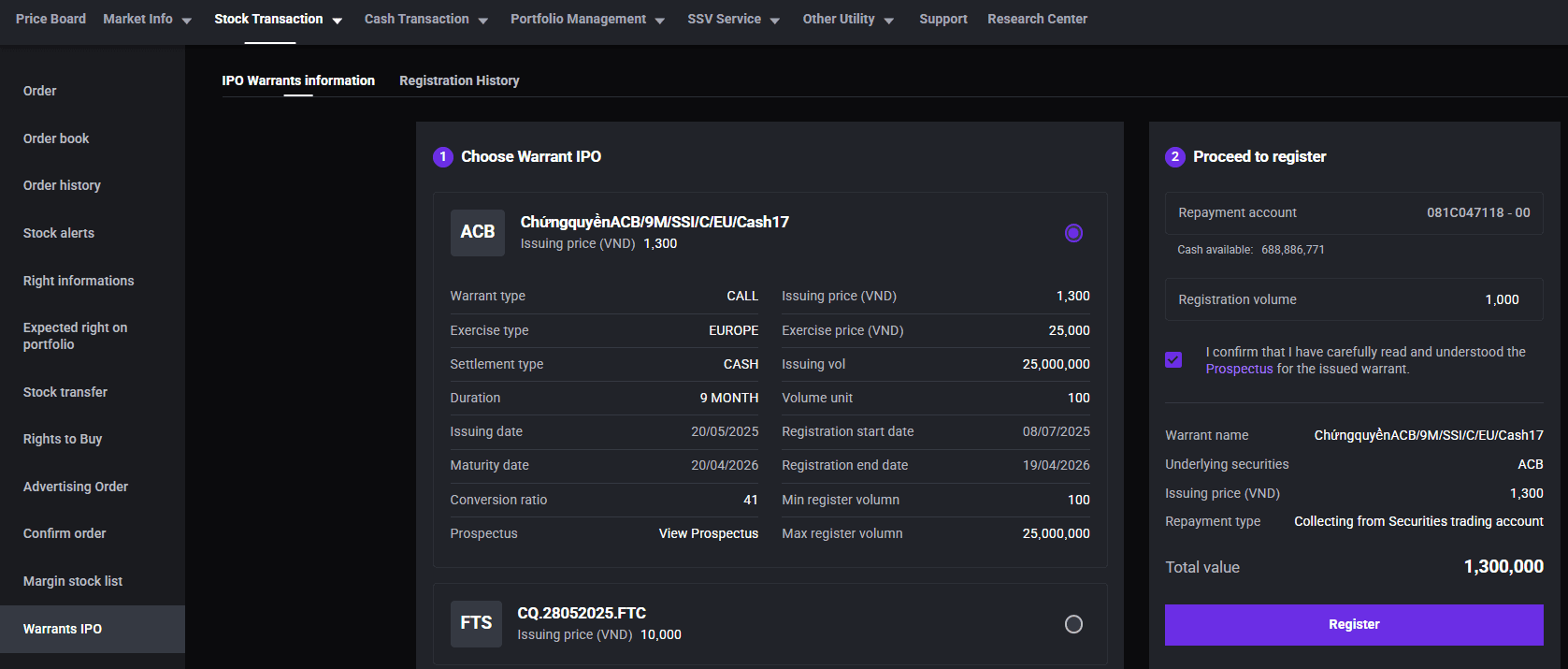
Step 2: Choose [Warrant IPO] to register for purchasing IPO covered warrants.
Step 3: Select the warrant code you wish to purchase.
Step 4: Enter the desired quantity and tick “I agree” to the terms and conditions.
Step 5: Click the “Register” button, confirm your request, and enter the OTP code to complete the transaction.
Updated: 19 Sept 2026