
1. Order Placement
There are four ways to place an order:
The [Quick Order] button on the [Home] screen — enables fast order placement while viewing the price board.
Double-clicking the stock price on the price board will redirect you to the [Quick Order] section.
[Order] button under [Order Transaction], where detailed stock information and the order input section are shown.
Place orders directly from the [Portfolio] section under [Portfolio Management].
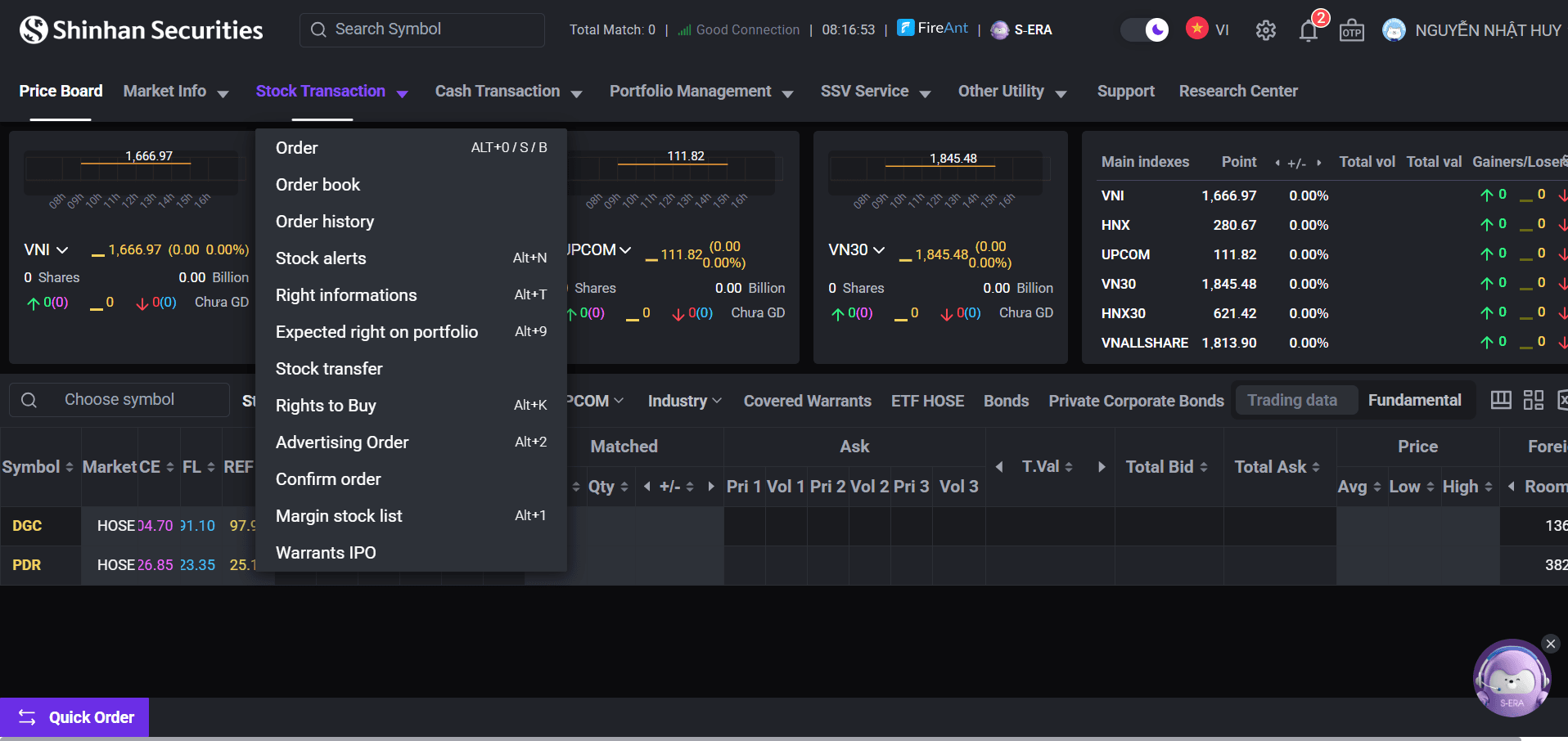
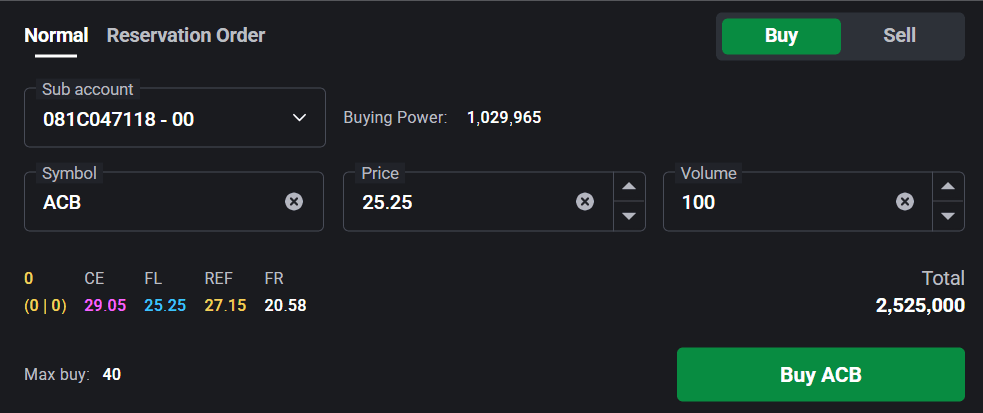
Step 1: On the order screen, select the transaction type: [Buy] / [Sell].
Step 2: Enter the stock code you wish to trade.
Step 3: Select [Normal] and choose the sub-account (00 – cash sub-account, 01 – margin sub-account).
Step 4: Input the price and quantity. For detailed trading regulations, please refer to this link.
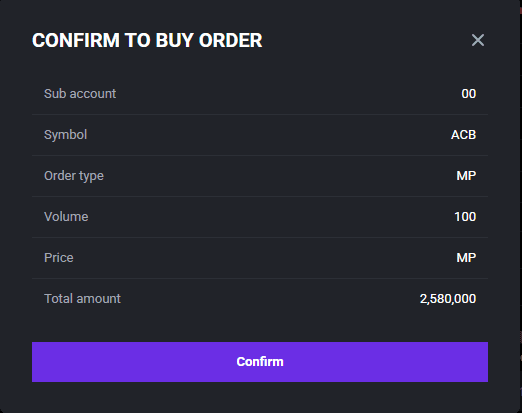
Step 5: Confirm the order.
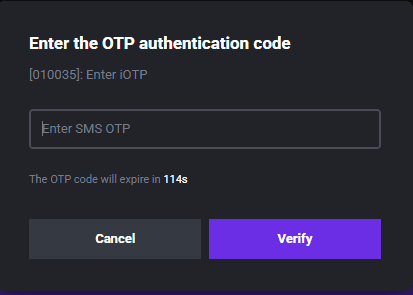
Step 6: Enter the OTP as requested (this step will appear if you haven’t entered the OTP immediately after logging in).
Note:
When placing an order, please check the displayed account information to view your buying power and stock buying capacity in the [Buying Power] section.
Order matching is prioritized first by price, then by the order entry time.
Standard orders can only be placed during the current trading date. To place orders in different date, please use the [Reservation Order] feature.
For detailed trading regulations, please refer to this link.
2. Reservation Order Instructions
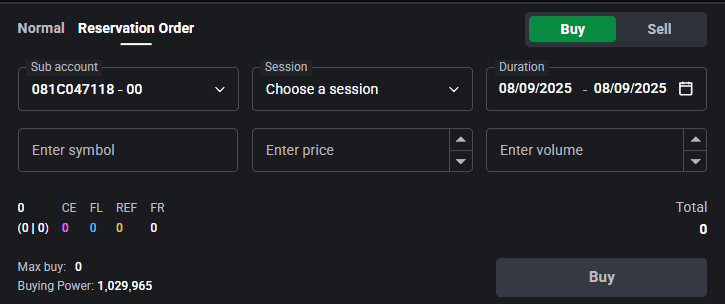
Step 1: On the [Order] screen, select [Reservation Order].
Step 2: Select the transaction type [Buy] / [Sell], enter the stock code, select the trading session, sub-account, price, and transaction volume.
Step 3: Choose the [Session] and continue as normal order.
Note:
The reservation order time frame must be set for dates after the current trading day.
For detailed trading regulations, please refer to this link.
3. Checking Order Book and Stock Balance
To view the order book, go to the [Quick order] screen and select [Order Book] to see all orders placed during the trading day. You can also cancel or modify orders directly from the [Order Book].

To quickly check your owned stock, go to the [Quick order] screen and select [Stock Balance] to view your portfolio.

4. Order Cancellation/Modification
Step 1: On the [Quick Order] screen, select [Order Book].
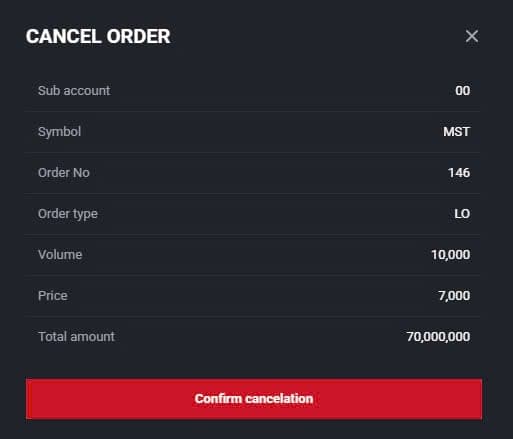
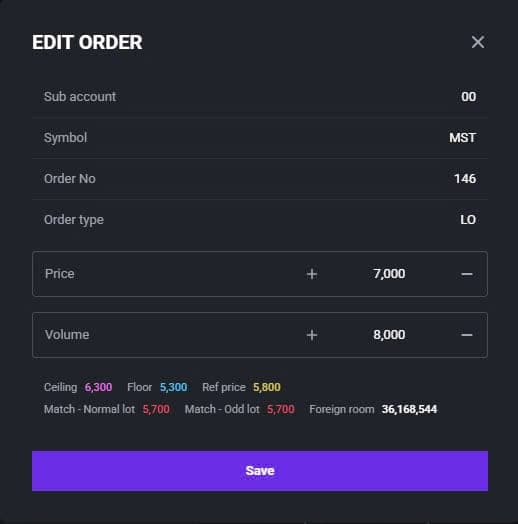
Step 2: Select [Cancel] or [Edit].

Step 3: To modify an order, re-enter the updated price or quantity and click [Save]. To cancel an order, select [Confirm Cancellation] to proceed with the cancellation.
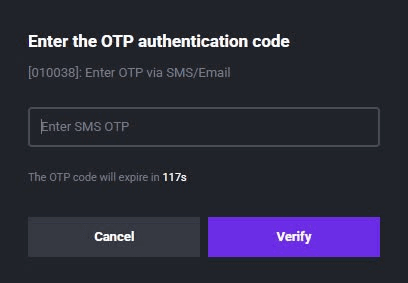
Step 4: Review and enter the OTP to confirm (In the event that the investor has not entered the OTP as previously requested.).
Note:
For detailed trading regulations, please refer to this link.
Available for choosing all waiting for matching order to cancel.
Updated: 19 Sept 2026