
1. Login Instructions
Step 1: Access the link https://shinhansec.com.vn/en and select the [Trading] button, or go directly to https://online.shinhansec.com.vn to log in.
Step 2: Click the [Login] button to proceed to your trading account. If you do not yet have a trading account, please select [Open Account] on the homepage or trading screen, then scan the QR code to initiate account opening via the San Xin Ha mobile application.
Step 3: Enter your registered Phone Number / Email / Citizen ID / Account Number and Login Password.
Step 4: Upon successful login, please enter your OTP code received via SMS – Email / Static OTP / iOTP to begin trading.
Note:
For getting iOTP, please open the San Xin Ha application. On the [Home] screen, tap the account icon
 , then select [Get iOTP] to retrieve the generated OTP code and input it into the OTP field on the web trading platform.
The type of OTP required will follow your saved user set up (the default setting is SMS – Email OTP).
2. Change Password
A. Change Login Password
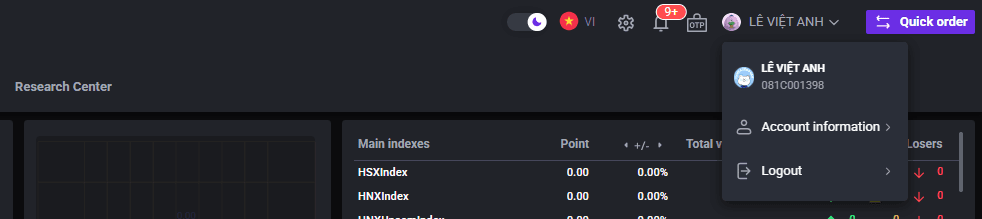
Step 1: Select your [Account Name], then choose [Account Information].
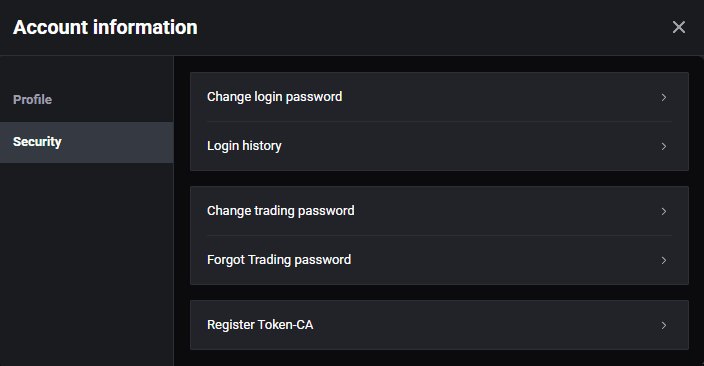
Step 2: Select [Security], then click [Change Login Password].
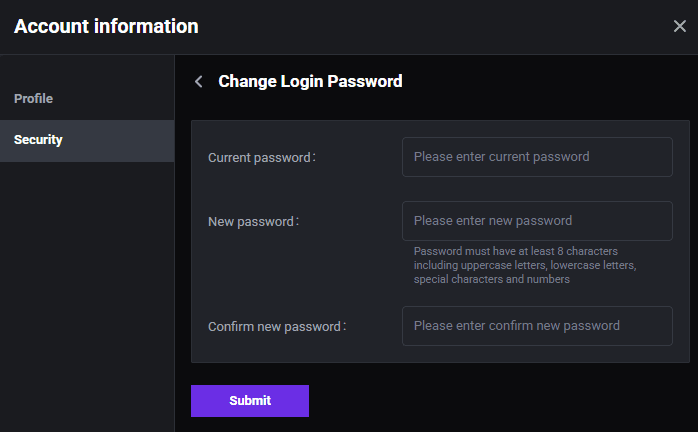
Step 3: Enter your current login password and create a new password as required.
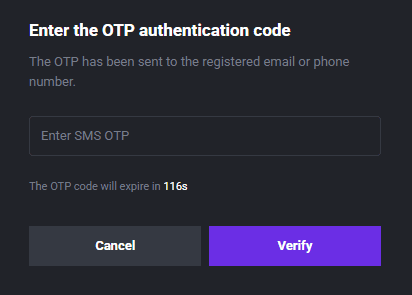
Step 4: Enter the OTP code sent to your registered SMS/ Email to complete the change.
Lưu ý:
If you forget your current login password, please return to the [Login] screen, select [Forgot Password], enter your registered phone number and Citizen ID number (CCCD), create a new password, and confirm it with the OTP sent to your SMS – Email.
he login password must contain at least 8 characters, including lowercase letters, uppercase letters, special characters, and numbers.
B. Change Trading Password (Static OTP)
Step 1: Select [Account Name], then choose [Account Information].
Step 2: Select [Security], then click [Change Trading Password].
Step 3: Enter your current login password and create a new trading password as required.
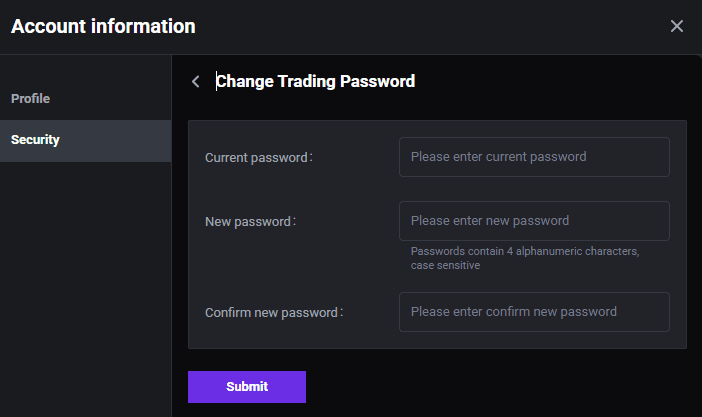
Step 4: Enter the OTP code sent to your SMS and Email to complete the change.
Note:
If you forget your current trading password, under [Security], please select [Forgot Trading Password], enter the OTP sent to your SMS and Email, create a new password, and click [Submit Request] to confirm.
The 4-character trading password is case-sensitive and includes uppercase, lowercase letters, and numbers only—no special characters allowed.
The trading password is also used for placing orders via phone.
3. Customize Trading Interface
A. Change Theme and Language
On the [Home] screen, select the option to adjust theme and language as shown below.

B. Adjust Tick Size, Stock Unit, Login Timeout, and Shortcuts
On the [Home] screen, tap the settings icon and customize the options to suit your investment style.
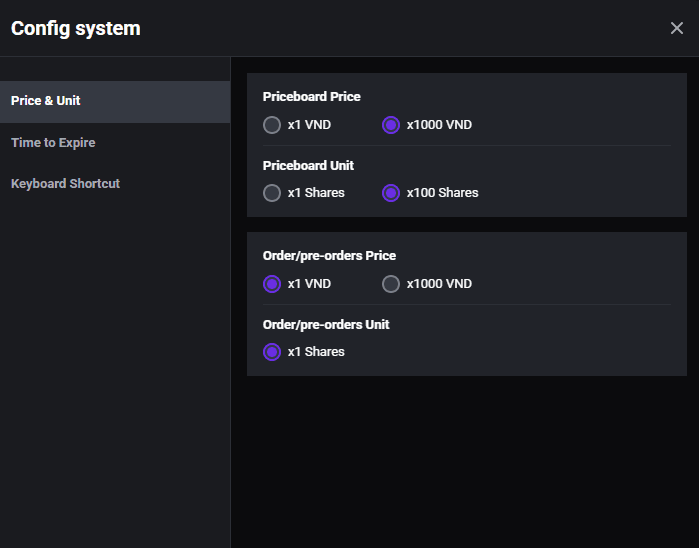
Adjust tick size and stock unit: select [Price & Unit] to modify pricing and share unit settings.
Login timeout: select [Time to Expire] and set your preferred login duration; the system will auto-log out after the set time.
Shortcut settings: select [ Keyboard Shortcut] to assign hotkeys for order placement, portfolio tracking, cash transaction, etc.
4. Request Support Assistance
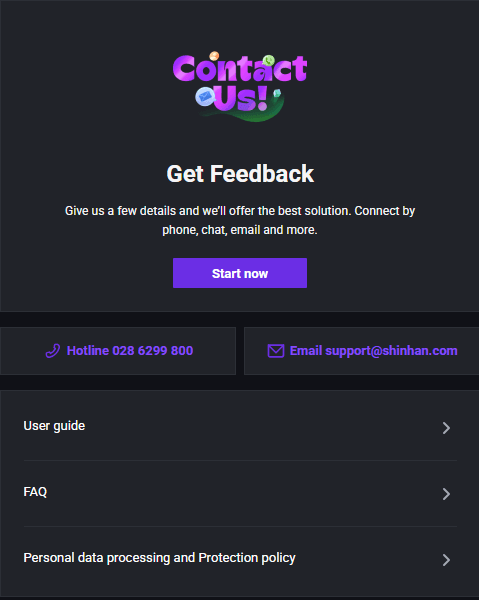
Step 1: On the [Home] screen, click the [Support] button.
Step 2: Select from the available support options:
[Start Now] to submit a request to the SSV system..
[Zalo] and [Facebook] to connect with SSV through the respective platforms.
[User Guide] to access service usage instructions from SSV.
[FAQ] to browse frequently asked questions.
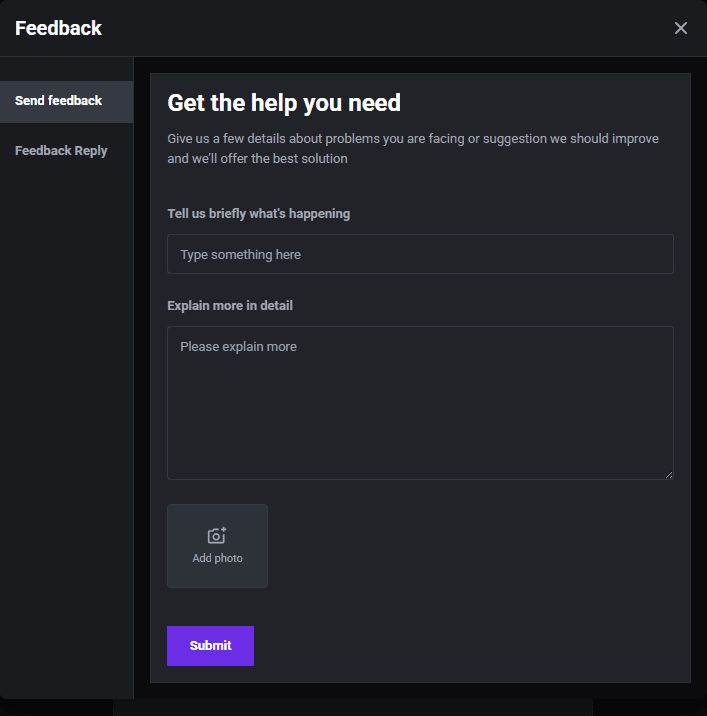
Step 3: Enter your support request. You may upload screenshots or comments to help SSV investigate and respond.
Step 4: Click [Submit] to send your inquiry or feedback to SSV.
5. Instructions for Updating and Modifying Personal Information
Updating and modifying personal information must be done via the San Xin Ha mobile application.
Note:
Foreign investors are required to visit an SSV office or branch for support when updating personal information.
Online updates are only available for domestic individual investors.
The device used for information changes must support NFC scanning and camera functionality.
6. Instructions for setting the default account
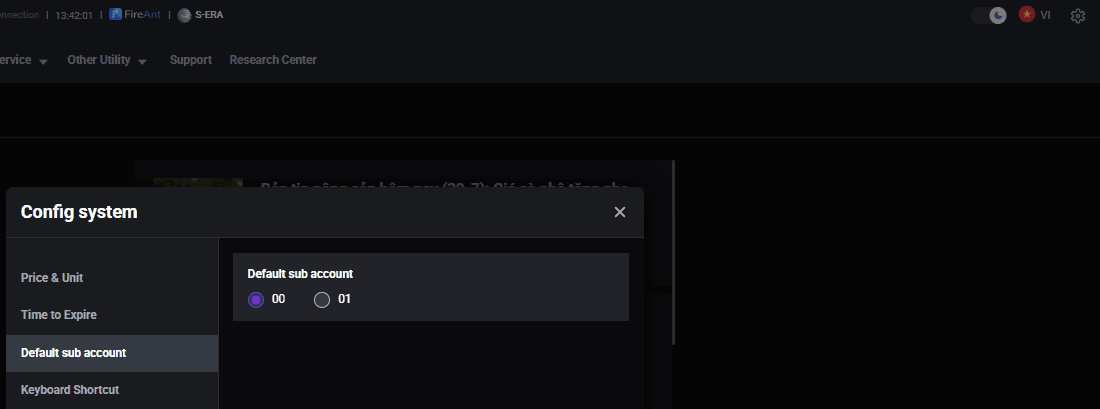
Step 1: On the [Home] screen, tap the settings icon
Step 2: Choose [Default sub account] tab and choose the default account.
Updated: 19 Sept 2026