
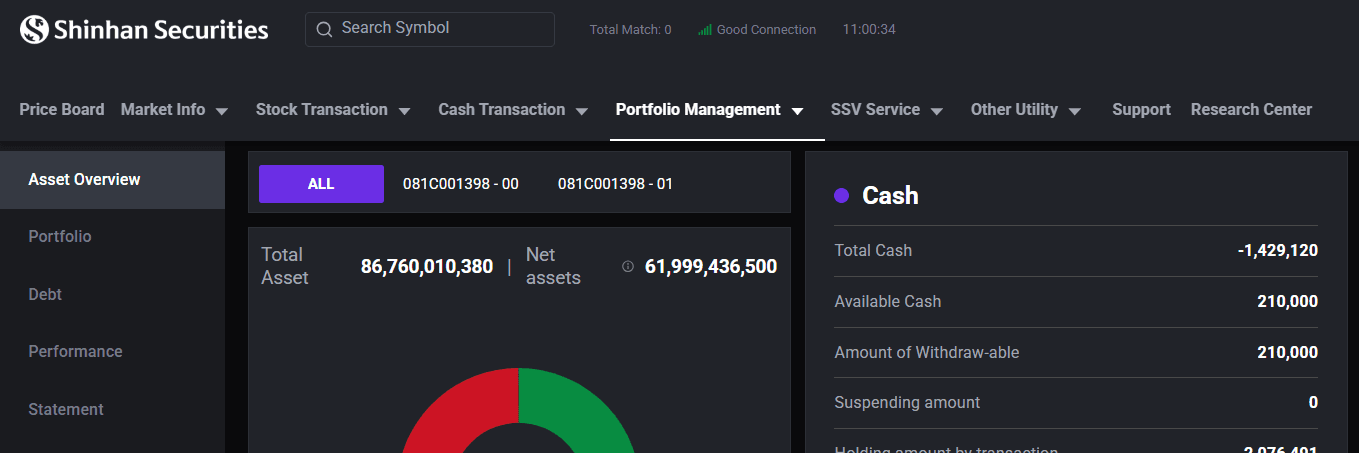
1. Asset Overview
Step 1: On the [Home] screen, select [Portfolio Management].
Step 2: Choose [Asset Overview].
Step 3: Select the sub-account or choose [All] to view full asset information.
Step 4: Review your asset details.
2. Portfolio
Step 1: On the [Home] screen, select [Portfolio Management].
Step 2: Choose [Portfolio].
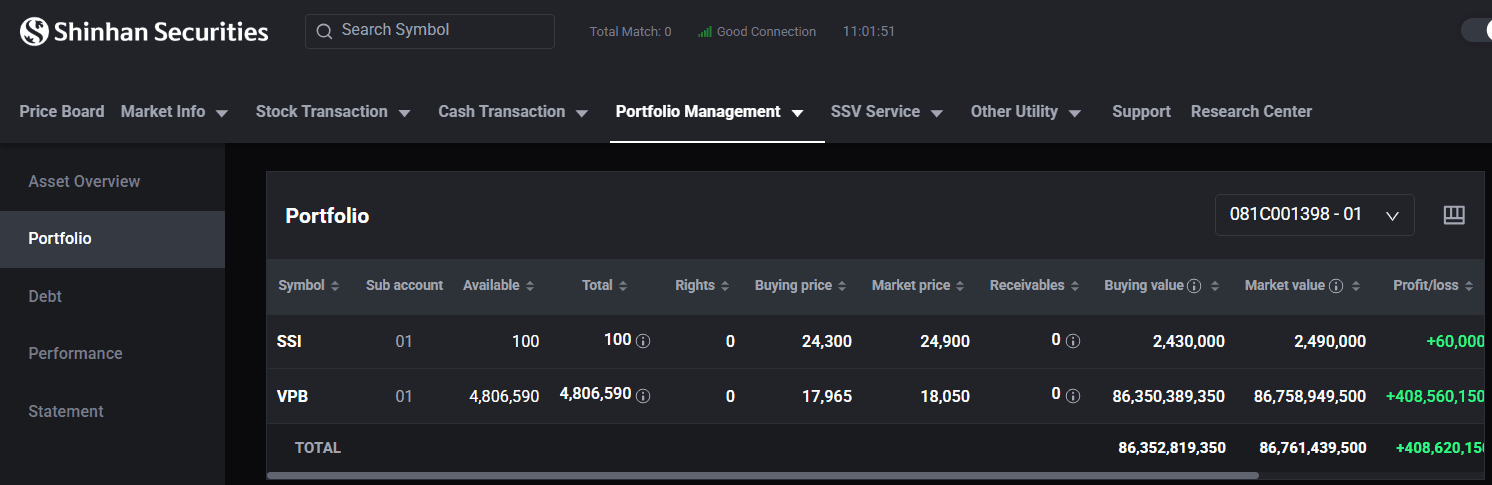
Step 3: Select a specific sub-account or choose [All] to view the full portfolio.
Step 4: Press the [Sell] button if you wish to place a sell order for the stock.
Note:
Only stocks with available quantities can be sold.
Tap the “!” icon to view detailed information about the stock's status.
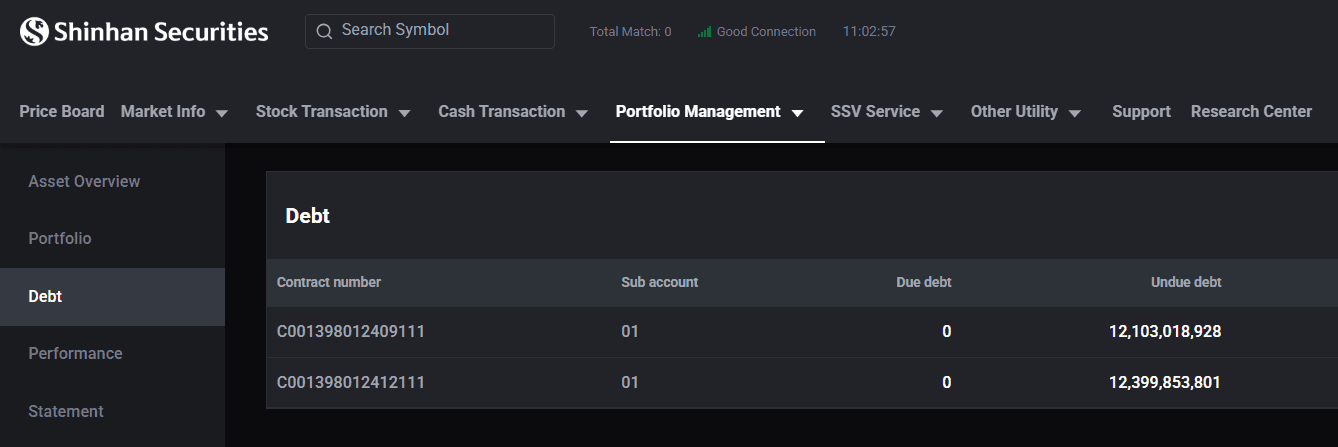
3. Debt
The [Debt] screen is used to check existing margin loan contracts.
Step 1: On the [Home] screen, select [Portfolio Management].
Step 2: Choose [Debt].
Step 3: Select sub-account 01 to view its details, or choose [All] to see the full investment portfolio information.
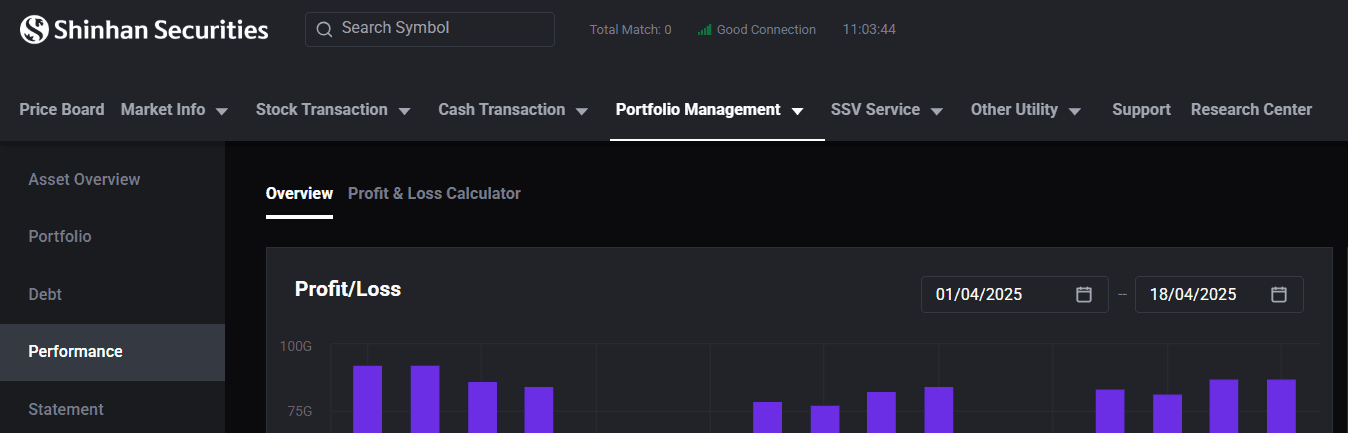
4. Performance
The [Performance] screen is used to monitor investment performance over a selected tracking period and serves as a valuable reference for evaluating investment strategies.
Step 1: On the [Home] screen, select [Portfolio Management].
Step 2: Choose [Performance].
Step 3: Choose either [Overview] or [Profit & Loss Calculator].
Step 4: Select a sub-account and timeframe to monitor portfolio performance.
5. Transaction Statement
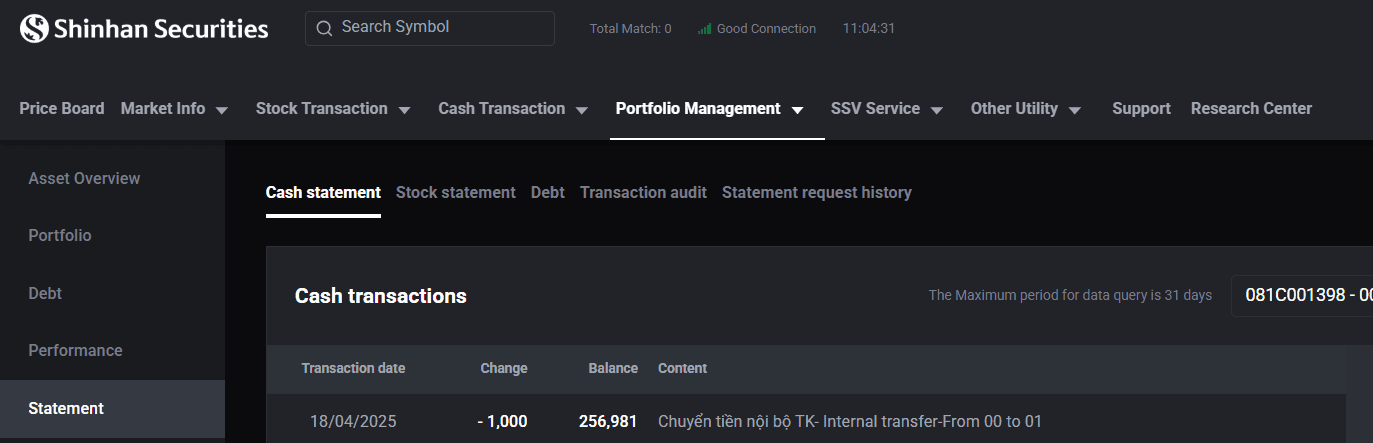
The [Statement] screen allows users to view the history of various trading activities.
Cash Statement: Displays a detailed statement of the account’s cash inflow and outflow history.
Stock Statement: Reviews the history of stock quantity changes in the account.
Debt: Displays the history of margin loan activities.
Transaction Audit: Monitors the overall changes in account assets.
Statement Request History: Reviews previously submitted requests for account statements.
Step 1: On the [Home] screen, select [Portfolio Management].
Step 2: Choose [Statement].
Step 3: Select among [Cash Statement], [Stock Statement]. [Debt]. [Transaction Audit], [Statement Request History] as needed.
Note:
Data lookup is limited to a maximum range of 31 days.
All statement sections can be exported to Excel files.
Updated: 19 Sept 2026