
1. History
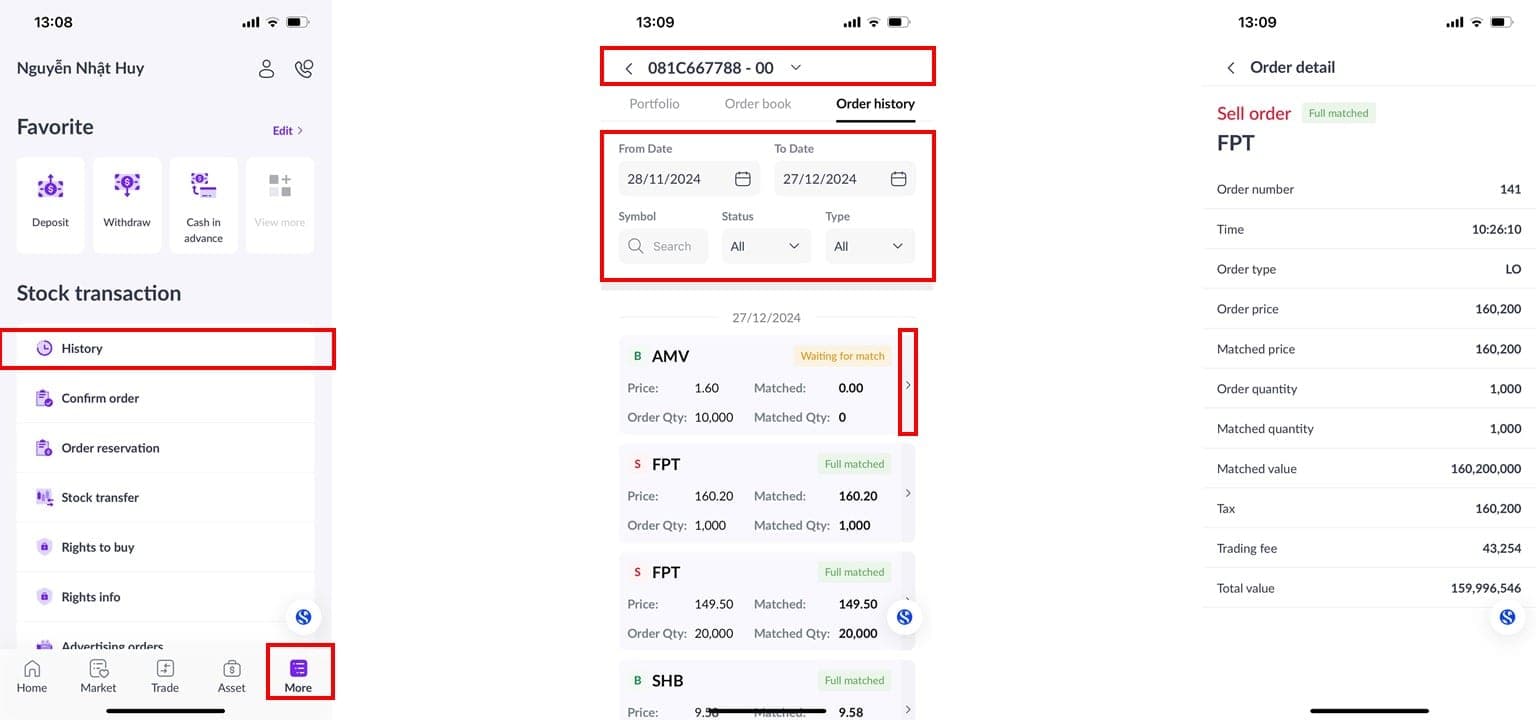
The [History] screen allows you to track past transactions, along with your current portfolio and today's order book. To access this, follow these steps:
Step 1: On the main screen, select [More], then choose [History].
Step 2: Select the trading sub-account: [00 – Cash Sub-account] or [01 – Margin Sub-account].
Step 3: Choose the following tasks to monitor:
Select [Portfolio] to track the securities you currently hold, similar to Section 3.1.
Select [Order Book] to track buy and sell orders placed today, similar to Section 2.3.
Select [Order History] to track past orders. You can select the tracking period, stock symbol (leave it blank to view all securities), Order Type (Buy/Sell/All), and Order Status (Matched/Unmatched/Cancel Pending/All). To view detailed information about a specific order, tap the [Details] button next to the order you want to check.
2. Order Confirmation
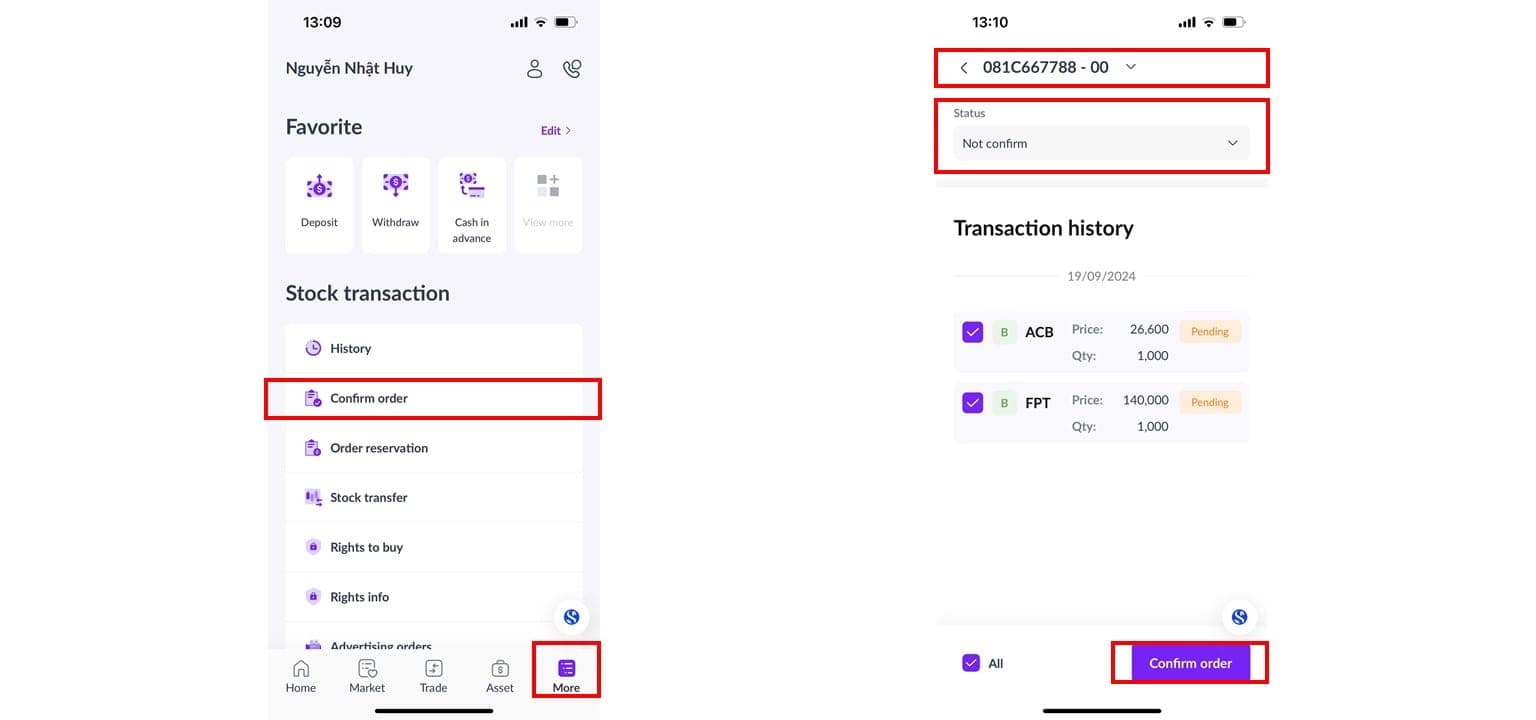
The order confirmation screen allows you to confirm orders placed via the call center or through a broker. To confirm your orders, follow these steps:
Step 1: On the main screen, select [More], then choose [Confirm Order].
Step 2: Select the trading sub-account: [00 – Cash Sub-account] or [01 – Margin Sub-account].
Step 3: Choose the tracking period and the order confirmation status (by default, the status will be "Not confirm").
Step 4: Select the orders and click the [Confirm Order] button.
3. Internal Securities Transfer
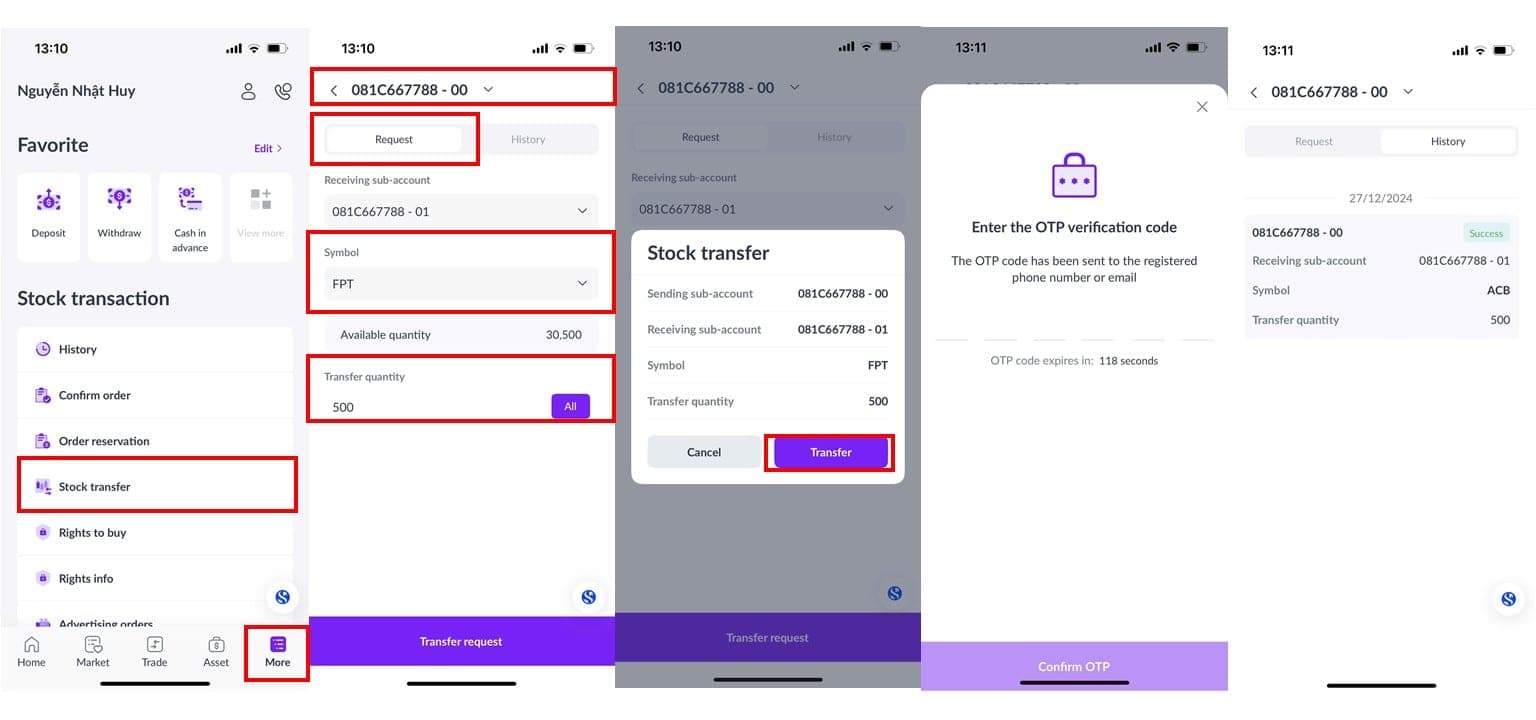
The internal securities transfer feature allows you to transfer stocks between sub-accounts. To perform the transfer, follow these steps:
Step 1: On the main screen, select [More], then choose [Stock Transfer].
Step 2: Select the trading sub-account: [00 – Cash Sub-account] or [01 – Margin Sub-account].
Step 3: In the [Request] section, select the stock symbol you want to transfer.
Step 4: Enter the number of shares you want to transfer or click [All] to select the entire quantity in the sub-account.
Step 5: Enter the OTP and confirm the transaction.
Step 6: In the [History] section, you can track the internal securities transfer transactions.
Notes:
The receiving account will automatically reflect the sub-account you selected above.
Transferring securities from the margin sub-account [01] to the cash sub-account [00] requires the settlement of all outstanding liabilities.
This feature is not available for foreign investors in accordance with current securities laws.
4. Rights of buy
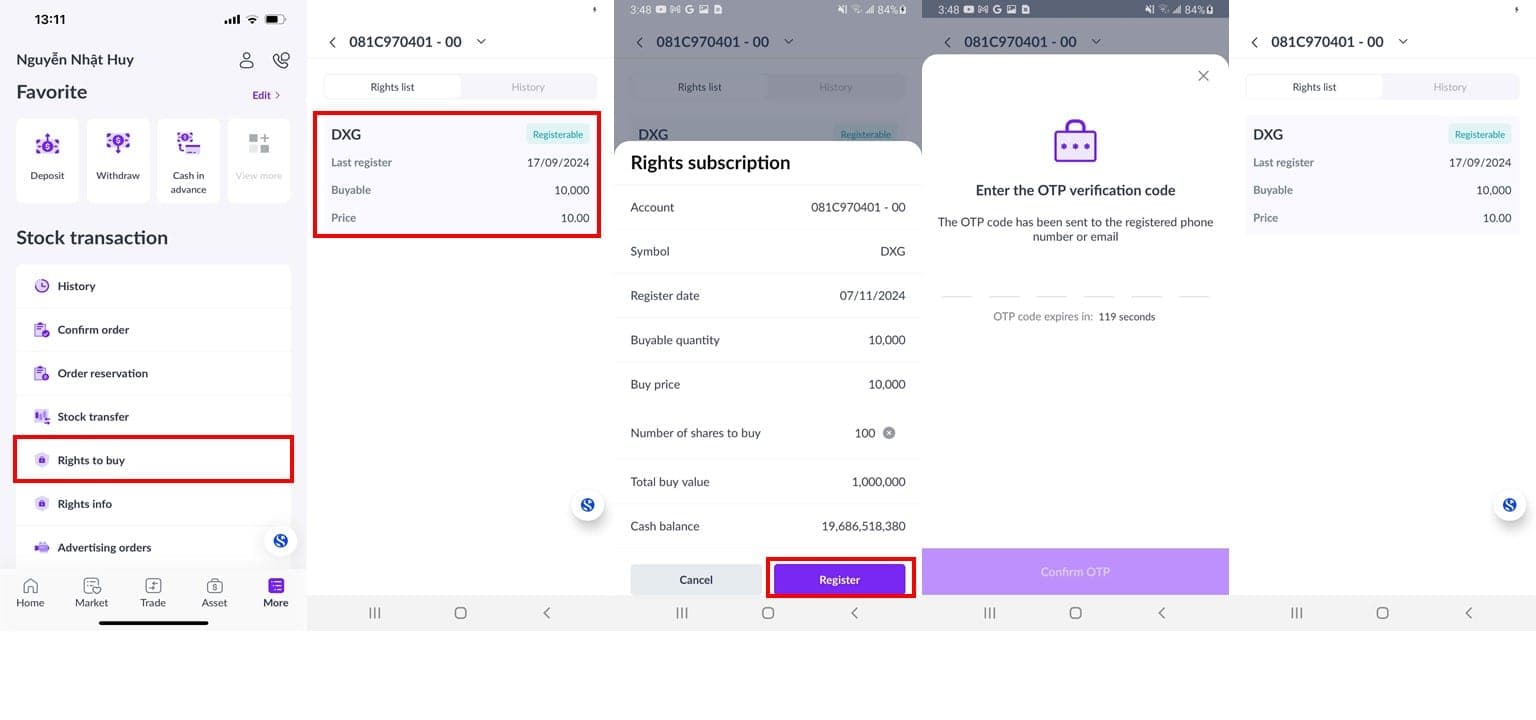
To exercise your rights of buy for securities, you can check and execute your rights in the [Rights to buy] section as follows:
Step 1: On the main screen, select [More], then choose [Rights to buy].
Step 2: Select the trading sub-account: [00 – Cash Sub-account] or [01 – Margin Sub-account].
Step 3: Select the available subscription right and enter the quantity in [Number of shares to buy].
Step 4: Enter the OTP to confirm the transaction.
Step 5: Check the history of executed Rights of buy in the [History] section.
Notes:
To exercise Rights of buy, you need to have sufficient cash in the sub-account for the purchase.
Rights of buy associated with shares in any sub-account will be kept separate from shares in that sub-account.
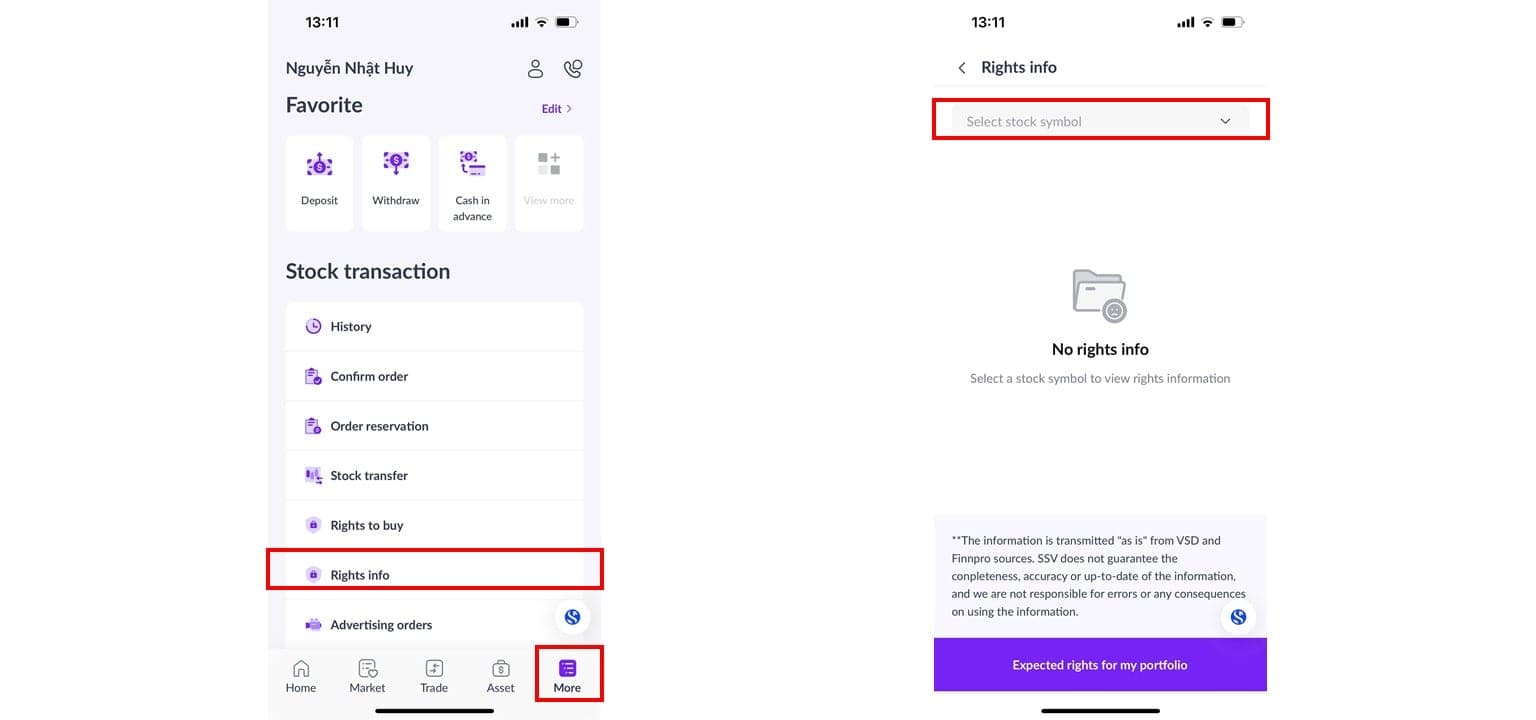
5. Check Rights Information
To check the expected rights in your portfolio, you can monitor them in the [Rights Info] section as follows:
Step 1: On the main screen, select [More], then choose [Rights Info].
Step 2: Select the stock symbol you want to check.
Step 3: Click the button [Expected Rights for My Portfolio] to check the Rights Information.
Updated: 19 Sept 2026