
1. Registering for Margin Trading
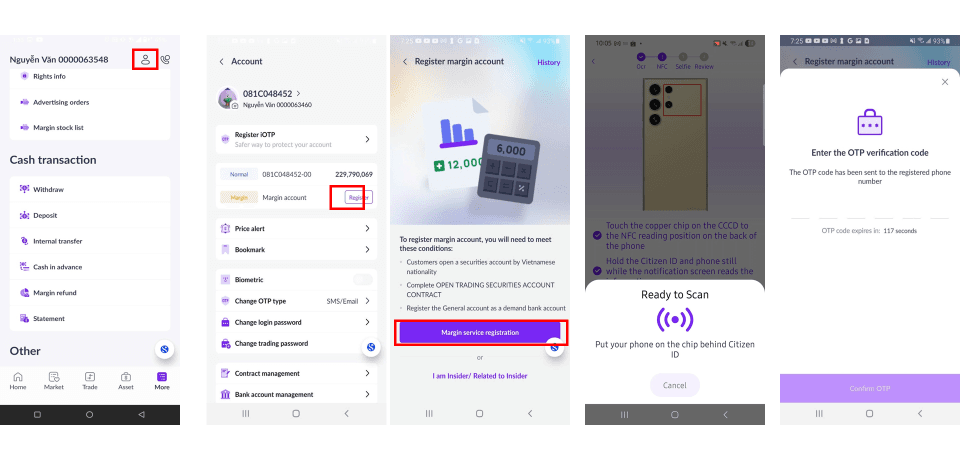
You can register for margin trading in the [Account] section of your account. To complete the registration, please follow these steps:
- Step 1: On the [More] screen, select the account icon
 .
- Step 2: Click on the [Register] button in the [Margin] section to start the registration.
- Step 3: Press [Margin service registration] to complete the registration. If you are an insider or a major shareholder and need to disclose additional information, please click on the link below to provide the required details.
- Step 4: Perform NFC scanning as instructed.
- Step 5: Enter the OTP code to confirm your registration and follow the instructions to complete the electronic contract signing.
Notes:
- Available only to domestic individual customers who have successfully opened an eKYC account.
- Must not have an existing margin account.
- Must have completed the account opening agreement.
- Must have registered a general payment bank account.
- The margin account can only be opened on the San Xin Ha application on a mobile device with NFC function.
2. Open-End Fund Trading Registration
To open a open-ended fund trading account, foreigner customers are required to have a successfully opened securities trading account with Shinhan Securities Vietnam (SSV). Foreign customers can open a open-end fund trading account using the methods below:
A. Open at the SSV counter:
Please bring valid identification documents (Passport, Temporary Residence Card (TRC),Visa) and visit the Head Office or Branch of SSV for assistance in opening both a securities trading account and a open-end fund trading account.
- Head Office: 18th Floor, The Mett Building, 15 Tran Bach Dang Street, An Khanh Ward, Ho Chi Minh City
- Ha Noi Branch: 2nd Floor, Leadvisors Building, 41A Ly Thai To Street, Hoan Kiem District, Hanoi.
Note: In case you are unable to visit Shinhan Securities Vietnam in person to open a securities trading account, please contact us via the following support channels for consultation and guidance:
[Contact Information]
- Hotline: (+84) 028 6299 8000 (Ext. 2)
- Email: support@shinhan.com
- KakaoTalk / Zalo: +84 901 335 605
B. Open an online open-end Fund Account (For Customer who already have a securities account at SSV)
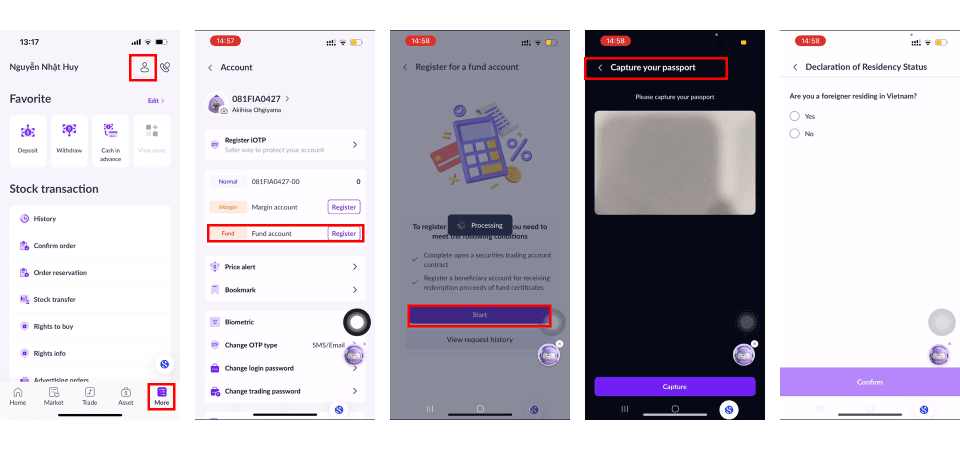
If you already have a securities trading account with SSV, you can open a open-end fund trading account online on the San Xin Ha application by following these steps:
- Step 1: On the [Home] / [More] screen, select icon.
- Step 2: Under Account screen, select Fund Account, click Register, and choose Start.
- Step 3: Verify your information by taking passport images in accordance with the in-app instructions.
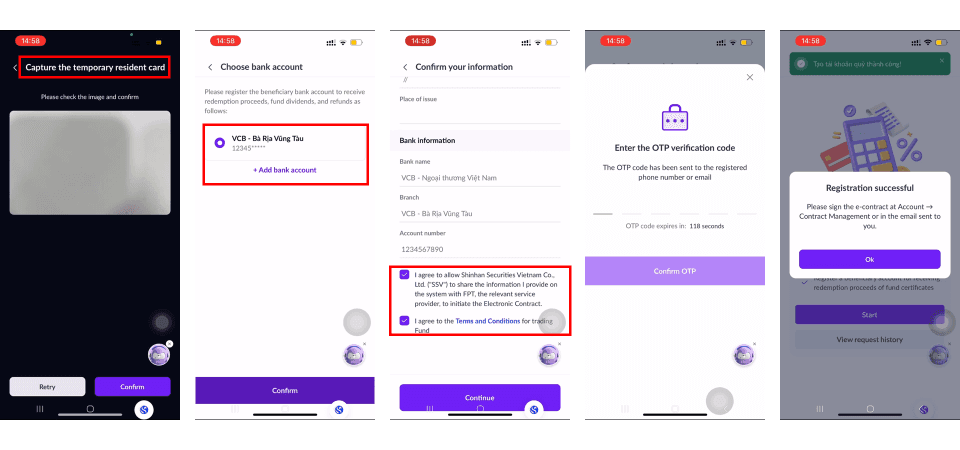
- Step 4: Register or select a beneficiary bank account for fund certificate trading.
- Step 5 Review the registration information and confirm [Agree] to the Fund Certificate opening and SSV terms & conditions.
- Step 6: Enter the OTP to confirm the registration and complete the electronic contract signing.
- Step 7: Begin trading after receiving a successful account opening notification via Email/SMS/ZNS.
3. Account Contract Management
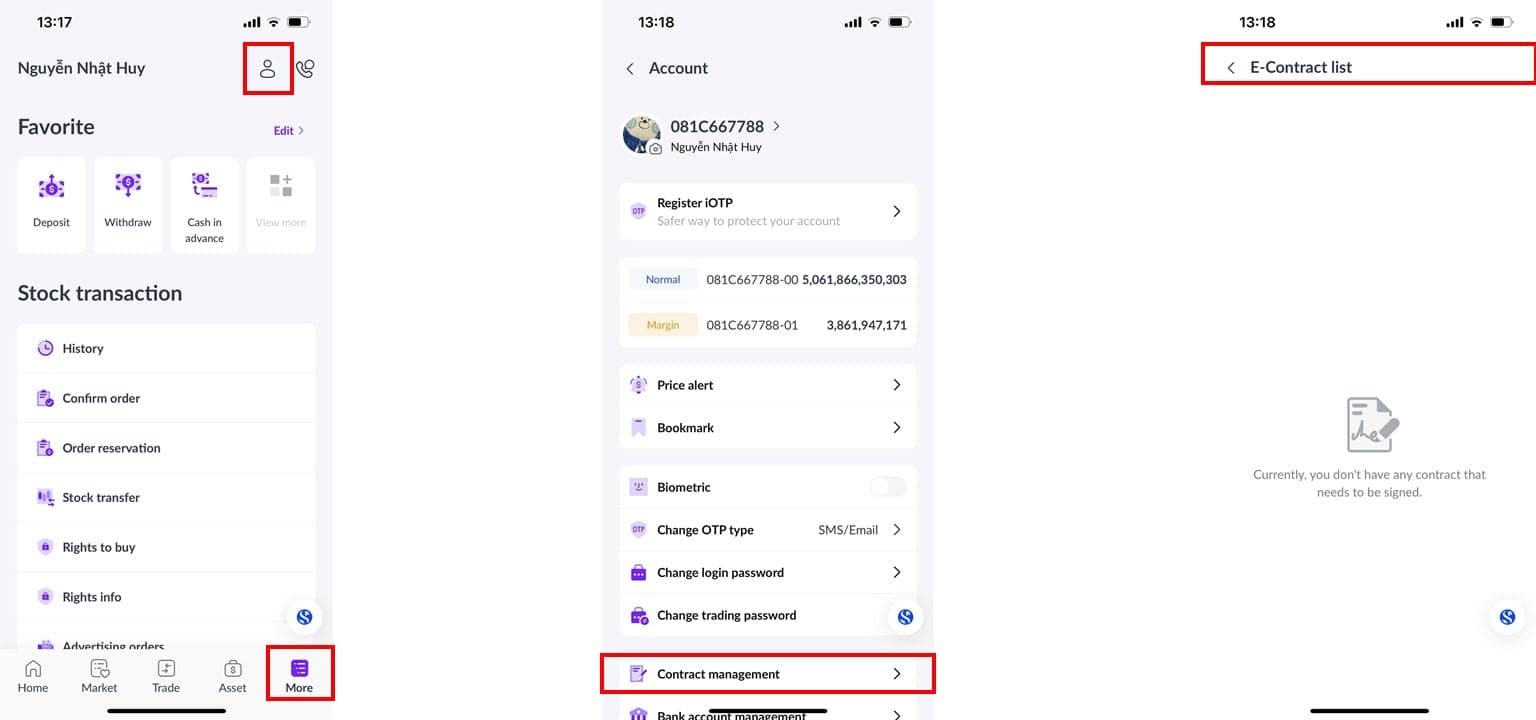
You can check the status of electronic contracts and sign contracts in the [Contract Management] section. To access this feature, please follow the steps below:
- Step 1: On the [More] screen, select the account icon .
- Step 2: Choose [Contract Management] to view electronic contracts.
- Step 3: Check the status of the contract or click on the electronic contract to sign it.
4. Registering and Managing Bank Accounts
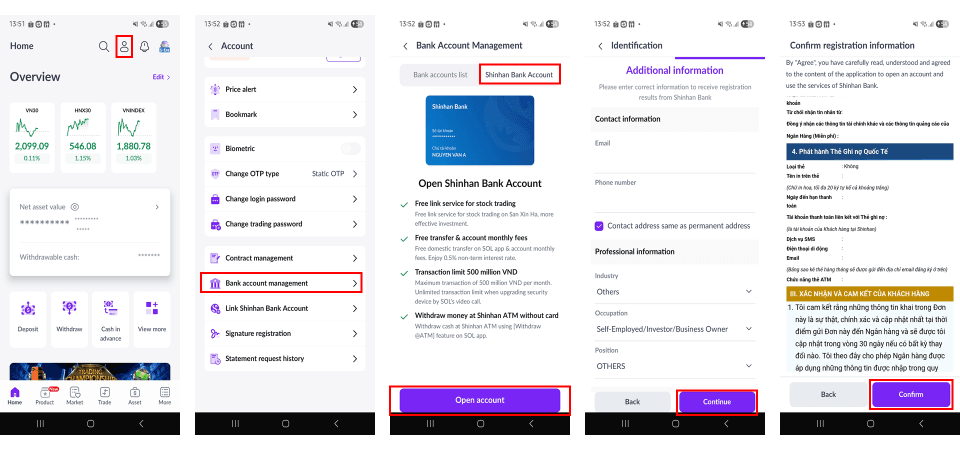
Instructions for registering a Shinhan Bank Vietnam account:
- Step 1: On the [Home] screen, select the account icon button .
- Step 2: On the [Account] screen, select [Bank account management].
- Step 3: Select [Shinhan Bank Account] to proceed with registering a Shinhan Bank Vietnam account.
- Step 4: Review and provide any required additional information.
- Step 5: Review the registration details of Shinhan Bank Vietnam and select [Confirm] to confirm.
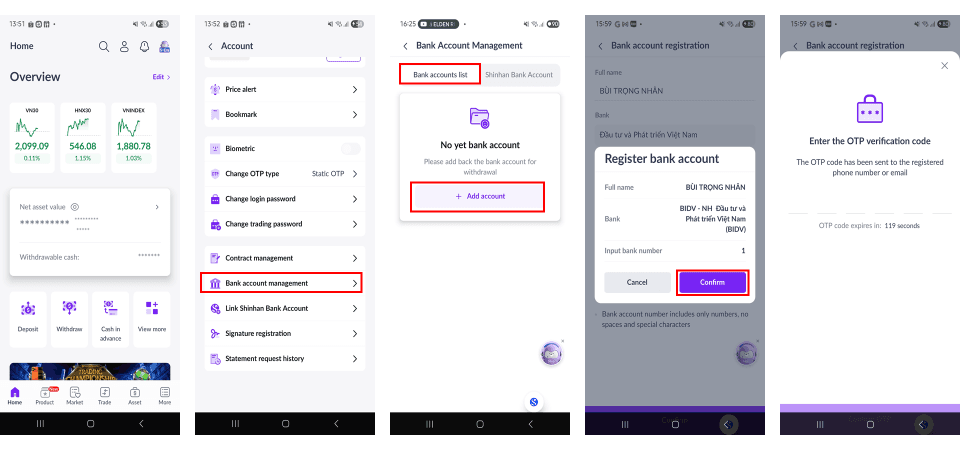
Instructions for linking a withdrawal bank account (applies to all primary bank accounts):
- Step 1: On the [Home] screen, select the account icon button.
- Step 2: On the [Account] screen, select [Bank account management].
- Step 3: Select [Bank Account lists] to proceed with linking a payment bank account.
- Step 4: Choose [Add Account] and enter the information of the primary bank account.
- Step 5: Enter the OTP code to confirm the bank account registration.
Notes:
- Customer may register up to 5 payment bank accounts.
- Opening a Shinhan Bank Vietnam account is only available to domestic individual customers.
5. Registering a Signature Sample
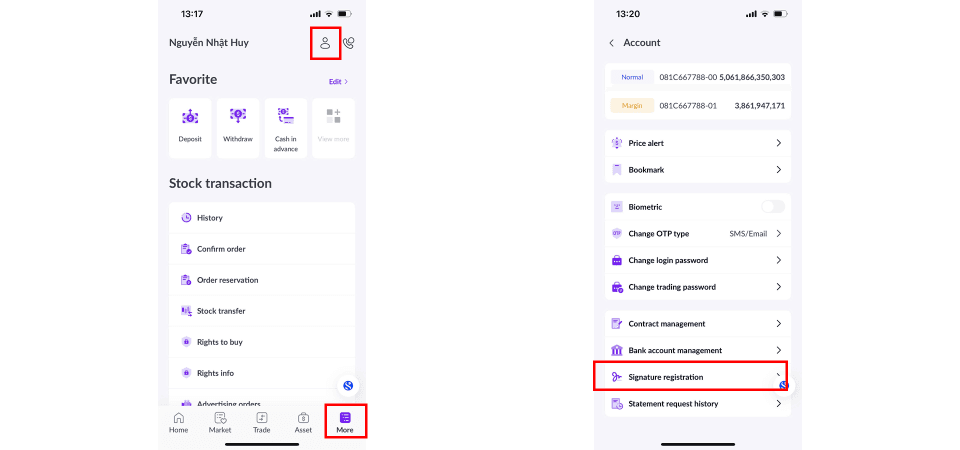
To register a signature sample, please follow these steps:
- Step 1: On the [More] screen, select the account icon
- Step 2: In the [Account] screen, choose [Signature registration].
- Step 3: Click [Register Signature] and choose [Take Photo] to capture a signature directly or [Upload Photo] to upload an existing signature image.
- Step 4: Review the image and enter the OTP code to confirm.
- Step 5: Monitor the approval status under [Status].
The Stock Price Alert feature notifies you when a stock price or specified conditions are met. To set up an alert, please follow these steps:
Method 1: Create a quick alert by pressing the alert icon “ ” in the [Stock Info] section within the stock’s detailed information page.
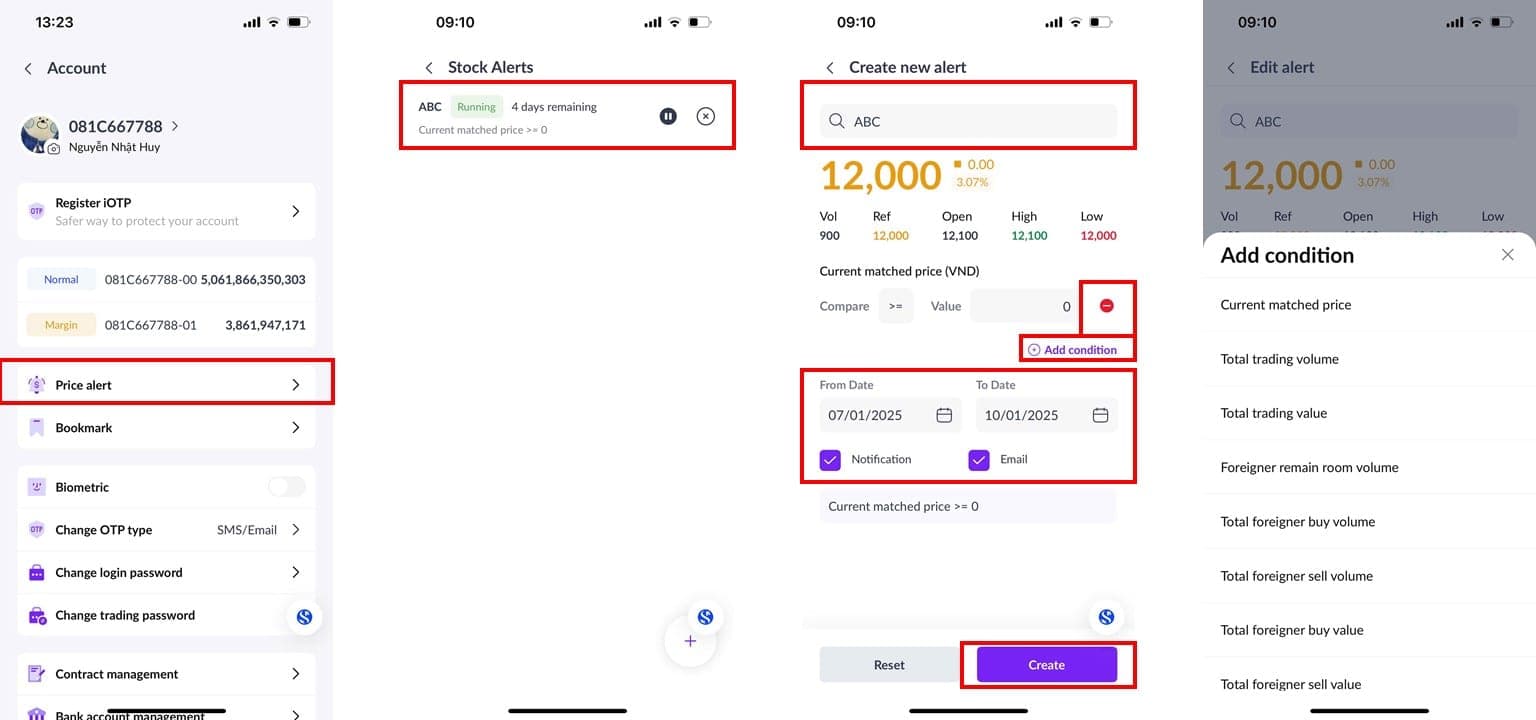
Method 2: Create and manage alerts through the [Account] section as follows:
- Step 1: On the [More] screen, select the account icon .
- Step 2: In the [Account] screen, choose [Price Alerts].
- Step 3: In the [Price Alerts] screen, you can manage existing alerts by pressing the “x” icon to delete an alert, pressing the [Create New Alert] button or “+” icon to create a new alert, or pressing the “||” icon to pause an alert.
- Step 4: Select the stock code you wish to monitor and press [Add Condition] to proceed.
- Step 5: Choose the condition for the alert. Set the condition parameters under [Compare] and [Value]. You can add additional conditions by pressing [Add Condition] or remove conditions by pressing the “-” icon.
- Step 6: Select the timeframe for monitoring and the notification method via [Notification] and [Email].
- Step 7: Press [Create New Alert] to finalize the setup.
Additionally, you can adjust an existing alert by selecting it, modifying the conditions, and pressing [Edit] to save changes.
Updated: 19 Sept 2026