
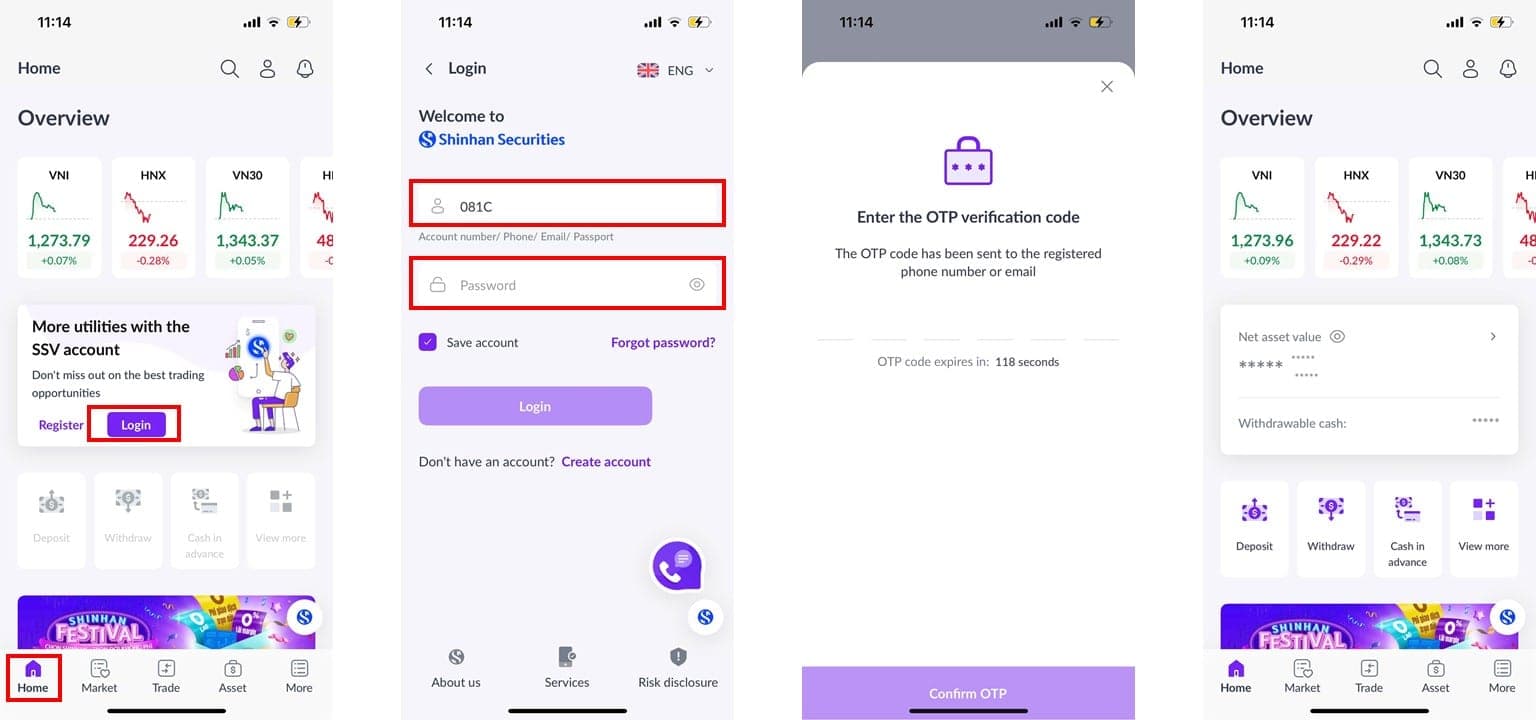
1. Login Instructions
Step 1: Download the San Xin Ha application.
Step 2: Open the app and tap the [Login] button on the [Home] screen.
Step 3: Enter your login information: Account Number / Phone Number / Email / Citizen ID / Passport and login password.
Step 4: Enter the OTP code sent via SMS / Email.
Step 5: Continue to the [Home] screen.
Notes:
If you don’t have an account with SSV yet, please press the [Register] button on the [Home] screen and proceed with the eKYC account opening process.
Your login password is the one you received via notification email (if you opened the account at the counter) or the one you created during the account opening process.
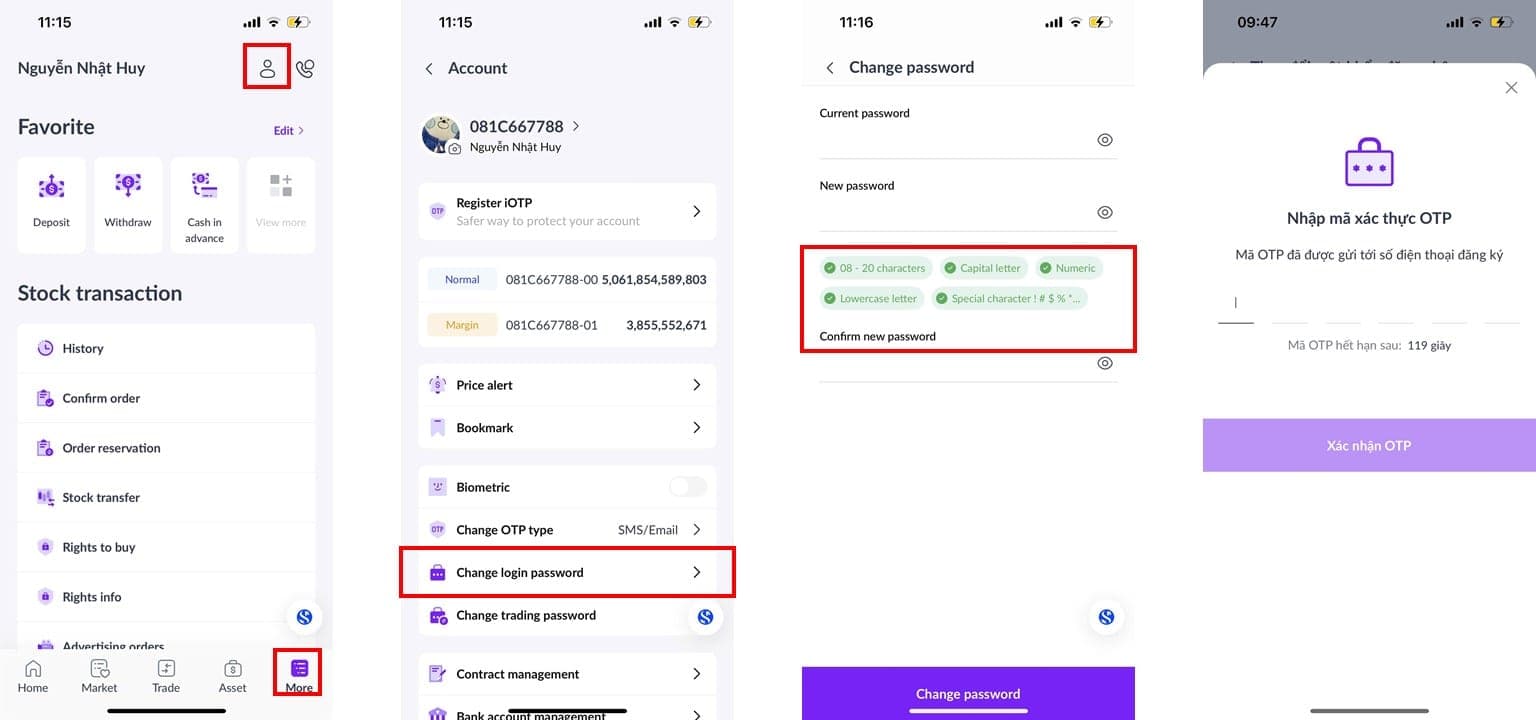
2. Change Login Password
Step 1: On the [More] screen, select the account icon
 .
Step 2: Tap the [Change Login password] button.
Step 3: Enter your [Current Password] and [New Password]. Notes: The new password must meet specified requirements to proceed with the change.
Step 4: Confirm the new password and enter the OTP code to complete the password change.
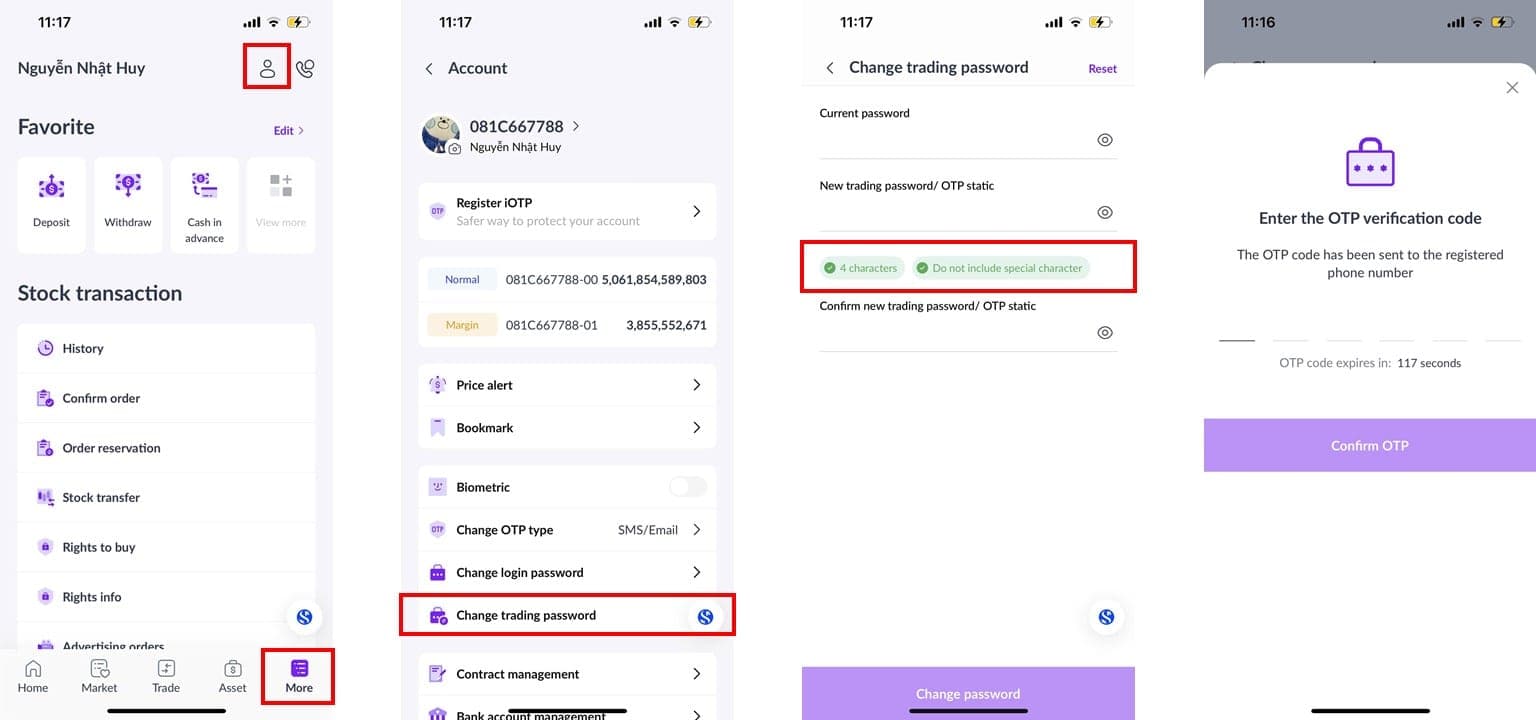
3. Change Trading Password
Step 1: On the [More] screen, select the account icon
.Step 2: Tap the [Change Trading Password] button.
Step 3: Enter your [Current Password] and [New Trading Password / OTP Static]. Notes: The new password must meet specified requirements to proceed with the change.
Step 4: Confirm the [New Trading Password / OTP Static] and enter the OTP code to complete the change.
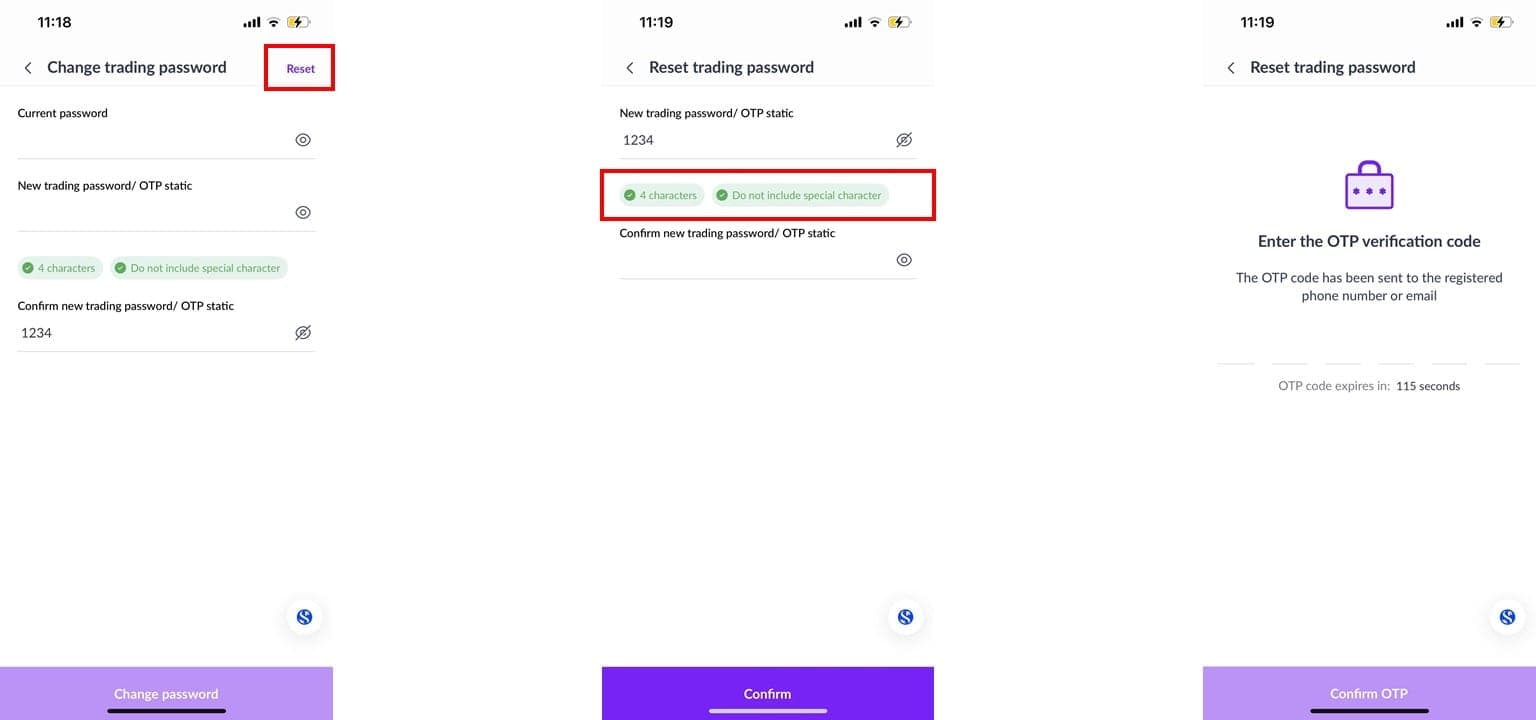
4. Reset Trading Password (Static OTP)
Step 1: On the [More] screen, select the account icon
.Step 2: Tap the [Change Trading Password] button and press the [Reset] button to initiate the reset..
Step 3: Create a [New Trading Password / OTP Static]. Notes: The new password must meet specified requirements to proceed with the change.
Step 4: Confirm the [New Trading Password / OTP Static] and enter the OTP code to complete the change.
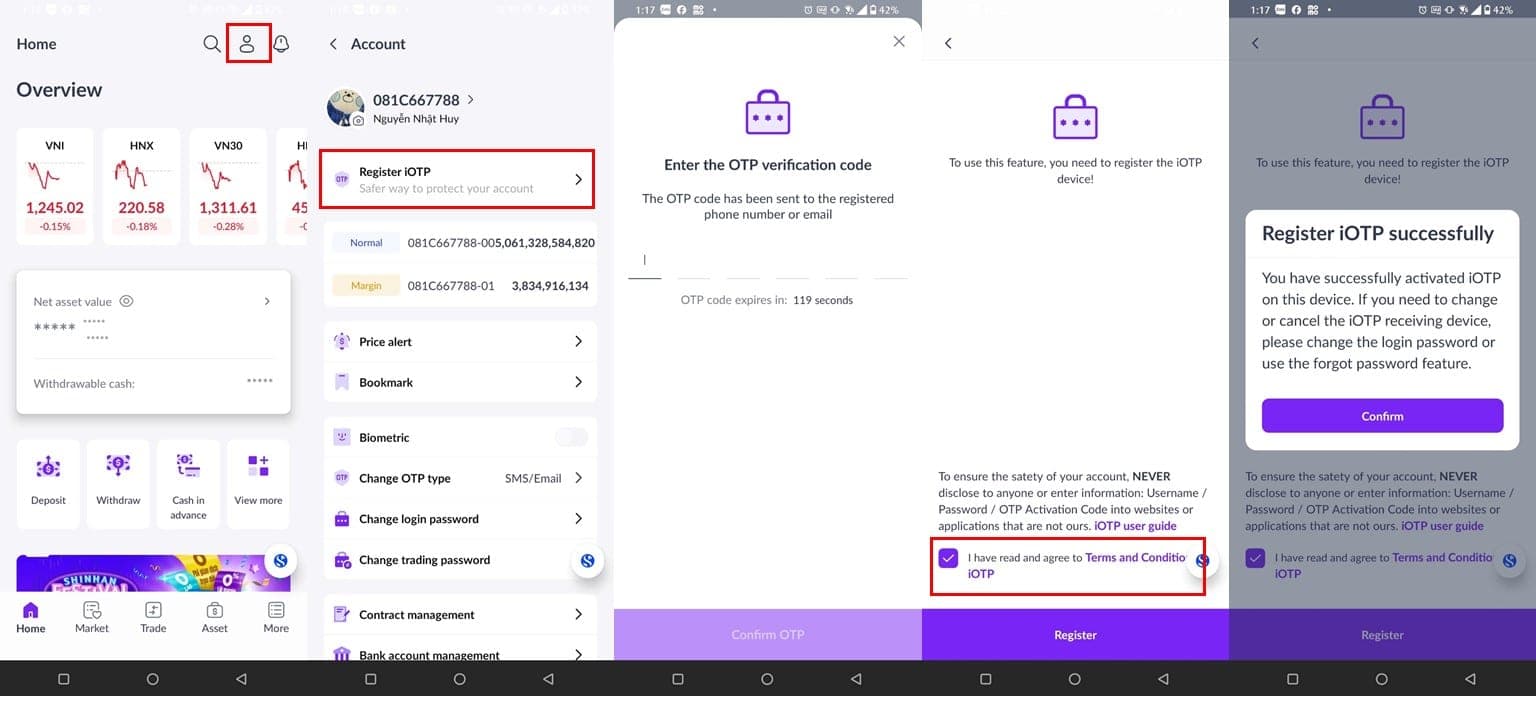
5. Register iOTP
Step 1: On the account screen, select the [Register iOTP] button.
Step 2: Agree to the iOTP terms of use.
Step 3: Enter the verification OTP code sent via SMS/Email.
Step 4: Receive a notification confirming successful iOTP registration.
Notes: If you do not wish to use iOTP, you can press the [Deactivate iOTP] button and confirm to deactivate iOTP.
6. Adjust Favorite Tasks
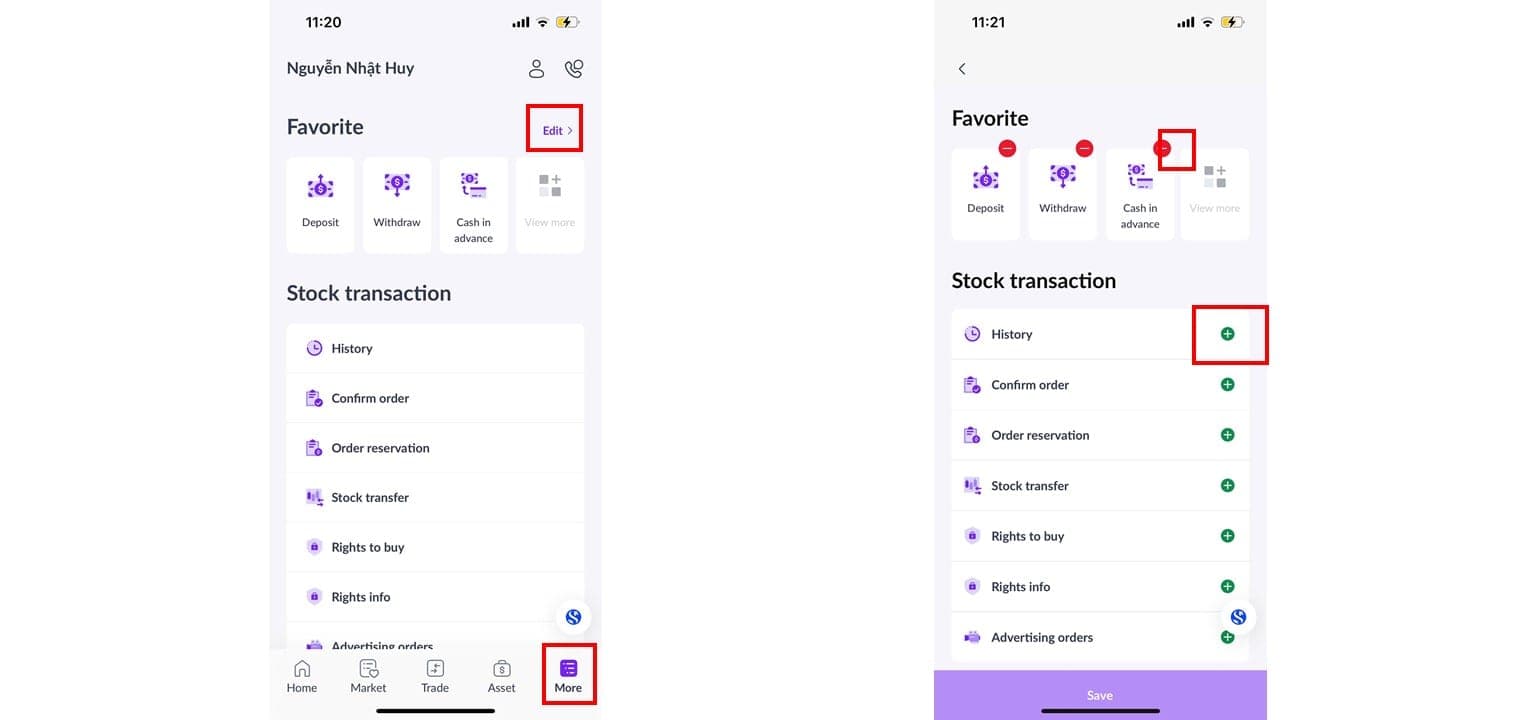
Step 1: Select the [More] option.
Step 2: In the [Favorite] section, tap the [Edit] button.
Step 3: Tap the “-” symbol to remove tasks or the “+” symbol to add tasks.
Step 4: Tap the [Save] button to complete the adjustments.
7. Update Personal / Conact Information online
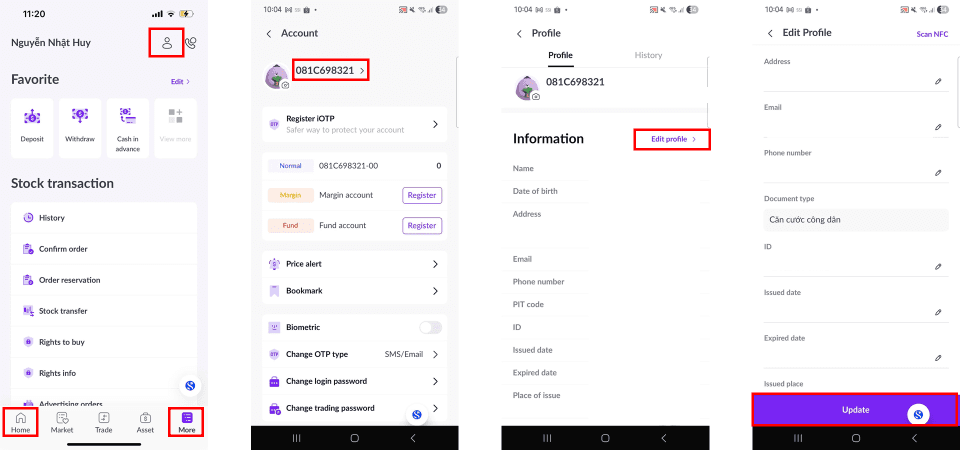
Step 1: On the [More] screen, select the account icon
.Step 2: Choose the [Personal Account Information] section.
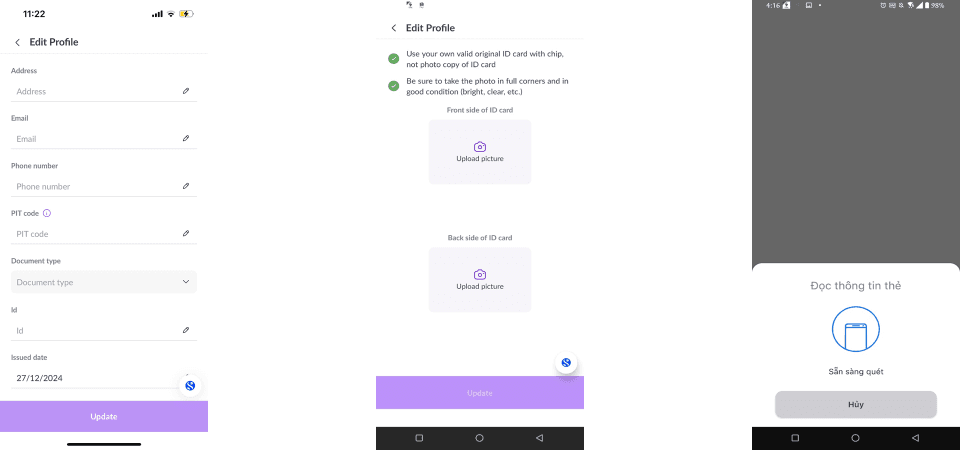
Step 3: Tap the [Edit profile] button to adjust your information.
Step 4: Tap the [Update] button to submit changes and wait for approval from SSV.
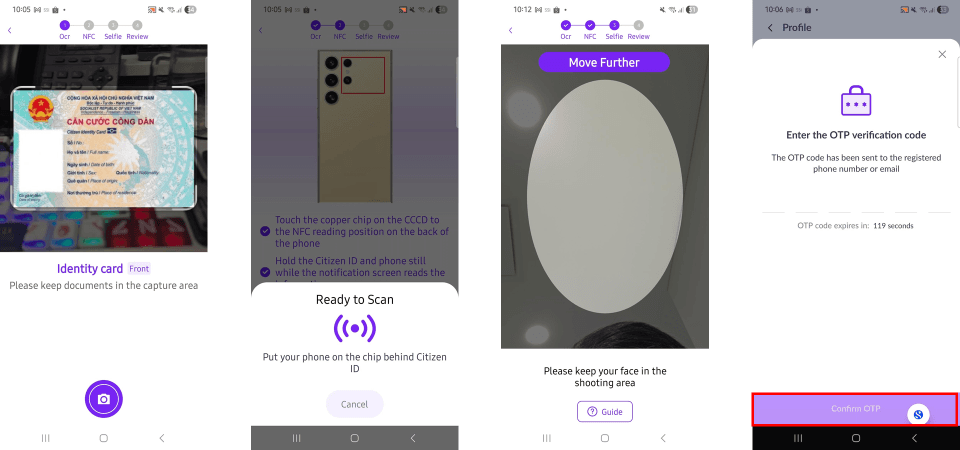
Step 5: Upload or capture images of both sides of the latest ID card.
Step 6: Perform NFC scanning.
Step 7: Perform facial recognition scanning.
Step 8: Enter the OTP sent to your previous phone number or email address.
Step 9: Review the existing and updated information for accuracy.
Note:
Online information adjustments are only applicable to domestic individual investors and not to foreign investors.
Can only be executed on device support NFC function.
8. Change Language
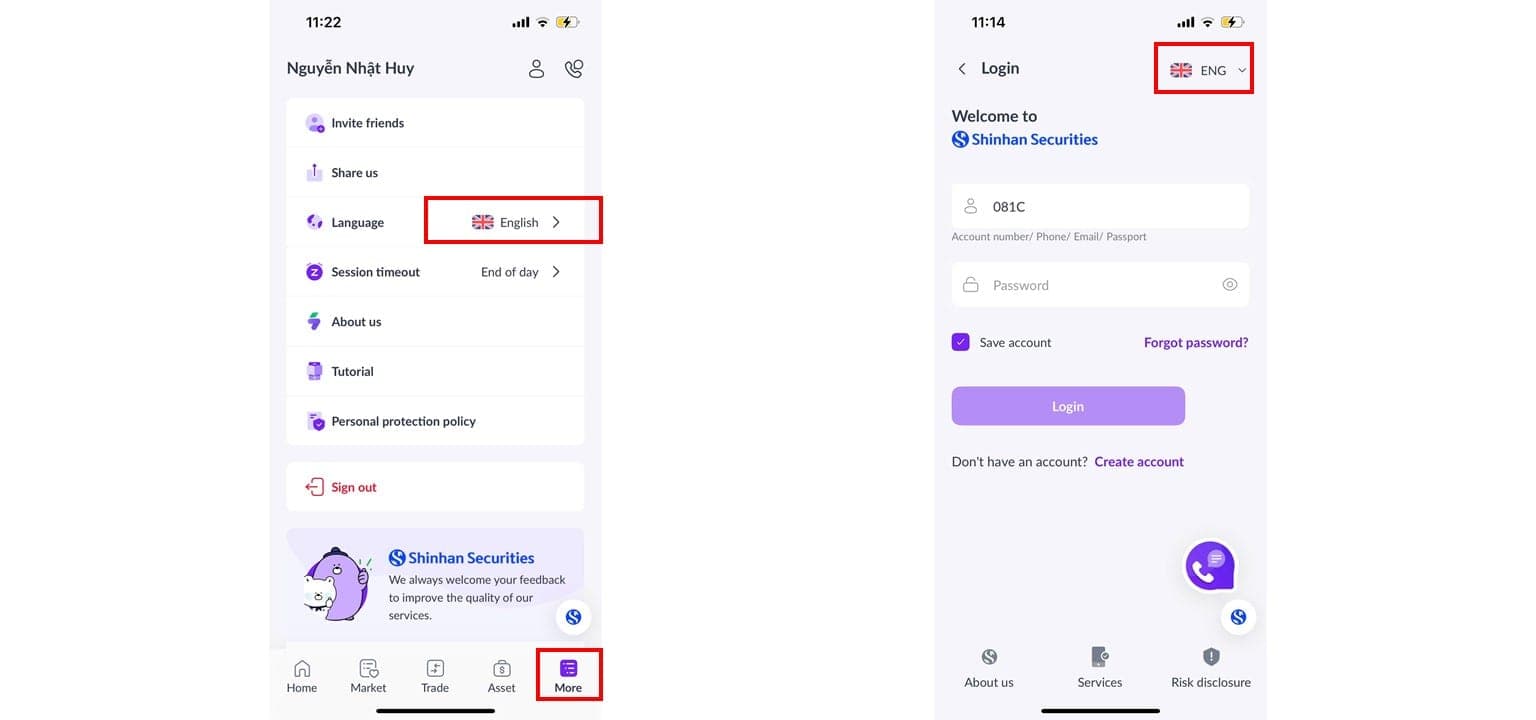
You can change the language in two ways:
Method 1: Change the language on the [Login] screen.
Method 2: Change the language in the [More] section.
9. Set Up Biometric Authentication
To enable biometric authentication, ensure your device supports biometric unlock methods such as fingerprint, facial recognition, or iris scan. Follow these steps:
Step 1: Log in to your account.
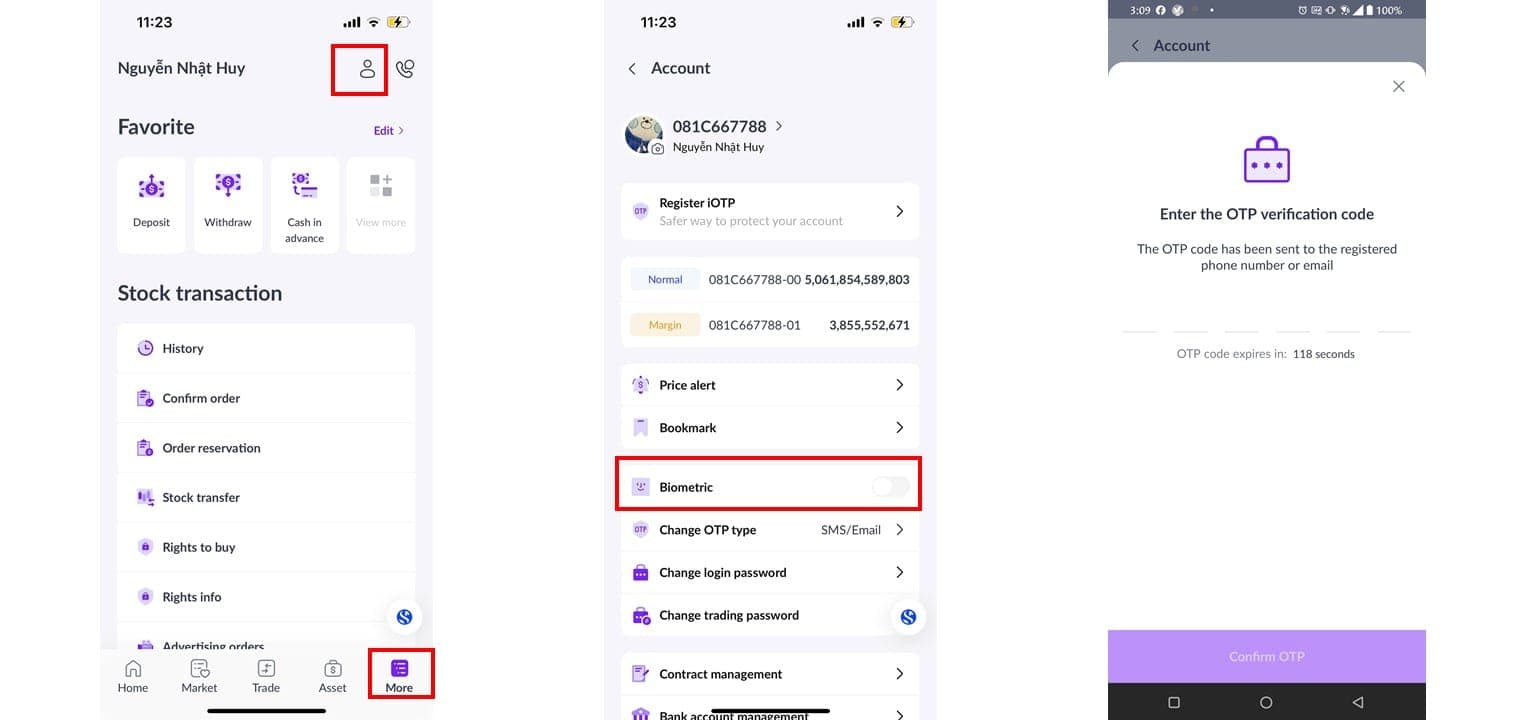
Step 2: Tap the [Setup] button in the setup prompt or go to the [More] screen and select the account icon
.Step 3: Enable the [Biometric] mode.
Step 4: Confirm with an OTP code and perform a biometric scan to complete the setup.
Updated: 19 Sept 2026