
This guide applies only to customers who trade through the General Account.
1. Withdraw cash
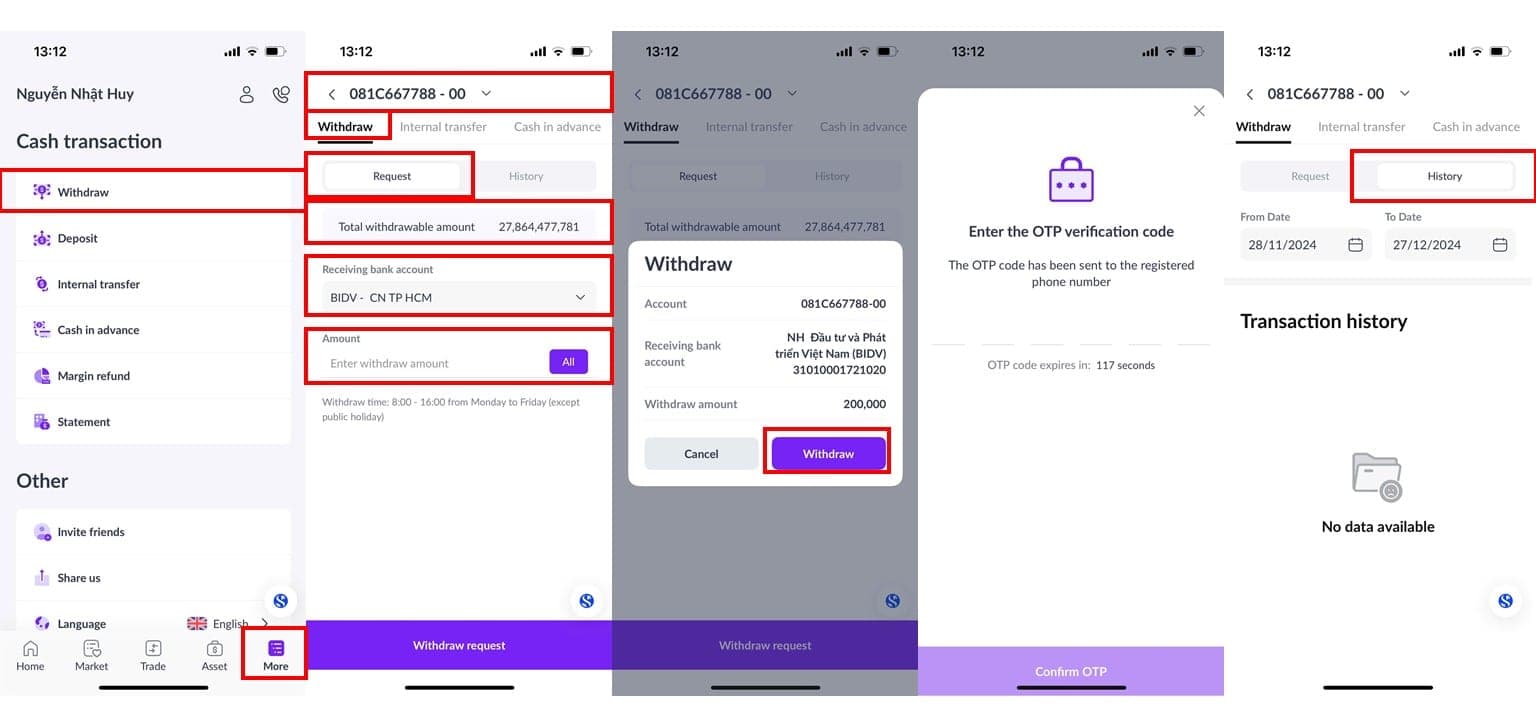
You can withdraw cash from the [Withdraw] screen using the bank accounts previously registered. Please follow the steps below:
Step 1: On the main screen, select [More].
Step 2: Under the [Cash Transaction] section, select [Withdraw].
Step 3: Select the trading account: [00 – Cash Sub-account], [01 – Margin Sub-account].
Step 4: Under the [Request] section, choose the registered bank account to receive the funds.
Step 5: Enter the amount to withdraw. The amount must be less than or equal to [Total withdrawable amount].
Step 6: Click [Withdraw request] and enter the OTP to confirm.
Step 7: Track the history of withdrawal transactions in the [History] section
2. Deposit
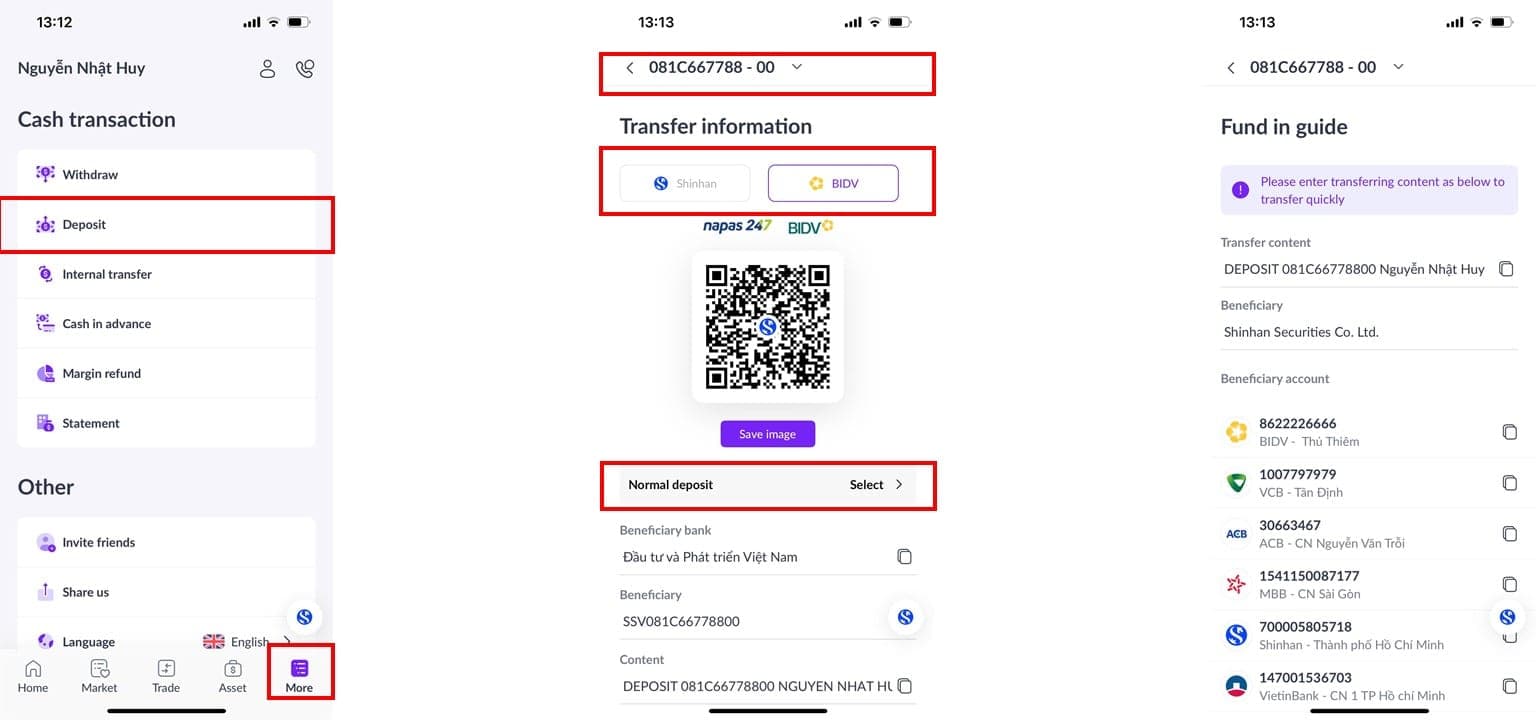
To deposit funds into your securities trading account, please follow the instructions below:
Step 1: Log in to your bank account to initiate the transfer.
Step 2: On the San Xin Ha app, go to [More] and select [Deposit].
Step 3: Choose the trading account: [00 – Cash Sub-account], [01 – Margin Sub-account].
Step 4: Select the bank for the transfer:
Default: Shinhan Vietnam Bank and BIDV (for fast transfer processing).
If you wish to make a regular transfer, select [Normal Deposit].
Step 5: Scan the QR code or click [Copy] and paste it into the transfer fields in your bank app (you can also [Save Image] for later use).
Notes:
The transfer content will be adjusted according to the language settings and the selected trading account.
The QR code will change based on the language settings and the selected trading account.
For foreign investors, this feature will not be available for IICA accounts due to current securities law regulations.
3. Internal Cash Transfer
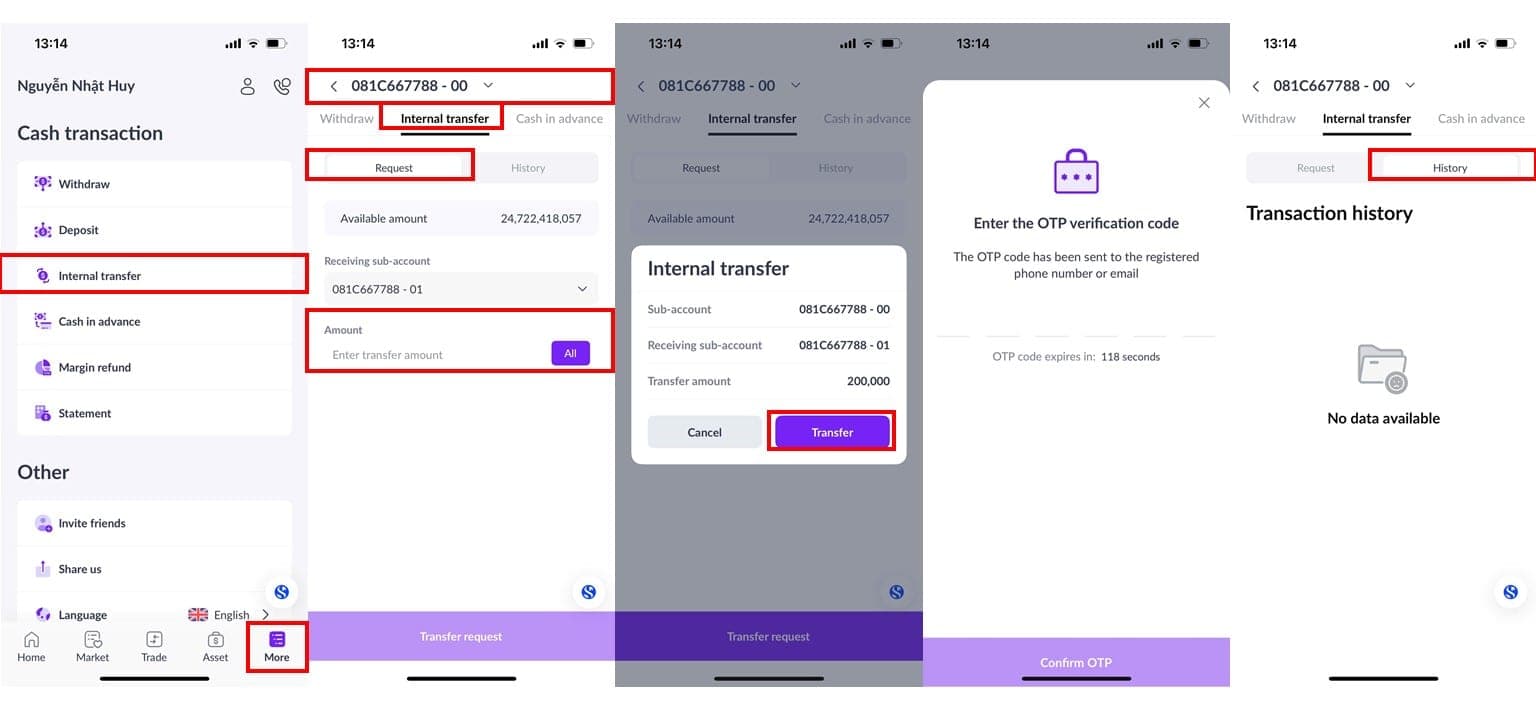
The internal fund transfer screen helps you transfer funds between different accounts. To perform the transfer, please follow the steps below:
Step 1: From the main screen, select [More].
Step 2: Under the [Cash Transaction] section, choose [Internal Transfer].
Step 3: Select the trading account: [00 – Cash Sub-account], [01 – Margin Sub-account].
Step 4: Enter the amount to transfer. The transfer amount must be less than or equal to [Available Amount], or click [All] to transfer the full amount in the [Available Amount].
Step 5: Click [Transfer] and enter the OTP to confirm.
Step 6: Track the history of your internal fund transfers under [History].
4. Cash in advance
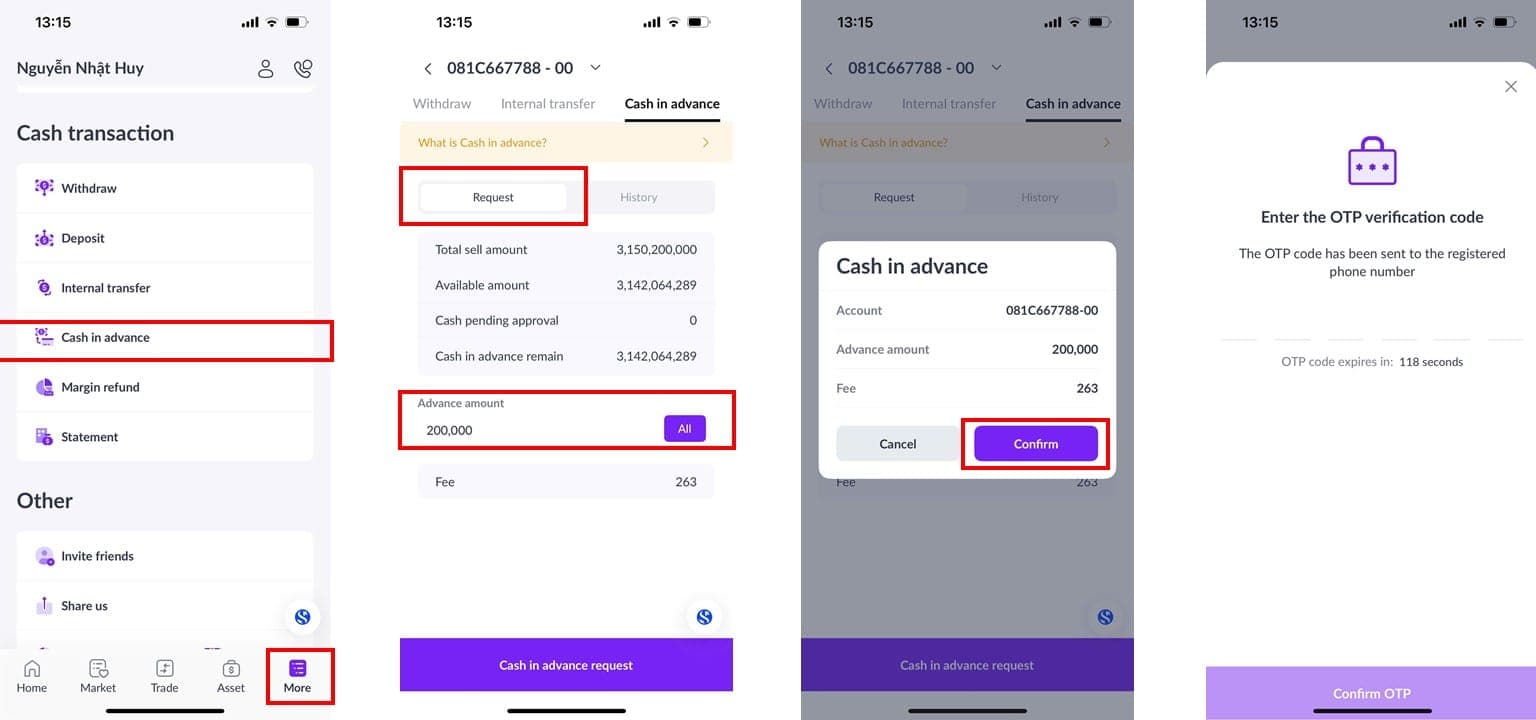
The Cash advance feature helps you when you need to purchase stocks but the proceeds from a sell order have not yet been credited to your account. To use this feature, follow these steps:
Step 1: From the main screen, select [More].
Step 2: Under the [Cash Transaction] section, choose [Cash in Advance].
Step 3: Select the trading account: [00 – Cash Sub-account], [01 – Margin Sub-account].
Step 4: Enter the amount for advance payment in the [Cash in advance remain] field. The requested amount must be less than or equal to [Cash in advance remain], or click [All] to request the entire available balance.
Step 5: Click [Cash in advance request] and enter the OTP to confirm.
Step 6: Track the history of advance payment transactions under [History].
5. Margin Loan Repayment
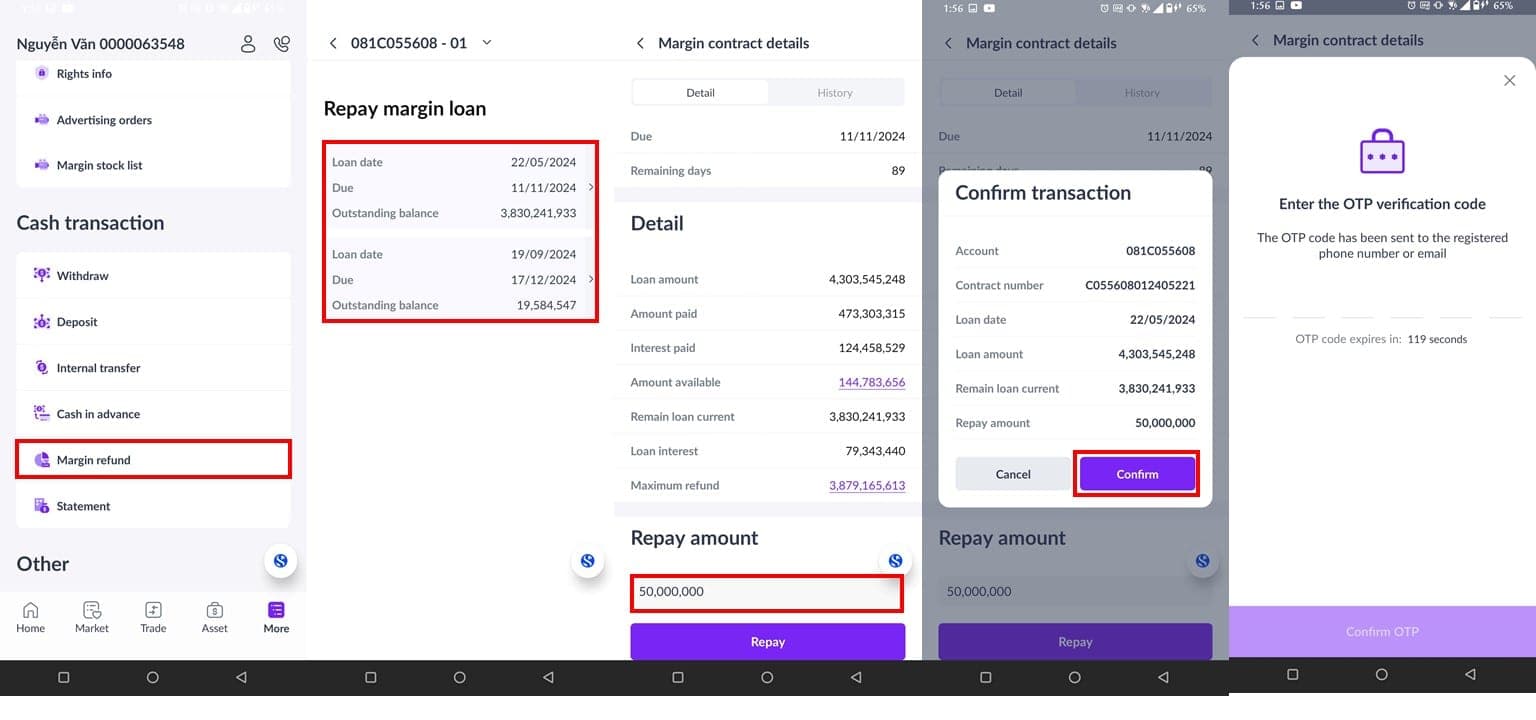
You can make partial or full repayments on your margin loan under the [Margin refund] section. To make a repayment, follow these steps:
Step 1: From the main screen, select [More].
Step 2: In the [Cash Transaction] section, select [Margin refund].
Step 3: Choose the trading account: [00 – Cash Sub-account], [01 – Margin Sub-account].
Step 4: Select the margin contract, and click on the “>” button to view contract details.
Step 5: Enter the repayment amount or click [Amount Available] or [Maximum refund] to automatically input the available repayment amount.
Step 6: Click [Repay], review the details, and enter the OTP to confirm the repayment.
Step 7: Review the history of repayment transactions under [History].
Notes:
You can select any contract for repayment. However, it's advisable to prioritize contracts nearing expiration to avoid penalty interest.
For foreign investors, this feature is not available as per current securities law regulations.
6. Transaction Statement
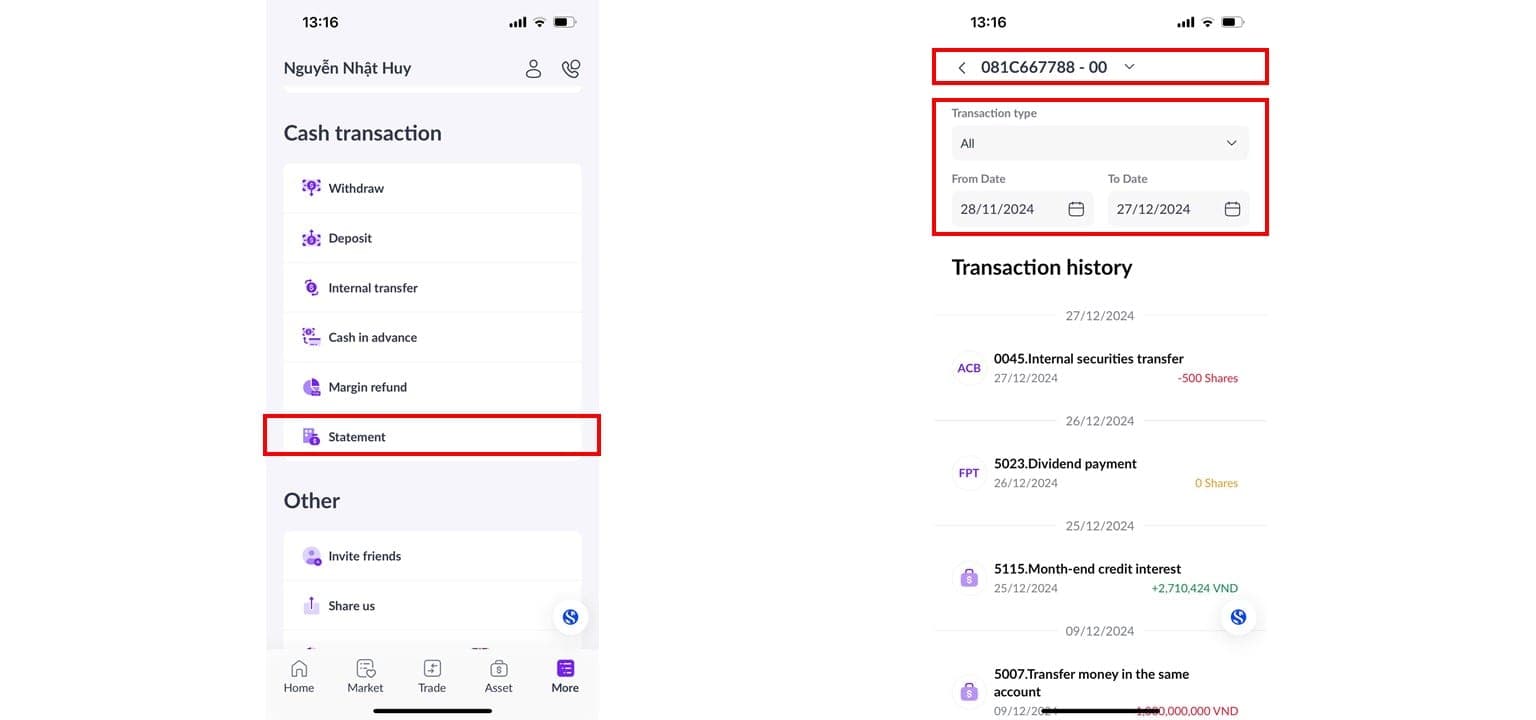
You can monitor the transaction history of your account under the [Statement] section. To proceed with tracking, please follow these steps:
Step 1: On the main screen, select [More].
Step 2: In the [Cash Transaction] section, choose [Statement].
Step 3: Select the transaction sub-account: [00 – Cash Sub-account], [01 – Margin Sub-account].
Step 4: Choose the type of transaction you wish to monitor, including: All - Securities Transactions - Cash Transactions.
Step 5: Select the time period you want to monitor.
Updated: 19 Sept 2026